
If you just need the Ziyoulang K6 working, start here. Most K6 variants use Fn + 1, Fn + 2, and Fn + 3 for Bluetooth slots, Fn + 4 for the 2.4G receiver, Fn + 5 or the cable for USB-C wired mode, Fn + Ins for lighting effects, and a long press of Fn + Esc for reset.
Use the printed card that came with your keyboard if it disagrees with this page. Ziyoulang K6 is sold in several marketplace variants, and some bundles use slightly different labels or firmware.
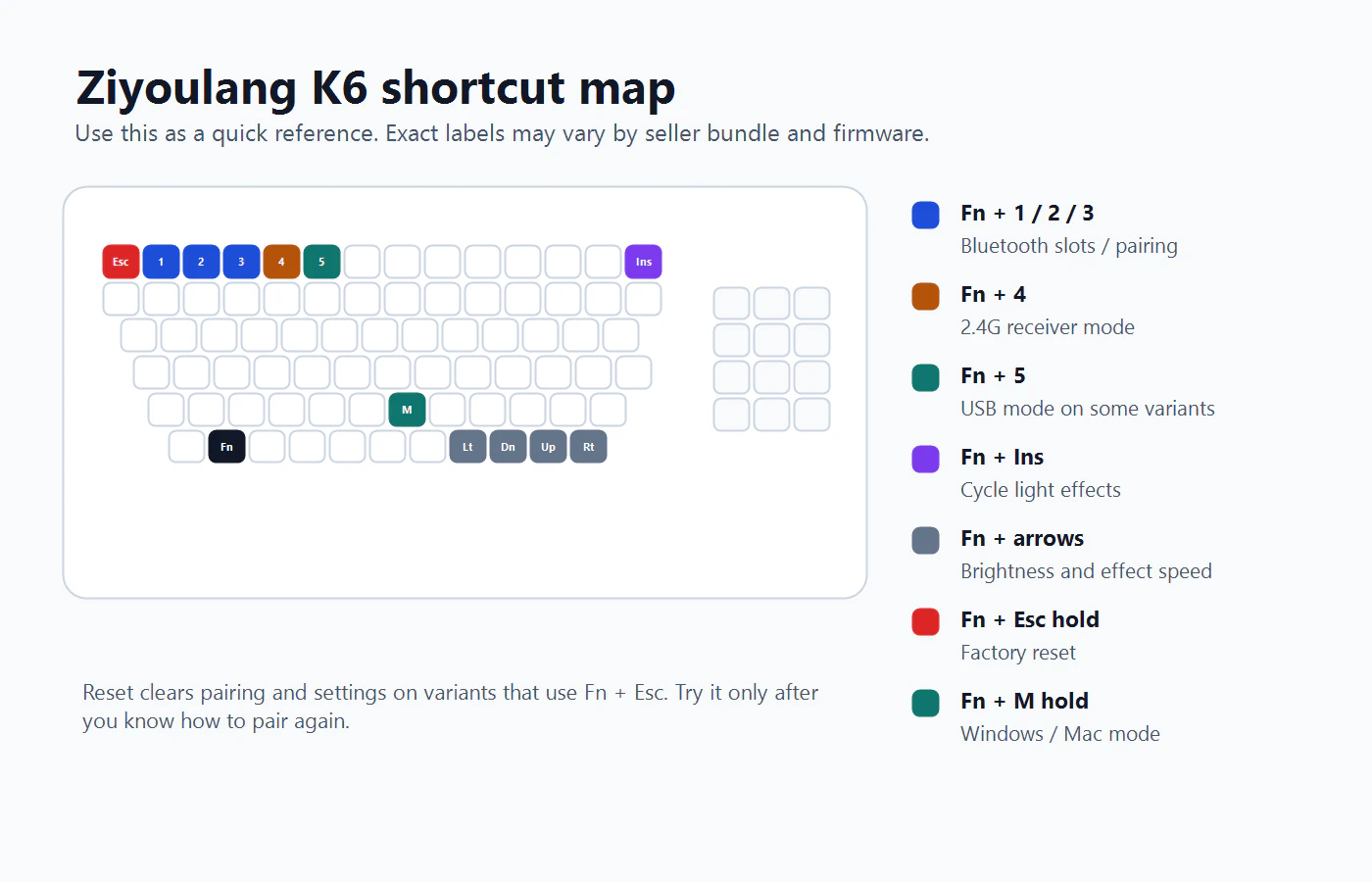
Quick Reference
| Task | Try this first | What should happen |
|---|---|---|
| Pair Bluetooth device 1, 2, or 3 | Hold Fn + 1, Fn + 2, or Fn + 3 | The selected Bluetooth slot should enter pairing mode. |
| Use the 2.4G receiver | Plug in the USB dongle, then press Fn + 4 if needed | The keyboard should connect through the receiver. |
| Use wired USB-C | Connect the USB-C cable; try Fn + 5 if the board stays on another mode | The keyboard should work as a wired USB keyboard. |
| Change lighting effect | Press Fn + Ins | The backlight effect changes. |
| Adjust brightness | Press Fn + Up or Fn + Down | Backlight brightness changes. |
| Adjust effect speed | Press Fn + Left or Fn + Right | Dynamic lighting slows down or speeds up. |
| Switch Windows/Mac mode | Hold Fn + M for about 3 seconds | Modifier-key behavior changes for the operating system. |
| Factory reset | Hold Fn + Esc for about 3 seconds | Settings and pairings may reset. Pair devices again afterward. |
Start With the Safe Setup Path
If the keyboard is acting strange, do not start by holding random reset shortcuts. Do this first:
- Confirm the exact board. Check the box, the underside sticker, and the printed shortcut card. If the card uses different labels than this page, trust the card.
- Test USB-C before wireless. Use a known data cable, not a charge-only cable. If USB-C works, the keyboard is alive and the problem is probably mode, pairing, receiver, battery, or host settings.
- Pick one wireless path at a time. For 2.4G, plug in the receiver and use
Fn + 4if needed. For Bluetooth, choose one slot withFn + 1,Fn + 2, orFn + 3. - Only reset after you know how to pair again. On common K6 variants, reset is a long press of
Fn + Esc, but a reset can clear saved pairings. Recheck the printed card before holding it.
This is the same logic a support person would use: prove the keyboard types over cable, then isolate the wireless mode.
Check That You Have the Right K6
This guide is for the Ziyoulang K6 family commonly sold as a compact full-size or 96/98% mechanical keyboard with about 100 keys, a number pad, USB-C, Bluetooth, and a 2.4G wireless receiver.
It is not a Keychron K6 manual. If your keyboard has a 68-key or 65% layout and uses Fn1 + Q/W/E for Bluetooth, you are probably looking at a different K6 model family. The fastest way to avoid wrong shortcuts is to check the box, the sticker under the keyboard, or the first page of the included manual.
Connection Modes
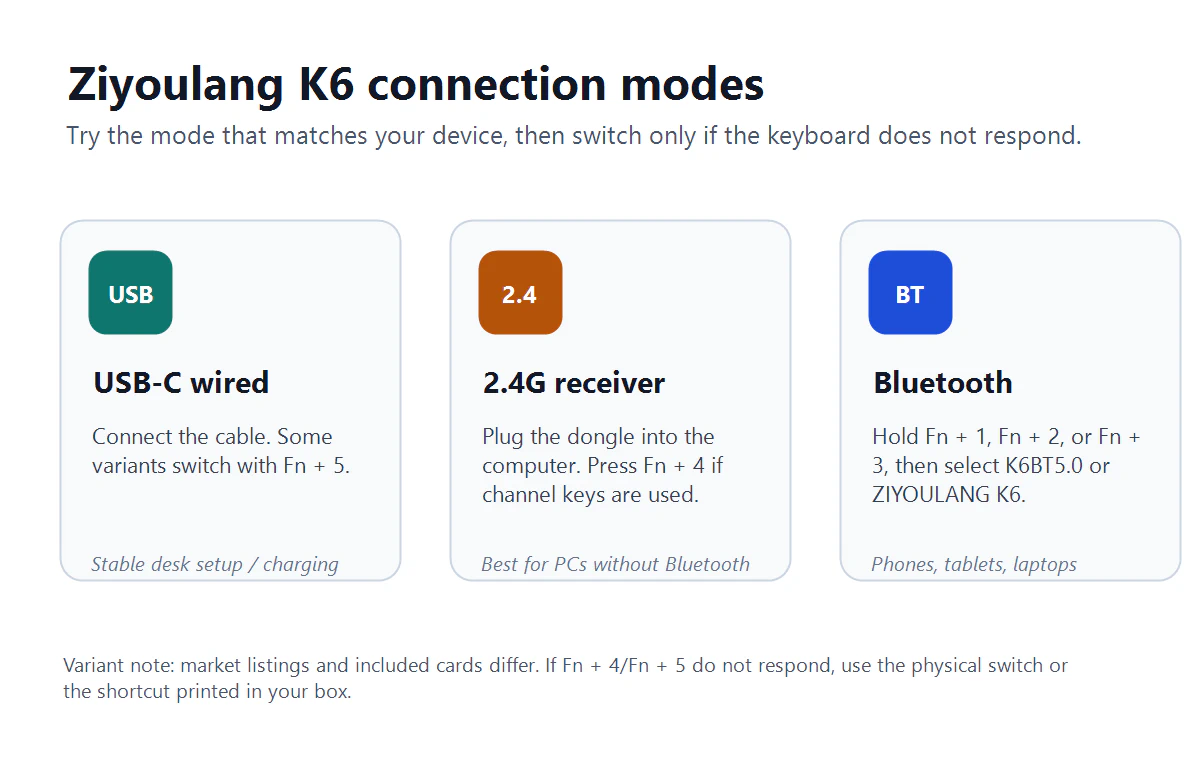
Bluetooth Pairing
- Turn the keyboard on.
- Hold
Fn + 1,Fn + 2, orFn + 3to choose a Bluetooth slot. - Open Bluetooth settings on your computer, tablet, or phone.
- Select
K6BT5.0,ZIYOULANG K6, or the closest K6 name shown by your device. - If pairing fails, remove the old K6 entry from the device’s Bluetooth list and repeat the pairing step.
Use a different slot for each device. For example, keep your laptop on Fn + 1, your tablet on Fn + 2, and your phone on Fn + 3. A short press on the same channel shortcut may switch back to that saved device after pairing.
If you cannot tell whether the keyboard is actually in pairing mode, watch the indicator behavior around the selected slot or check the printed card. Do not keep switching all three Bluetooth slots quickly; that makes it harder to know which saved host the keyboard is trying to reach.
2.4G Receiver Mode
- Find the small USB receiver. On many K6 units, it is stored in a slot on the underside of the keyboard.
- Plug the receiver into your computer.
- Turn the keyboard on.
- Press
Fn + 4if the keyboard does not connect automatically.
The 2.4G receiver is usually the easiest choice for a desktop PC without stable Bluetooth. Keep the receiver close to the keyboard if you see missed keystrokes or random disconnects.
USB-C Wired Mode
- Connect a USB-C data cable to the keyboard.
- Connect the other end to your computer.
- Try another USB port or cable if the keyboard only charges but does not type.
- On variants with channel shortcuts, press
Fn + 5to force USB mode.
Wired mode is the best troubleshooting mode because it removes Bluetooth pairing and 2.4G receiver variables from the problem.
Lighting And System Shortcuts
| Shortcut | Function | Notes |
|---|---|---|
Fn + Ins | Cycle backlight effects | Common across Ziyoulang K6 listings and user manual photos. |
Fn + Up | Increase brightness | If nothing changes, the battery may be low or the effect may already be at maximum. |
Fn + Down | Decrease brightness | Some variants also use the lowest level as an off-like state. |
Fn + Left | Decrease effect speed | Applies to moving effects, not static lighting. |
Fn + Right | Increase effect speed | Applies to moving effects, not static lighting. |
Fn + M hold | Switch Windows/Mac mode | Use this if Command, Alt, or Windows keys behave incorrectly. |
Fn + Esc hold | Factory reset | Clears settings on variants that use this reset command. |
Be careful with “RGB” claims. Some K6 listings call the backlight RGB or rainbow, while user reports show variants where the lighting effects change but individual color choice is limited. If your unit does not let you choose a fixed custom color, that may be a variant limitation rather than a fault.
Common Problems And Fixes
The K6 Does Not Appear In Bluetooth
Remove any old K6 pairing from your device, turn Bluetooth off and on again, then hold Fn + 1, Fn + 2, or Fn + 3 until the keyboard enters pairing mode. Search again for K6BT5.0 or ZIYOULANG K6.
If it still does not appear, charge the keyboard, move it closer to the device, and try a different Bluetooth slot. Bluetooth pairing often fails because the keyboard is already trying to reconnect to an old saved host.
The Keyboard Connects But Does Not Type
Switch to wired USB-C mode first. If wired mode works, the keyboard itself is alive and the problem is likely Bluetooth, the 2.4G receiver, or the host device.
For 2.4G, reseat the receiver and try another USB port. For Bluetooth, remove the saved pairing and pair again. If one key fails while the rest work, remove the keycap, check whether the hot-swap switch is fully seated, and try another switch if you have a spare.
The Backlight Does Not Work
Press Fn + Up a few times, then press Fn + Ins to cycle effects. If the keyboard is wireless, charge it before assuming the LEDs have failed; some wireless keyboards reduce or disable lighting at low battery.
If the lighting is stuck after a shortcut experiment, try the reset command from your printed manual. On common K6 variants, that is a long press of Fn + Esc.
Windows, Alt, Or Command Keys Are Wrong
Hold Fn + M for about 3 seconds to switch operating-system mode. Use Windows mode for Windows and most Linux PCs. Use Mac mode for macOS or iPad setups where Command/Option behavior matters.
Nothing Works After Changing Modes
Go back to the simplest path:
- Connect USB-C.
- Press
Fn + 5if your variant uses channel shortcuts. - Try another USB data cable.
- Hold
Fn + Escfor about 3 seconds to reset. - Pair Bluetooth or reconnect the 2.4G receiver again.
Do not use firmware files or remapping utilities meant for Keychron K6, K6 Pro, or other 65% keyboards. Similar model names do not mean compatible firmware.
If the keyboard connects but still will not type, or you cannot tell which wireless mode is active, use the support case Ziyoulang K6 connects but does not type, or will not pair before resetting it again.
What to Show When Asking for Help
If you ask a seller, community thread, or support contact for help, show the parts that identify the variant and the failing path:
- A photo of the keyboard layout from above.
- A photo of the printed shortcut card or manual page.
- A photo of the underside label, with any private order or serial details blurred.
- A screenshot of the Bluetooth device list showing the K6 name or failed pairing state.
- A short note saying whether USB-C typing works, whether the 2.4G receiver is present, and which
Fnshortcut you tried. - Your device and OS: Windows, macOS, Android, iPadOS, Linux, desktop PC, laptop, tablet, or phone.
That is much more useful than “my K6 does not connect.” It lets someone separate a dead battery, wrong K6 model, Bluetooth-slot confusion, missing receiver, charge-only cable, or wrong shortcut card.
Specs To Expect
| Feature | Common Ziyoulang K6 listing/spec |
|---|---|
| Layout | 96/98% compact full-size, commonly listed as 100 keys |
| Connection | USB-C wired, 2.4G wireless receiver, Bluetooth 5.0 |
| Switches | Mechanical, often blue or red switch options |
| Hot-swap | Commonly listed as hot-swappable on K6 variants |
| Backlight | Rainbow/RGB-style effects; color control varies by variant |
| Cable | USB-C, often listed around 1.6 m |
| Size | Common retailer listing: about 38 x 13.5 x 3.5 cm |
| Weight | Common retailer listings range around 0.85 kg to 0.89 kg |
Treat marketplace specs as variant-specific. The Ziyoulang K6 appears under different regional listings and co-branded pages, so your included manual and keyboard labels are more important than any single online spec sheet.
Before You Replace It
The K6 is a budget mechanical keyboard with unusually broad connectivity for the price, but its documentation can be thin and inconsistent. That is why the first checks should be simple: confirm the model, use the right mode shortcut, test USB-C, then reset only after you know how to pair again.
If you are deciding whether to keep the K6 or move to a better-documented board, our mechanical keyboard guide explains the tradeoffs between budget wireless boards, hot-swap models, and mainstream layouts.
Shopping note: the links below are affiliate links. Price2Click may earn a commission if you buy, at no extra cost to you.
FAQ
Is Ziyoulang K6 the same as Keychron K6?
No. Keychron K6 is a 65% keyboard with a different layout and different shortcut scheme. The Ziyoulang K6 covered here is typically a 96/98% keyboard with about 100 keys and tri-mode wireless/wired support.
What Bluetooth name should I look for?
Common names include K6BT5.0 and ZIYOULANG K6. The exact name can vary by firmware and seller bundle.
How do I turn off the lights?
Try lowering brightness with Fn + Down, then cycle effects with Fn + Ins. Some variants have a direct off state; others only lower brightness or switch to a less active effect.
Does the K6 need driver software?
For normal typing, no. USB-C, 2.4G, Bluetooth, lighting, and mode switching should work from keyboard shortcuts. Avoid random firmware or driver downloads unless the seller provides a file specifically for your exact K6 variant.
Final Safe Order
Use this order before you decide the keyboard is defective:
- Confirm it is the Ziyoulang K6 variant shown by your box, sticker, and printed shortcut card.
- Test USB-C typing with a known data cable.
- If USB-C works, choose one wireless mode:
Fn + 4for the receiver or one Bluetooth slot withFn + 1,Fn + 2, orFn + 3. - Remove old Bluetooth pairings before trying to pair the same slot again.
- Charge the keyboard before blaming lighting or wireless behavior.
- Use
Fn + Monly if the Windows/Alt/Command keys are swapped. - Use reset only after checking the printed card and saving the pairing steps you will need afterward.
- Avoid Keychron firmware, random drivers, and remapping files unless the seller supplies something for your exact Ziyoulang K6 variant.
The reason for all this caution is simple: Ziyoulang K6 appears under several marketplace listings and regional bundles, and a single official manufacturer-hosted manual is not easy to verify. Common retailer specs and user manual photos line up on the main shortcuts above, but your own printed card is still the best authority for your exact unit.