
Microsoft is replacing the Secure Boot certificates that many Windows PCs have trusted since 2011. Two of those old certificate authorities start expiring in June 2026, and the Windows boot certificate follows in October 2026.
That sounds like a timer attached to every PC. It is not quite that. Microsoft says unsupported certificate state should not make a normal PC instantly stop booting on June 1, 2026. The more realistic risk is quieter but still important: a PC that misses the 2023 certificate refresh may stop being eligible for future early-boot protections, boot-manager security updates, revocations and recovery-media changes.
So the right move is not panic. The right move is to check now, update safely, and avoid breaking your own recovery path.
Quick Answer
Install Windows updates, restart, then check Windows Security
Most supported home Windows devices should receive the 2023 Secure Boot certificates through Windows Update. After updating, open Windows Security > Device security > Secure Boot and read the status text, not just the color of the icon.
Do not disable Secure Boot as a “fix.” Do not reset Secure Boot keys or force revocations unless you know exactly why and have recovery media that still boots.
If You Only Need the Safe Answer
For a normal home PC, the safe answer is boring on purpose:
- Install Windows updates.
- Restart until Windows Update no longer says a restart is pending.
- Open Windows Security > Device security > Secure Boot and read the certificate status message.
- Open
msinfo32and confirm BIOS Mode and Secure Boot State. - Save your BitLocker recovery key before any firmware, Secure Boot, CSM, UEFI, boot-order or recovery-media work.
- If Windows says firmware or manufacturer action is needed, use the exact laptop/desktop/motherboard support page, not a random BIOS video.
If the PC is managed by work or school, stop there and ask IT. If it is a dual-boot, PXE, WinPE, VM or old custom machine, treat it as a planned maintenance task, not a casual home update.
If you ask someone for help, send screenshots of Windows Security’s Secure Boot certificate status, msinfo32 System Summary, Windows Update history/restart state, and the exact device or motherboard model. Blur computer name, product IDs, serial numbers, Microsoft account email, BitLocker key IDs and any recovery key.
Will My PC Stop Working in June 2026?
For most supported Windows 10/11 PCs, the answer should be no. Microsoft describes the 2026 certificate expiration as a security and servicing transition, not a universal boot failure date.
The risk depends on what the PC needs to do after the old certificates expire:
A supported Windows 11 PC that gets Windows Update normally, has recent firmware, Secure Boot on, and Windows Security says all required certificate updates are applied.
A PC that has not been restarted in months, has old BIOS/UEFI firmware, uses BitLocker, relies on old USB recovery media, or shows a yellow/red Secure Boot certificate status.
Managed fleets, old custom desktops, unsupported Windows 10 systems, PXE/WinPE environments, dual-boot systems, VMs, or machines where the OEM firmware cannot accept the 2023 trust updates.
The misleading version of this story is “Windows PCs will brick when certificates expire.” The more useful version is: your PC may keep booting, but the early-boot trust chain has to move from 2011 certificates to 2023 certificates if you want future Secure Boot protection to keep working.
Check Your PC in 5 Minutes
Start with the safe checks. These do not change Secure Boot databases, firmware keys or BitLocker state.
1. Install Windows Updates and Restart
Open Settings > Windows Update, install available security/cumulative updates, and restart when prompted. Microsoft is delivering the Secure Boot certificate refresh through normal servicing for many supported devices.
If you normally postpone restarts, this is one of the times where postponing can hide the real state. Several Secure Boot update steps require a reboot before the next state appears.
This is the same boring maintenance principle we use in broader digital hygiene guides: keep the trust path current before you need it. If you are refreshing a whole setup, our home cybersecurity checklist and home Wi-Fi firmware guide cover adjacent update habits.
2. Open the Secure Boot Status Screen
Open Windows Security, then Device security, then Secure Boot.
Look for the message text. Microsoft warns that a green icon alone is not enough; the fully updated state needs wording that the required certificate updates and the updated Boot Manager have been applied.
If Windows Security says updates are pending, install Windows updates and restart again. If it says your device needs firmware or manufacturer action, go to your PC maker’s support page before trying registry fixes.
For home users, this screen is now the most reader-friendly checkpoint. Starting in 2026, Microsoft uses it to show whether the Secure Boot certificate update is current, still pending, blocked by firmware, or needs manufacturer help. Do not judge only by a green shield icon; read the message.
3. Confirm Secure Boot Is On
Press Win + R, type msinfo32, and open System Information.
Check these rows:
| Field | What you want | What it means |
|---|---|---|
| BIOS Mode | UEFI | Secure Boot depends on UEFI boot, not legacy BIOS boot. |
| Secure Boot State | On | Secure Boot is currently enabled. |
| PCR7 Configuration | Usually Binding Possible or Bound | Useful context for device encryption/BitLocker, but not a full certificate-status check by itself. |
This screen confirms the Secure Boot state. It does not prove all 2023 certificates are installed.
4. Optional PowerShell Check
Open PowerShell as administrator and run:
Confirm-SecureBootUEFI
True means Secure Boot is enabled. False means it is off. An error usually means the command cannot read UEFI Secure Boot on that platform.
This is useful, but it is still not the full story. Certificate readiness is better checked through Windows Security status, Microsoft admin status values, and event logs.
Which Path Fits You?
What Is Actually Expiring?
Secure Boot is a firmware-level trust system. Before Windows starts, UEFI firmware checks whether early boot components are signed by trusted certificate authorities. Those trust databases live in firmware/NVRAM, not just in a Windows folder.
Here is the simplified map:
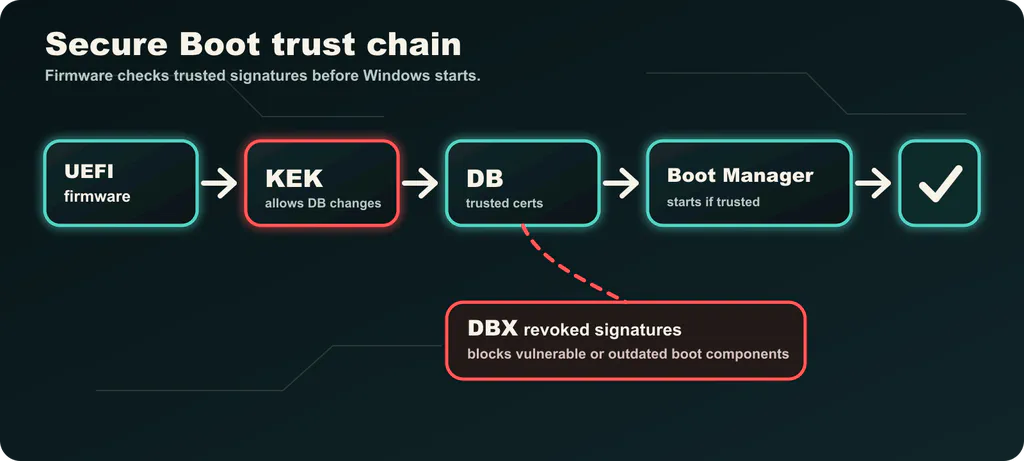
The old 2011 certificates are being replaced with 2023 certificates:
| Purpose | Old certificate | Replacement | Expiration pressure |
|---|---|---|---|
| Authorizes Secure Boot database updates | Microsoft Corporation KEK CA 2011 | Microsoft Corporation KEK 2K CA 2023 | June 2026 |
| Trusts Windows Boot Manager | Microsoft Windows Production PCA 2011 | Windows UEFI CA 2023 | October 2026 |
| Trusts third-party UEFI apps/loaders | Microsoft UEFI CA 2011 | Microsoft UEFI CA 2023 | June 2026 |
| Trusts option ROMs, such as some device firmware boot components | Microsoft UEFI CA 2011 | Microsoft Option ROM UEFI CA 2023 | June 2026 |
The 2023 structure is more granular. Instead of one old UEFI CA covering several jobs, Microsoft separates Windows boot, third-party EFI apps and option ROM trust more clearly.
Why BlackLotus and KB5025885 Keep Coming Up
You will see two related stories mixed together:
- The 2026 certificate refresh. Old Secure Boot certificate authorities are expiring, so PCs need the 2023 trust chain.
- CVE-2023-24932 / BlackLotus hardening. Microsoft has also been preparing revocations and Boot Manager changes to block vulnerable signed bootloaders used by bootkits.
They are connected because both touch Secure Boot trust databases and Boot Manager signatures. They are not the same task.
The practical difference matters. Checking for 2023 certificates is a sensible home-user step. Forcing DBX revocations or registry-driven enterprise mitigations without preparation can break old boot media, recovery environments, PXE workflows or dual-boot paths. Microsoft still documents the CVE-2023-24932 revocation process separately, and its permanent enforcement timing should be treated as Microsoft-controlled, not guessed.
What Not to Do
That hides the status problem and weakens early-boot protection.
Some older firmware defaults may not include the 2023 certificates. Resetting keys after Windows moves to a 2023-signed Boot Manager can create a boot problem.
Old WinRE, WinPE, PXE, install USBs and dual-boot loaders can fail if they still depend on revoked 2011-signed components.
Save recovery keys before firmware or Secure Boot work. If a change trips recovery, you do not want to discover the key is missing.
BitLocker, Recovery Media and USB Installers
BitLocker and Secure Boot are close friends. That is good for security, but it means firmware and boot-trust changes can trigger a recovery prompt.
Before changing BIOS/UEFI settings, resetting Secure Boot keys, or applying admin-led Secure Boot servicing, save your BitLocker recovery key. On many Windows 11 PCs, the path is Settings > Privacy & security > Device encryption > BitLocker drive encryption. You can also sign in to your Microsoft account recovery-key page if that is how your device stores it.
For small offices, export and validate recovery keys before the pilot, not after the first reboot.
Recovery media is the other trap. A Windows install USB, WinRE image, WinPE stick or PXE boot image created before the 2023 Boot Manager transition may not boot after certain revocations are applied. Admins should rebuild or update recovery media with current Windows servicing tools before broad deployment. Home users should recreate recovery/install media from current Microsoft tools rather than keeping a years-old USB as the only rescue path.
If the issue is no longer theoretical, narrow it by symptom first: use our BitLocker recovery-key support case if the PC is already asking for recovery, or the Secure Boot status mismatch case if firmware says Secure Boot is enabled but Windows reports off or unsupported.
OEM Firmware: When the PC Maker Matters
Windows Update can deliver a lot, but Secure Boot databases ultimately live in firmware. If the firmware cannot accept the right updates, Windows may report a blocked or limited state.
For laptops and desktops from major OEMs:
| Maker | Practical next step |
|---|---|
| Dell | Check Dell Update/SupportAssist and the model support page. Dell says client BIOS updates after January 1, 2026 include the 2023 certificates. |
| HP | Use HP Support Assistant or the model support page and look for BIOS/UEFI updates related to Secure Boot certificates. |
| Lenovo | Use Lenovo Vantage or the support page; for enterprise models, check deployment notes for Windows Boot Manager and WinPE updates. |
| ASUS | ASUS says Windows Update is preferred; BIOS/manual key reset is mainly for cases where Windows cannot obtain or apply the update. |
| Custom motherboard | Check the exact board model and BIOS release notes. Search for terms like Windows UEFI CA 2023, Secure Boot certificate, UEFI CA, KEK, DB, DBX or BlackLotus. |
Only install firmware from the device or motherboard maker. Random “BIOS updater” tools are not a shortcut.
Custom desktop owners should treat this as part of the motherboard support story, not just a Windows checkbox. If you are rebuilding or replacing an older machine, our custom PC build guide is the broader hardware-planning companion.
Small-Office and IT Admin Checklist
If you manage more than a few PCs, do not treat this as a one-click consumer update. Treat it like a firmware-adjacent rollout.
- Inventory models, BIOS/UEFI versions, Secure Boot state and Windows support status.
- Make sure BitLocker recovery keys are escrowed and recoverable.
- Update firmware first for hardware groups that need it.
- Pilot at least several devices per model/firmware category.
- Use Microsoft-documented status values and events to verify progress.
- Rebuild or validate WinRE, WinPE, install USB and PXE media.
- Document rollback and recovery steps before applying broad revocations.
Microsoft documents registry-driven enterprise triggering through AvailableUpdates, the \Microsoft\Windows\PI\Secure-Boot-Update scheduled task, and status values under HKLM\SYSTEM<wbr>CurrentControlSet<wbr>Control<wbr>SecureBoot<wbr>Servicing.
Do not paste enterprise registry commands into random devices because a forum post said they worked. Microsoft notes that Secure Boot servicing can take time, may require restarts, and can be blocked by firmware, BitLocker state or missing prerequisites.
Useful System log source for admins:
TPM-WMI
Useful event IDs include:
| Event ID | Meaning in plain English |
|---|---|
| 1036 | Secure Boot DB update applied. |
| 1043 | KEK update applied. |
| 1044 | Microsoft Option ROM UEFI CA 2023 installed. |
| 1045 | Microsoft UEFI CA 2023 installed. |
| 1799 | 2023-signed Windows Boot Manager installed. |
| 1800 | Reboot required. |
| 1801 | Updated certificates are not yet applied to firmware. |
| 1802 | Blocked because of a known firmware issue. |
| 1803 | Missing OEM PK-signed KEK; Microsoft says Windows cannot work around some of these cases. |
| 1808 | Fully updated. |
Windows 10, Windows 7 and Older PCs
Windows 10 reached end of support on October 14, 2025 for normal consumer support. Some users and organizations can continue through Extended Security Updates, but an unsupported Windows 10 PC is not where you want to depend on future boot-chain servicing.
If you are on Windows 10:
- check whether the device is enrolled in ESU or otherwise still receiving security updates;
- install all available servicing updates and restart;
- check whether Secure Boot is on and whether Windows Security reports certificate status;
- update firmware from the OEM if the device is still supported;
- make a plan to move off unsupported hardware/software if the PC cannot receive required firmware or Windows servicing.
For a very old PC that cannot run Windows 11 and has no meaningful OEM firmware support left, the honest answer may be replacement, not a registry workaround.
What to Send Before Anyone Touches Firmware
If you want a second opinion, send a small, privacy-safe set of proof:
- Windows Security > Device security > Secure Boot certificate status message.
msinfo32System Summary showing BIOS Mode, Secure Boot State, System Manufacturer and System Model.- Windows Update page showing whether a restart or failed update is pending.
- The exact BIOS/UEFI version if your OEM update app shows it.
- Whether BitLocker/device encryption is on and whether the recovery key is saved. Do not send the key itself.
- Your situation: home PC, work/school PC, small-office fleet, dual boot, VM, old Windows 10, or Windows 7/legacy machine.
That gives a helper enough context to say “keep updating and restart,” “check the OEM BIOS page,” “do not touch this because it is managed,” or “this is legacy risk planning.” It also avoids the bad pattern where someone sees one warning and starts resetting Secure Boot keys.
If You Still Have Windows 7
Windows 7 is a different situation from Windows 10 or Windows 11. Microsoft ended normal Windows 7 support on January 14, 2020, and the mainstream Windows 7 Extended Security Updates program ran only through January 10, 2023. Some embedded, medical, industrial or point-of-sale systems may still exist in the real world, but that does not make them good candidates for a normal Windows Update-driven Secure Boot certificate refresh.
For a Windows 7 machine, use this rule:
Many Windows 7 installations use legacy BIOS/CSM boot or old UEFI boot assumptions. Turning on Secure Boot or resetting firmware keys can leave the machine unable to boot.
A motherboard or laptop may receive newer firmware certificates, but the unsupported Windows 7 OS still lacks current Windows security servicing.
If the machine controls a tool, register, lab device or old business app, document what it does, back it up, isolate it from the internet, and plan a supported replacement path.
Practical Windows 7 checklist:
- Keep a full disk image and a tested restore path before touching firmware.
- Do not change Secure Boot, CSM, UEFI mode or TPM settings unless you have tested the exact boot path on spare hardware or a cloned drive.
- Remove general web browsing, email and daily user work from that machine.
- Put it on a restricted network/VLAN or keep it offline if the workflow allows.
- Use a firewall allowlist for only the servers or devices it must reach.
- Replace unsupported remote-access tools and block inbound access where possible.
- Ask the software/hardware vendor for a supported OS path; for old industrial gear, this may mean a vendor image, a VM plan, or hardware replacement.
If the machine is important enough that “just upgrade” is not realistic, it is important enough to treat as an operational risk, not as a normal home PC.
Linux Dual Boot, PXE and VMs
Dual-boot systems need more caution than single-boot Windows PCs. Many Linux distributions use a Microsoft-signed shim bootloader to participate in Secure Boot. The exact transition to 2023-signed components depends on the distribution, shim package and firmware trust database.
Practical approach:
- update Windows and your Linux distribution before changing Secure Boot trust;
- confirm your distro’s Secure Boot/shim guidance;
- do not apply broad DBX revocations until you know both boot paths still work;
- keep a current recovery USB for each OS.
PXE and WinPE environments are similar. If your network boot or deployment media still depends on old 2011-signed boot components, revocation steps can break it.
VMs also deserve a check. Hyper-V hosts and guests need current Windows servicing for the certificate refresh path. If you manage VMware or other virtualization platforms, read the vendor notes before applying Secure Boot revocations broadly.
The Terms Without the Fog
| Term | Plain-English meaning | Why you care |
|---|---|---|
| Secure Boot | A UEFI feature that checks boot software signatures before Windows starts. | It blocks some bootkits and unauthorized early boot code. |
| UEFI | Modern firmware interface that replaced legacy BIOS on most PCs. | Secure Boot depends on UEFI mode. |
| KEK | Key Exchange Key. It authorizes changes to Secure Boot trust databases. | If KEK trust is stale or missing, updates can fail. |
| DB | Allowed signatures database. | Contains certificates and hashes that firmware trusts. |
| DBX | Forbidden signatures database. | Blocks known-bad or revoked boot components. |
| Windows UEFI CA 2023 | New certificate used for Windows Boot Manager trust. | Windows needs it for the 2023 boot chain. |
| Microsoft UEFI CA 2023 | New certificate for third-party UEFI apps/loaders. | Relevant for non-Windows boot paths and tools. |
| Option ROM UEFI CA 2023 | New certificate for certain device firmware boot components. | Relevant for hardware that boots through option ROM paths, such as some network/storage devices. |
| Boot Manager | The early Windows component that starts the OS. | Old vulnerable boot managers are part of the BlackLotus hardening story. |
A Sensible Plan for the Next Week
For a normal home PC, do this:
- Back up important files.
- Save your BitLocker recovery key if device encryption is on.
- Install Windows updates.
- Restart until no restart is pending.
- Check Windows Security > Device security > Secure Boot.
- Check your OEM update app for BIOS/UEFI updates if Windows reports a firmware problem.
- Recreate any old Windows recovery/install USB with current Microsoft tools.
For a small office, add inventory, pilot groups, event monitoring and recovery-media validation before touching broad revocation settings.
The calm version is also the serious version: update normally, verify the actual certificate status, and do not turn a manageable certificate transition into a self-inflicted boot problem.
Final Safe Order
Use Microsoft’s Secure Boot certificate overview, Windows Security status page, and Windows IT Pro playbook as guardrails for the exact wording and rollout state. But for a normal reader, the operating order is simpler:
- Keep Windows current.
- Restart and check the Windows Security certificate status message.
- Save recovery keys before firmware work.
- Check the exact model and OEM update notes if Windows reports firmware action.
- Rebuild old recovery media before revocations or fleet changes.
- Do not reset keys, disable Secure Boot, toggle CSM/UEFI or flash BIOS just because a warning exists.
If the machine is old enough that the OEM no longer supports firmware updates, plan around that reality instead of forcing registry workarounds.