
Buying a thin laptop in 2026 starts with a simple worry: what if you drop a grand on a gorgeous machine, open it up, and realize you hate it?
Maybe you went with a Snapdragon chip to get that marathon battery life, only to find your school’s secure browser or office VPN flat-out refuses to install on ARM. Or maybe you chose a sleek, port-free design, and now your desk is a tangled nightmare of dongles because you need to plug in a mouse, a monitor, and a backup drive.
We are past the point where you can just buy the thinnest thing in the store and assume it will fit your life. A smart purchase starts with 16GB of memory, 512GB of storage, the operating system your software actually demands, and a return policy that lets you bail if the laptop fights you. Everything else is just details.
Start With What Has To Work
Do not begin with a brand fight. Begin with the thing that would make the purchase fail.
Grab a 16GB / 512GB machine that matches your apps first
That range buys you a modern, fast machine without falling into the 8GB memory trap or storage limits. Pay more only when you need a brighter display, lighter chassis, specific ports, or a better warranty.
Do The 10-Minute Fit Check
Before comparing model names, open a note on your phone and write down the few things that would make the laptop a regret purchase. This is not busywork. It keeps you from buying a beautiful machine that fails on one boring daily detail.
What Counts As An Ultrabook Now
The old Intel trademark is dead, but the word stuck. Today, when people say “ultrabook,” they just mean a premium thin-and-light laptop. Something you can slide into a backpack without throwing your back out, that runs fast, looks sharp, and charges over USB-C.
The catch is that “thin and light” is an easy cover for cost-cutting. A laptop can be incredibly thin and still ship with a dim display, a mushy keyboard, or soldered memory that leaves you trapped with 8GB forever.
Do not buy the marketing label. Look at the tradeoffs.
These machines are great for:
- students who carry a laptop all day
- writers, analysts, managers, consultants, and office workers
- travel, classes, meetings, cafe work, and home desks
- browser work, documents, video calls, email, light coding, and light photo edits
- people who value quiet, battery life, and a good keyboard more than raw sustained power.
They are the wrong choice if you:
- play heavy games or run high-refresh esports as your main job
- render 3D, run CAD, or export long 4K videos
- compile huge codebases or run local AI models regularly
- need lots of built-in ports every day
- expect to upgrade RAM later.
Thin laptops are still a tradeoff. A thicker laptop can move more air, hold higher power for longer, and fit more ports. That is not a failure of ultrabooks. It is the deal you should knowingly accept.
Choose The System Before The Chip
Intel, AMD, Qualcomm, and Apple: the chip names are a total mess. AMD has Ryzen AI 300 and 400. Intel has Core Ultra Series 2 and 3. Qualcomm has Snapdragon X and X2. Apple has M4 and M5.
Do not start by comparing NPU scores or benchmark charts. Start with the software you run every single day.
Here is how the main buying lanes shake out in practice:
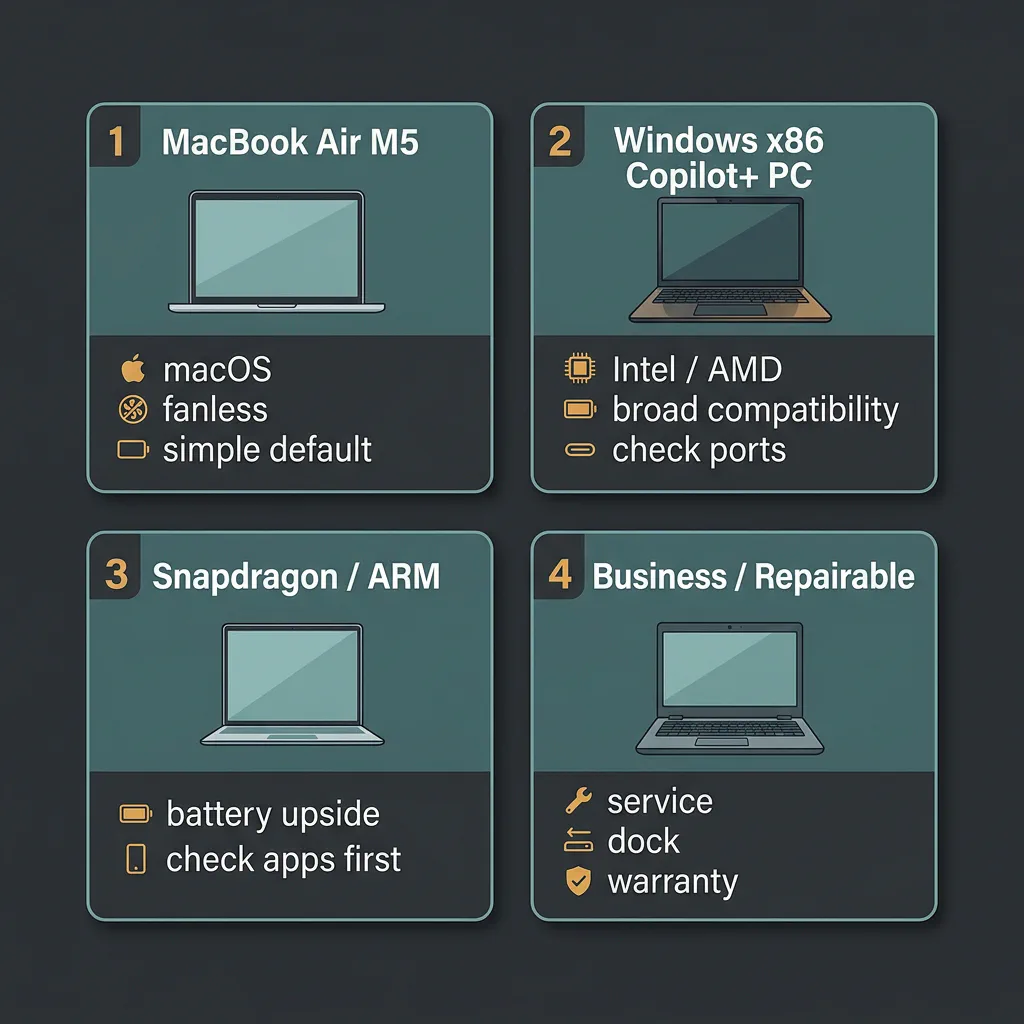
Four buying lanes designed for different user priorities: macOS simplicity, broad Windows compatibility, Snapdragon battery runtime, or business serviceability.
| Buying Path | Best for | Watch out | Must check | Next step |
|---|---|---|---|---|
| MacBook Air M5 | macOS users, silent fanless run, and great resale value. | External-display limits and expensive upgrades. | Avoid old 8GB/256GB clearance models unless the job is truly basic. | MacBook Air guide |
| Windows x86 (Intel/AMD) | Maximum app compatibility, touchscreens, and 2-in-1s. | Battery life and fan noise depend on the chassis, not only the chip. | Exact CPU generation, display brightness, ports and return window. | Keep your app list next to the spec sheet |
| Snapdragon ARM | Marathon battery life and cool, quiet browsing or document work. | Some games, VPNs, drivers and older utilities will not run. | Verify ARM64 support for your work or school stack before buying. | Test VPN, printer and browser tools during the return window |
| Business / Repairable | Service parts, tougher keyboards, IT support and longer ownership. | Slightly thicker and less sleek than consumer models. | Battery, SSD and memory serviceability for the exact model. | Compare ThinkPad, Latitude and Framework-style routes |
| Gaming / Workstation (Skip Ultrabook) | 3D rendering, AAA gaming, and heavy code compilations. | Poor battery life, heavy power brick, loud fans. | Thermals, GPU power limits (TGP), ports and charger weight. | Buy a thicker performance laptop instead |
MacBook Air M5 (The macOS Default)
If you are locked into macOS, the choice is simple. The MacBook Air M5 starts with a solid 16GB of RAM and 512GB SSD as its baseline configuration, so the base model is no longer an obvious storage trap. It is silent, thin, and has Wi-Fi 7.
But what about the M4 Air? With the launch of the M5, M4 models are hitting clearance shelves. Here is how to weigh that choice:
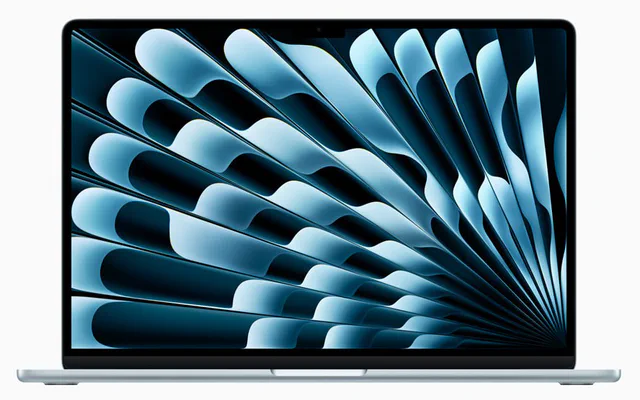
MacBook Air M4 (Clearance)
Buy if you find a major price cut and do not mind older Wi-Fi or managing a smaller base SSD.
- Often $150 to $200 cheaper
- Same chassis and display
- Verify it has 16GB memory

MacBook Air M5 (Default)
Buy if you want 512GB standard storage and Wi-Fi 7 support without paying Apple’s upgrades tax.
- 512GB baseline SSD
- Wi-Fi 7 and Bluetooth 6.0
- Longer support runway
Windows x86: Standard Intel or AMD Compatibility
For Windows apps, touchscreens, or 2-in-1 designs, stay with standard Intel Core Ultra Series 3 or AMD Ryzen AI 400 chips. These are traditional x86 processors. They do not have compatibility issues—everything from your legacy accounting software to your favorite mouse driver will work out of the box.
Battery life has improved a lot, but x86 laptops still run warmer than Apple Silicon or Snapdragon machines. Under heavy loads, you will hear the fans kick in.
Snapdragon ARM: Battery Dream, App Checklist Required
Qualcomm’s Snapdragon X and X2 processors are incredible for battery life. You can easily get 15 to 18 hours of real web-browsing and document work on a charge, and the laptop stays cool and quiet.
The catch is that Snapdragon runs on ARM. While Windows handles most everyday x86 apps through emulation, some things refuse to work. Niche business tools, corporate VPN clients, kernel-level anti-cheat games (like Valorant), and older hardware drivers (like that office scanner from 2018) are common dealbreakers.
Check the software you need for work or school before you buy. If the vendor does not clearly support Windows on ARM, treat that as a purchase risk. A laptop that gets 18 hours of battery but cannot run your exam browser, VPN or scanner software is not a bargain.
Business and Repairable Designs
If you hate the idea of throwing away a laptop because a single key died or the battery degraded, skip the consumer models. Look at business lines like the Lenovo ThinkPad T-series or the modular Framework 13. They are slightly thicker, but they offer replacement parts, service manuals, and easy access to the storage and battery.
Do Not Buy The Sticker (The Copilot+ NPU Reality)
According to Microsoft’s Copilot+ specifications, a Copilot+ PC must have an NPU (Neural Processing Unit) capable of at least 40 TOPS. This unlocks features like local image generation, live captioning, and advanced search.
It does not make the keyboard less mushy. It does not make a dim, reflective screen readable outside. And it does not improve battery life by itself.
Treat the Copilot+ badge as a sign that you are buying a current-generation platform. Do not buy it expecting the AI features to change your daily workflow. Focus on the screen, the keyboard, and the ports first.
Cheap Configurations That Hurt Later
Thin laptops punish skimpy configurations because you cannot upgrade them later. Here is what to avoid:
Avoid these for a primary machine in 2026. Soldered 8GB RAM will struggle with multitasking, heavy web sessions, and local app workloads within a year or two.
Manageable if you store everything in the cloud, but easily filled by system caches, offline files, and phone backups.
Make sure the ports support charging and video output. Some budget laptops use USB-C shapes for slow data transfer only.
Watch out for "Core i7" labels that hide 3-year-old chips. Verify the exact processor model before calling it a discount.
For most buyers, 16GB memory and 512GB SSD is the comfort baseline. Go higher if the laptop will keep a giant browser session, large photos, code projects, virtual machines, music libraries or offline media. Go lower only when the price is low, the job is simple and you are honest about the shelf life.
If you are comparing a current laptop to your old Windows machine, check the exact specs first with the Windows PC specs guide. A vague listing is how bad purchases sneak in.
The Screen Can Be The Trap
OLED displays look gorgeous in a showroom. The contrast is perfect, and colors pop.
But OLED comes with traps. It is glossier, which means more glare. It draws more power on bright white backgrounds, which cuts your battery life. And if you work with static spreadsheets or text documents all day, burn-in remains a small, long-term risk.
If you write or browse for hours under harsh office lights, a matte IPS display is often more comfortable and keeps battery consumption low.
Also, watch the brightness. A screen rated below 350 nits is hard to read near a window or outdoors. Look for 400 nits or higher if you plan to travel. Touchscreens are useful if you take handwritten notes, but they add weight, drain battery, and increase screen reflection.
Ports Matter When You Are Already Late
A minimalist design looks great on a desk until you need to present at a meeting and realize you left your adapter at home.
Before choosing, count what you need to plug in on a normal day:
- External monitors: does the USB-C port support DisplayPort Alt Mode, and how many displays are allowed?
- HDMI TVs or projectors: do you need a built-in HDMI port for meetings?
- USB-A security keys or mouse receivers: will one adapter live in your bag forever?
- SD cards from cameras: is a built-in reader worth more than a thinner edge?
- Wired headphones or Ethernet: do you need them for calls, travel or office desks?
- Power charger: can you charge from either side, or only from one awkward port?
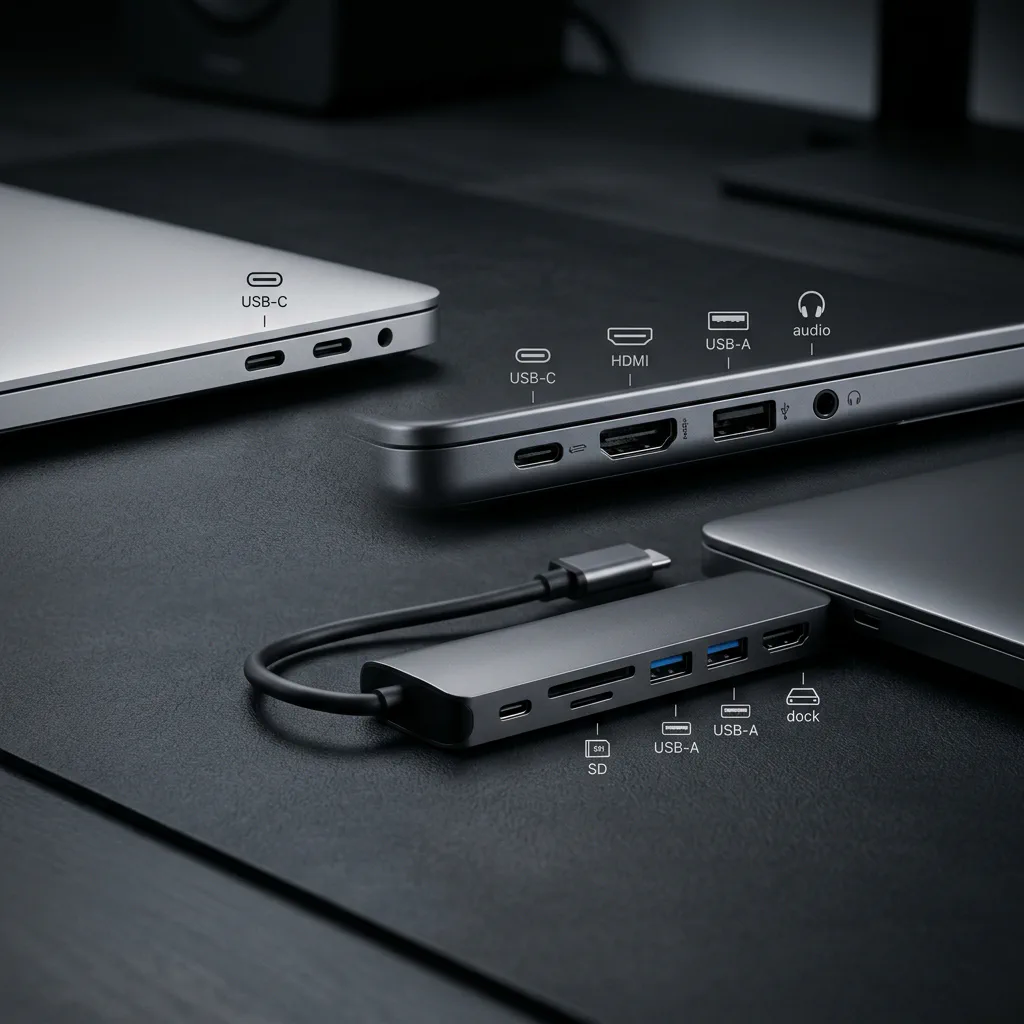
Port variety prevents dongle clutter. Make sure your daily accessories match the side ports before checkout.
Some laptops support multiple monitors out of the box; others restrict you to a single external display. If you have to spend another $100 on a hub just to make your desk work, factor that into the laptop’s price.
Battery Claims Need Translation
When a brand promises “20 hours of battery life,” assume it is a best-case number. Real work is messier.
In the real world, Chrome tabs, Zoom calls, Slack and a bright screen eat battery fast. For normal office multitasking on many x86 machines, plan around a shorter day than the headline claim. Apple Silicon and Snapdragon ARM systems often come closer to their marketing numbers, but screen brightness is still the biggest variable.
Thermals are the other side of this. A thin laptop will throttle (slow down) to keep from overheating during long video renders or gaming sessions. If you need sustained speed, you want a thicker chassis with active cooling fans.
Choose The RAM Before It Is Soldered
In thin laptops, what you buy is what you keep.
Unified memory and LPDDR RAM are soldered directly to the motherboard. If you buy 8GB, it is 8GB forever.
Storage is a bit more flexible. Some Windows machines still use standard M.2 slots, but getting to them requires unscrewing the bottom panel and risking your warranty. Many models solder the SSD too.
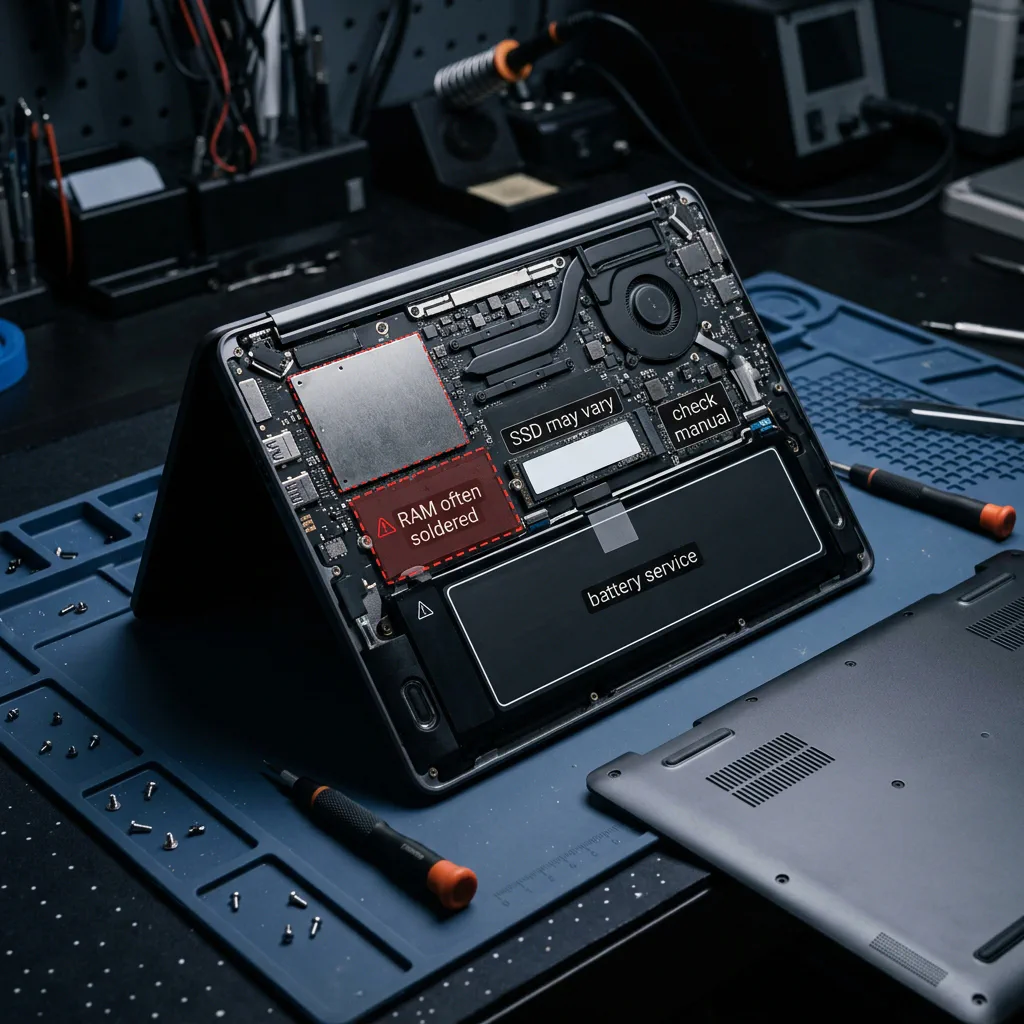
Soldered RAM cannot be upgraded later. Always verify the upgrade rules for the exact model before checking out.
If you plan to keep the laptop for more than three years, check if the brand offers official replacement batteries and repair manuals. Otherwise, a dead battery means a dead laptop.
What The U.S. Price Bands Really Mean
Prices checked May 19, 2026.
Before You Click Buy
A cheap listing can hide configuration traps. Before you click checkout, make sure you know exactly what is in the box.
Here are the three most common traps we see on U.S. retail sites:
The Soldered Memory Trap
Retailers love to discount 8GB models to hit low price points. Since the memory is soldered, you will hit performance ceilings with basic multitasking. Stick to 16GB minimum.
Third-Party Marketplace Sellers
Look closely at who ships the order. Mismatched specs, gray-market imports, and bad return policies often hide behind third-party listings on major retail platforms.
The Low-Brightness Screen Cut
Spec lists will bury display brightness in the fine print. A cheap 250-nit glossy panel is almost unusable under office lights or near a window due to heavy reflections.
Amazon can be fine, but read the seller box. A marketplace listing with a strange seller, mismatched title and spec table, imported keyboard layout, missing charger, vague warranty or suspiciously low price is not the same risk as a direct brand or major-retailer listing.
Best Buy open-box can also be good, but Excellent, Good and Fair are not the same product. Manufacturer outlets can be safer than anonymous refurbs, but only when the warranty and return terms are clear.
Seasonal timing helps, not heals. Memorial Day, June Prime Day-style events, back-to-school and Black Friday can all produce real discounts. They can also produce doorbusters with exactly the compromises you were trying to avoid.
Match The Laptop To Your Actual Day
- For College & General Work: Prioritize weight, keyboard quality, and 16GB / 512GB. A solid mid-range laptop beats a top-tier machine with a dim screen or bad battery life.
- For Writing & Spreadsheet Work: The display and keyboard are your workspace. A slightly heavier laptop with a comfortable keyboard and a 3:2 or 16:10 display is worth the extra weight.
- For Coding: Buy more memory than you think you need. Running docker containers, IDEs, local servers, and browser tabs will eat 16GB quickly. If you run huge compilations daily, look for active cooling.
- For Creative Work: Light photo and video editing fits modern thin laptops easily. But if you do paid 4K video editing, 3D rendering, or heavy audio design, look for active fans, extra ports, and a dedicated GPU.
- For Gaming: Do not buy an ultrabook for gaming. Integrated graphics can handle casual games, but if you want stable frame rates, you need a laptop with a dedicated graphics card and cooling vents. Check out our CS2 FPS and system requirements guide to see what hardware is required.
Bottom Line Summary
Go with a thin-and-light laptop if you prioritize battery life, silence, and portability over extra ports and modular upgrades.
Mac buyers should default to the MacBook Air M5. Windows buyers should stick with traditional x86 Intel or AMD chips unless marathon battery life is the main goal and all critical apps are verified to run on Snapdragon ARM.
Before buying, double-check your software checklist, count your daily ports, and verify the seller’s return policy.
Here is the quick veto checklist:
Where To Go Next
Shopping note: prices and availability can change quickly. Check the exact model, seller, condition, warranty, and return window before buying.