Device Manager Code 28: find the right official driver safely

Request Device Manager shows Code 28, or an Unknown device appeared after a Windows reinstall, new SSD, update, BIOS change, or hardware swap. Code 28 normally means Windows sees something connected, but does not have the right driver for it yet. The fastest safe fix is not a driver-pack app. It is to identify the device, match it to the exact PC/laptop/motherboard model, and install the official package. Start with the boring checks first. They prevent most bad driver installs: ...
Windows page file, virtual memory, and hardware reserved RAM: what to change first

Request Windows says virtual memory is low, an app warns that memory is not enough, or Task Manager shows a large Hardware reserved RAM number. I am not sure whether to change the page file, add RAM, or change BIOS settings. Start with the safest reset: put the page file back to System managed size, restart, and test the same app again. Do not type a huge fixed number, turn the page file off because the PC has an SSD, or change firmware settings before you know which memory problem you actually have. ...

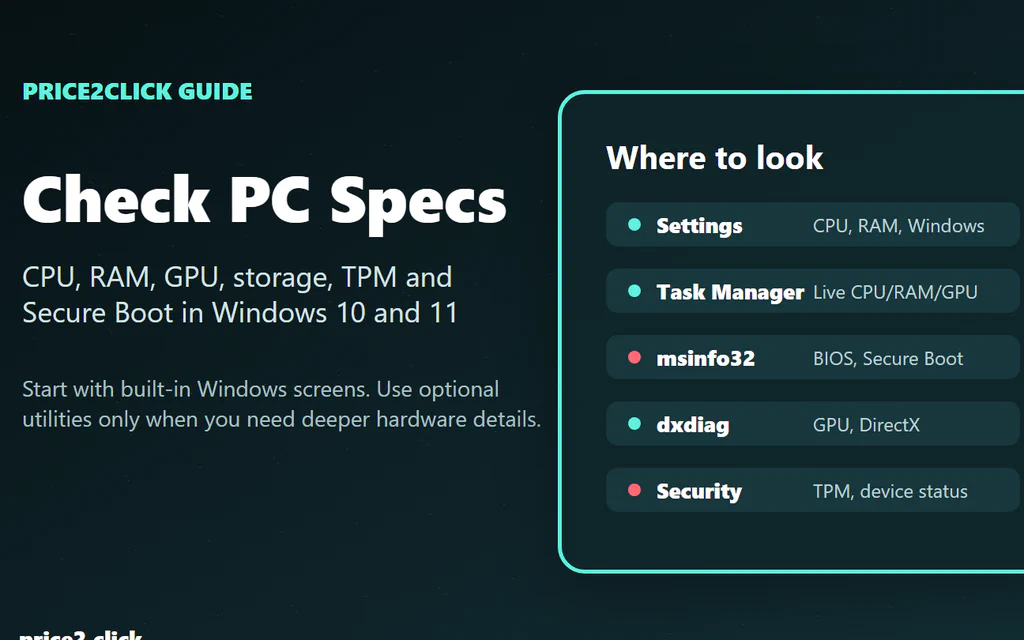
Windows PC spec-check workflow showing Settings, Task Manager, System Information, dxdiag and Windows Security.

How to Check Your PC Specs on Windows: CPU, RAM, GPU, Storage and Secure Boot

The fastest safe path is this: open Settings > System > About for CPU, RAM, Windows version and system type, then open Task Manager > Performance > GPU if the question involves games, graphics drivers, external monitors or video work. Use Settings > System > Storage for free space, and System Information (msinfo32) when you need the exact PC model, BIOS Mode, Secure Boot State or TPM context. If you are about to ask someone for help, copy only the useful parts: CPU, RAM, GPU, storage free space, Windows version, exact system model and one sentence about the problem. That gives a support helper enough context without exposing product IDs, device IDs or BitLocker details. This guide starts with the built-in Windows tools that answer those questions without changing BIOS, TPM, Secure Boot or driver settings just to look. Near the end, it also covers a few free third-party utilities for cases where Windows does not show enough detail. ...

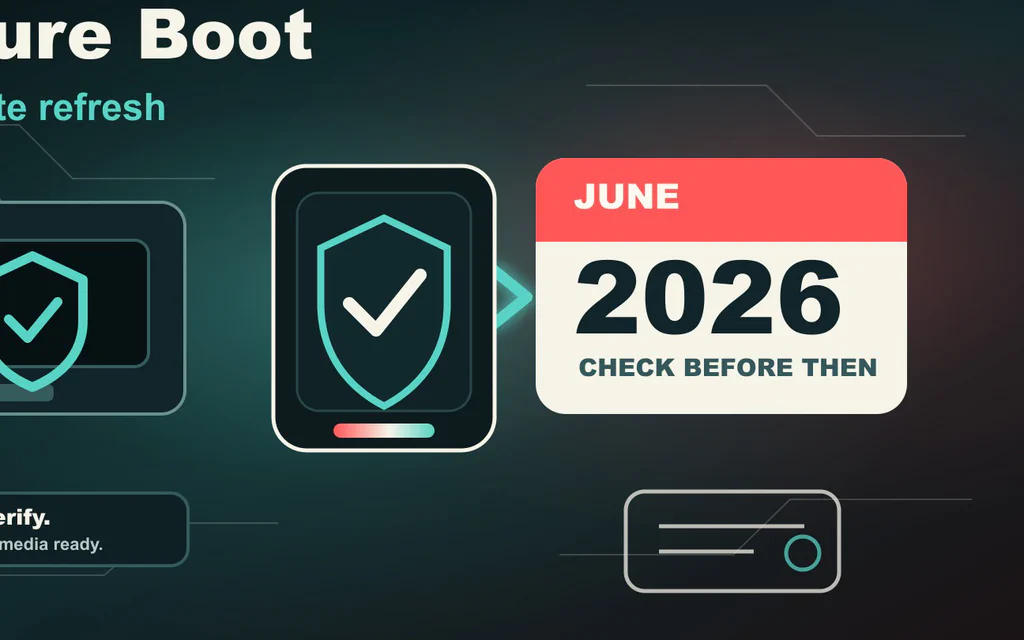
Editorial illustration of a Windows PC boot path passing a Secure Boot certificate check before a June 2026 deadline.

Windows Secure Boot Certificates Expire in 2026: What to Check Before June

Microsoft is replacing the Secure Boot certificates that many Windows PCs have trusted since 2011. Two of those old certificate authorities start expiring in June 2026, and the Windows boot certificate follows in October 2026. That sounds like a timer attached to every PC. It is not quite that. Microsoft says unsupported certificate state should not make a normal PC instantly stop booting on June 1, 2026. The more realistic risk is quieter but still important: a PC that misses the 2023 certificate refresh may stop being eligible for future early-boot protections, boot-manager security updates, revocations and recovery-media changes. So the right move is not panic. The right move is to check now, update safely, and avoid breaking your own recovery path. ...