High ping or packet loss in online games: test the network before replacing hardware

Request My game feels laggy even though FPS looks fine. Ping spikes, packet loss appears in the game overlay, or the match rubber-bands when someone else streams video, uploads files, or downloads updates. Do not buy a new graphics card for a network problem. First separate FPS stutter from network lag. If the frame rate is stable but movement jumps, shots register late, voice chat breaks up, or the in-game network overlay shows packet loss, start with the network path. ...

MacBook does not detect an external monitor: test the video path first

Request My MacBook charges through USB-C, but the external monitor stays black, says No Signal, or does not appear in macOS display settings. The same monitor may work with another computer. Start with the video path, not the dock shopping list. A USB-C cable or hub can charge a MacBook without carrying display signal. The monitor can also be on the wrong input, the cable may not support video, or the MacBook model may have an external-display limit. ...

External SSD asks to format before use: protect the files first

Request My external SSD used to have files on it, but Windows now says the drive must be formatted before I can use it. I need the files and do not want to erase the drive. Do not format the drive if the files matter. Formatting, initializing, running aggressive repair tools, or copying new files to the SSD can make recovery harder. First separate a simple connection problem from a damaged filesystem or failing enclosure. ...

Wireless printer keeps going offline: fix the network path first

Request My wireless printer keeps showing offline. It works for a while, then Windows, macOS, or the phone app cannot find it until I restart the printer, reconnect Wi-Fi, or add the printer again. Treat this as a network path problem first, not as proof that the printer is broken. Most recurring “offline” cases come from sleep mode, weak Wi-Fi, a changed printer address, a stale print queue, or the computer using the wrong printer entry. ...

Use Steam Link or Remote Play to stream PC games to Android, TV, or another PC

Request I want to play a Steam game from my PC on an Android phone, Android TV, another computer, or a living-room screen. Some guides call this Steam Link, Steam Remote Play, or Remote Play Together, and I am not sure whether I should install the game on the phone, move files, or change Steam settings. Steam Link and Steam Remote Play stream a game from a computer that is running Steam. They do not install a normal Windows PC game as an Android app, and they do not bypass Steam ownership, DRM, account access, or game compatibility. Keep the game installed on the host PC, open Steam there, install the Steam Link app on the phone, tablet, TV, or supported client device, then pair the client with the host and start the game from your Steam Library. ...

Smart TV setup guide cover with a TV, remote and practical setup checklist style.

How to Set Up a Smart TV in 2026: Wi-Fi, HDMI, Apps, Picture, Sound and Privacy

If you just bought, reset or moved a Smart TV, set it up in this order: internet, software update, apps, HDMI ports, picture mode, sound output, privacy settings and one final test. Do that before signing into every service or pushing the TV back against the wall. The point is not to tweak every menu. It is to avoid chasing the wrong problem. A “Netflix problem” may be old TV software, a “bad soundbar” may be the wrong HDMI port, and a “casting problem” may be a phone and TV sitting on different networks. ...

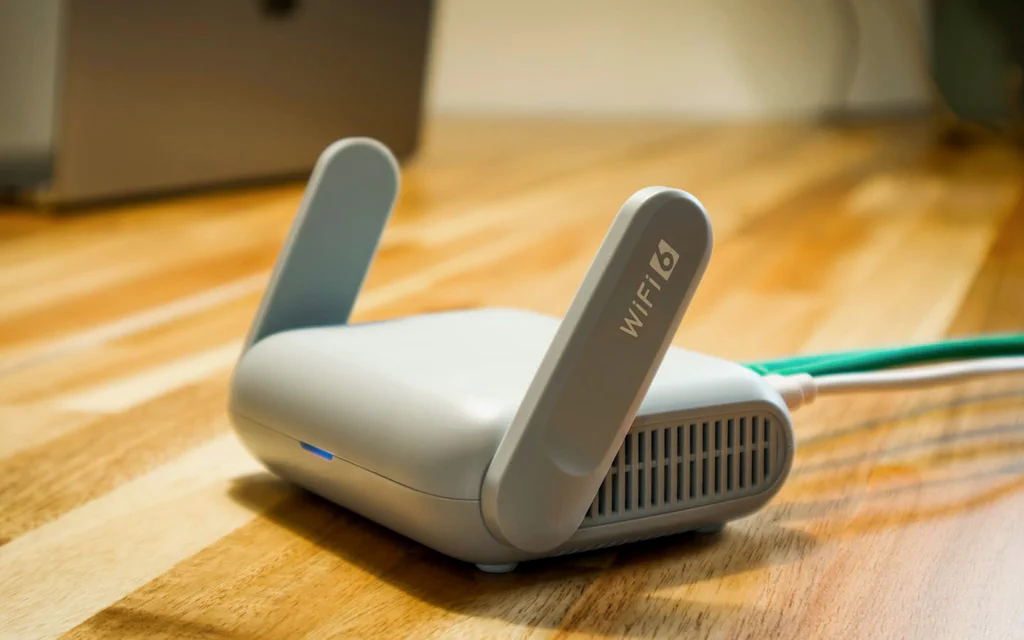
Close-up of a home Wi-Fi router on a desk with an Ethernet cable connected.

How to Fix Home Wi-Fi: Drops, No Internet, Slow Rooms, NAT, and Mesh Decisions

Bad Wi-Fi rarely arrives as one clean problem. One evening it is a video call freezing. The next day a laptop says “connected, no internet.” A console shows strict NAT. A smart plug refuses to join. A phone works in the kitchen but not in the bedroom. Those are not all the same failure, even though everyone in the house calls them “the Wi-Fi.” The useful move is to stop treating Wi-Fi as one black box. Your connection has layers: the device, the wireless link, the router, the internet line, DNS, and the outside service. A mesh kit can fix one layer. It will not fix bad DNS, a double-NAT port-forwarding mess, a failing modem cable, a blocked device rule, or an ISP outage. ...