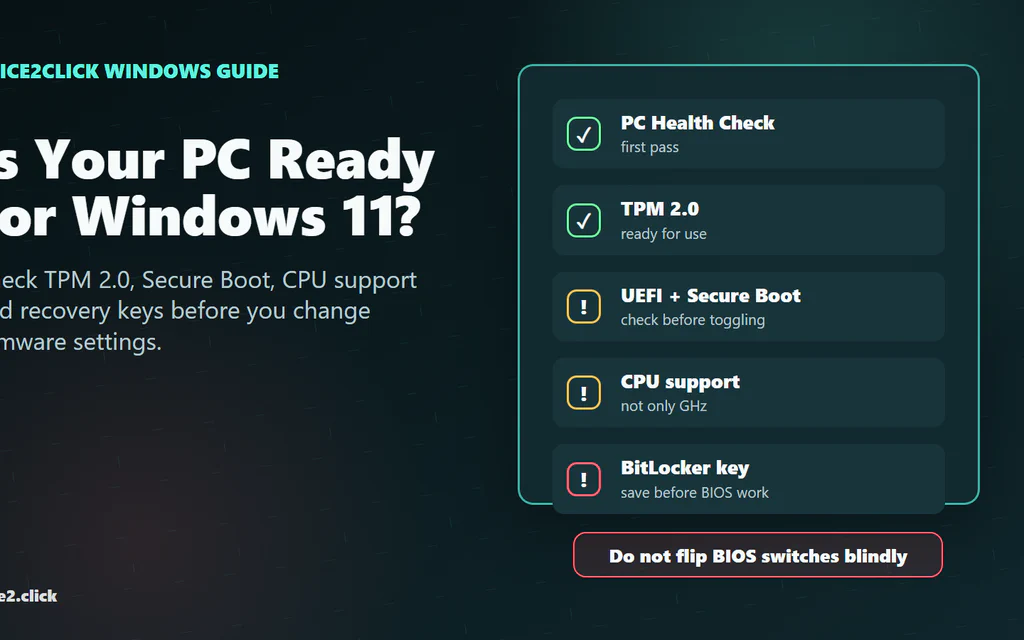
Windows 11 readiness checklist showing PC Health Check, TPM 2.0, Secure Boot, CPU support and BitLocker recovery keys.

How to Check If Your PC Is Ready for Windows 11: TPM, Secure Boot, CPU and Recovery Keys

The fastest safe way to check whether your PC is ready for Windows 11 is to run Microsoft’s PC Health Check app, then confirm the result with two built-in Windows screens: tpm.msc for TPM 2.0 and msinfo32 for BIOS Mode and Secure Boot State. The important word is safe. A lot of Windows 11 upgrade problems happen after someone sees “TPM not found” or “Secure Boot unsupported,” opens BIOS, flips several settings, and then discovers the PC no longer boots or BitLocker wants a recovery key. This guide is built around that real-world failure point. It shows what to check, what each result means, and what to do next without treating every old PC like a simple settings toggle. ...
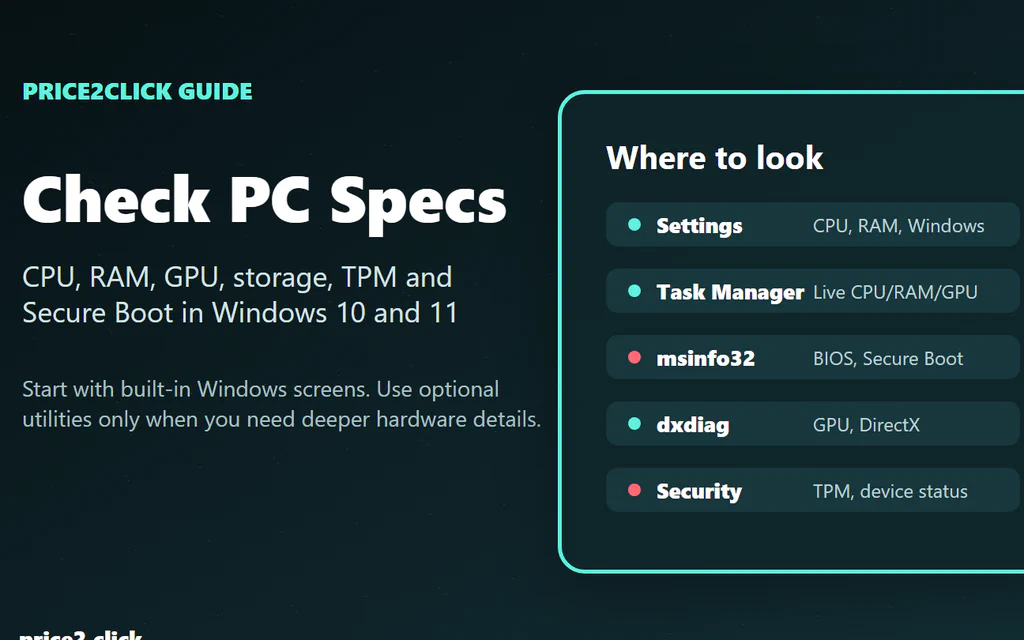
Windows PC spec-check workflow showing Settings, Task Manager, System Information, dxdiag and Windows Security.

How to Check Your PC Specs on Windows: CPU, RAM, GPU, Storage and Secure Boot

The fastest safe path is this: open Settings > System > About for CPU, RAM, Windows version and system type, then open Task Manager > Performance > GPU if the question involves games, graphics drivers, external monitors or video work. Use Settings > System > Storage for free space, and System Information (msinfo32) when you need the exact PC model, BIOS Mode, Secure Boot State or TPM context. If you are about to ask someone for help, copy only the useful parts: CPU, RAM, GPU, storage free space, Windows version, exact system model and one sentence about the problem. That gives a support helper enough context without exposing product IDs, device IDs or BitLocker details. This guide starts with the built-in Windows tools that answer those questions without changing BIOS, TPM, Secure Boot or driver settings just to look. Near the end, it also covers a few free third-party utilities for cases where Windows does not show enough detail. ...