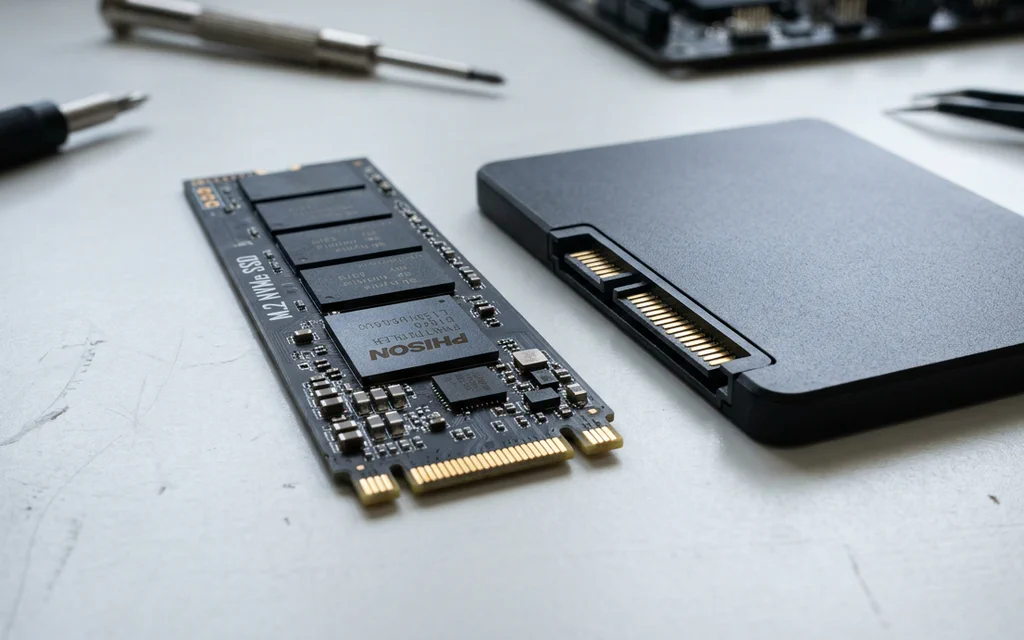
An M.2 NVMe SSD stick resting next to a 2.5-inch SATA SSD on a workbench.

NVMe vs SATA SSDs Explained: Speeds, Slots, and What Actually Matters in 2026

If you look at the packaging on a modern solid-state drive, the marketing numbers look absurd. A standard SATA drive advertises read speeds around 550 MB/s. A mainstream PCIe 4.0 NVMe drive advertises 7,000 MB/s — nearly thirteen times faster. A PCIe 5.0 drive pushes past 14,000 MB/s. Naturally, you would expect Windows to boot thirteen times faster and your games to load in the blink of an eye. Yet when you plug in that blazing-fast NVMe drive, Windows boots in 8 seconds instead of 10. Cyberpunk 2077 loads in 11 seconds instead of 13. Why does a 1,300% theoretical speed advantage turn into a barely noticeable difference in daily desktop use? And with both drive types sitting on store shelves in 2026, where does NVMe truly matter, and is there any reason left to buy a SATA drive? Let us break down how these two storage technologies work, compare their live market pricing and real-world performance, and highlight the most common compatibility traps when upgrading your PC or laptop. ...
External SSD asks to format before use: protect the files first

Request My external SSD used to have files on it, but Windows now says the drive must be formatted before I can use it. I need the files and do not want to erase the drive. Do not format the drive if the files matter. Formatting, initializing, running aggressive repair tools, or copying new files to the SSD can make recovery harder. First separate a simple connection problem from a damaged filesystem or failing enclosure. ...

Change where Steam installs games or move a game to another drive

Request I want Steam games to install on drive D: or another disk, or I need to move an installed Steam game without downloading it again. Some guides also mention Steam Link, Windows default install paths, or copying game folders manually. Use Steam’s own storage tools first. If you want new Steam games on another drive, add that drive as a Steam library folder, then choose it during install. If the game is already installed, move it from Steam’s storage settings instead of dragging the folder in File Explorer. ...

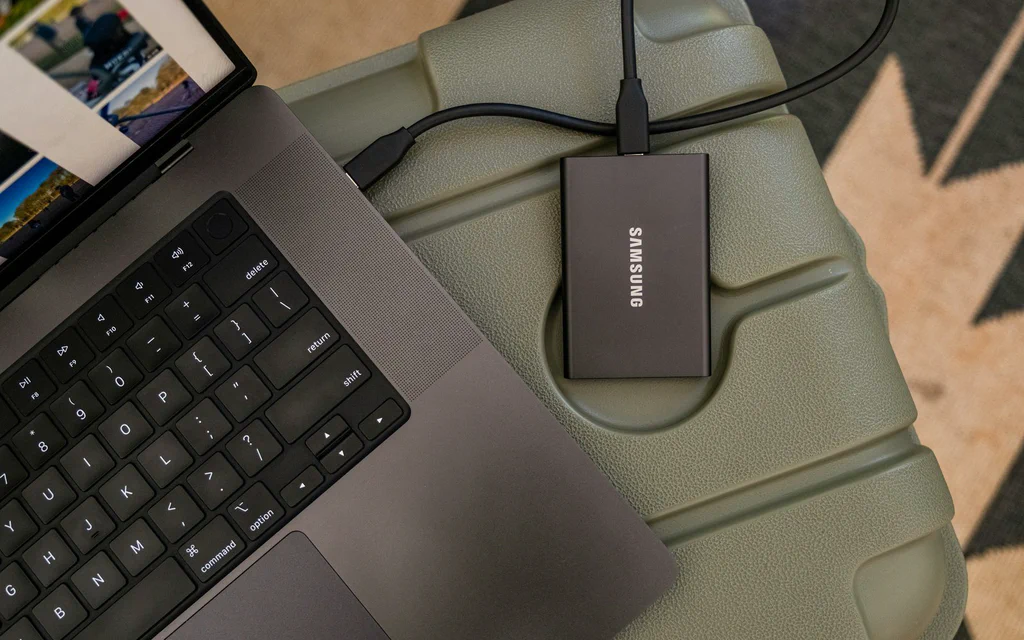
Portable external SSD connected to a laptop for file backup and storage planning.

External Drive, NAS, Cloud or Home Server: How to Choose Storage Without Losing Data

Most storage mistakes start with the wrong question. “How many terabytes should I buy?” sounds practical, but it skips the thing that decides everything: what job the storage has to do. A drive for a Steam library is not the same as a family-photo backup. Cloud sync is not the same as recovery. A NAS can be excellent, but it is also a small server that needs updates, power, passwords and a restore plan. Start here: choose the storage path by job, then check capacity, speed and price. ...