Conceptual editorial image of an SSD and magnifying glass, with the title Check Your SSD.

How to Check SSD Health: Warnings, Wear and What to Do

Check an SSD’s health by identifying the exact drive, reading its reported warnings and wear indicators, and choosing an action based on both the report and the symptoms. If files are disappearing, reads fail or Windows reports a critical warning, protect the data before running tests. A green label or “99% health” is not a guarantee that every file is safe. Start with the situation, not a benchmark Critical warning, read-only state or repeated read errors: stop avoidable writes and back up readable important files to separate storage. If irreplaceable files cannot be read reliably, stop repeated scans and consider professional recovery. Working normally, but the health percentage has fallen: save the current report and investigate the field behind that number. Wear is not a remaining-days clock. The SSD is missing or Windows asks to format it: use our drive-detection guide first. Formatting is not a health check, especially when the drive should contain data. For a failing drive, do not start with CrystalDiskMark, Secure Erase, firmware flashing or a repair command that writes to the disk. Finding out how fast it can write matters less than preserving the only copy of your files. ...
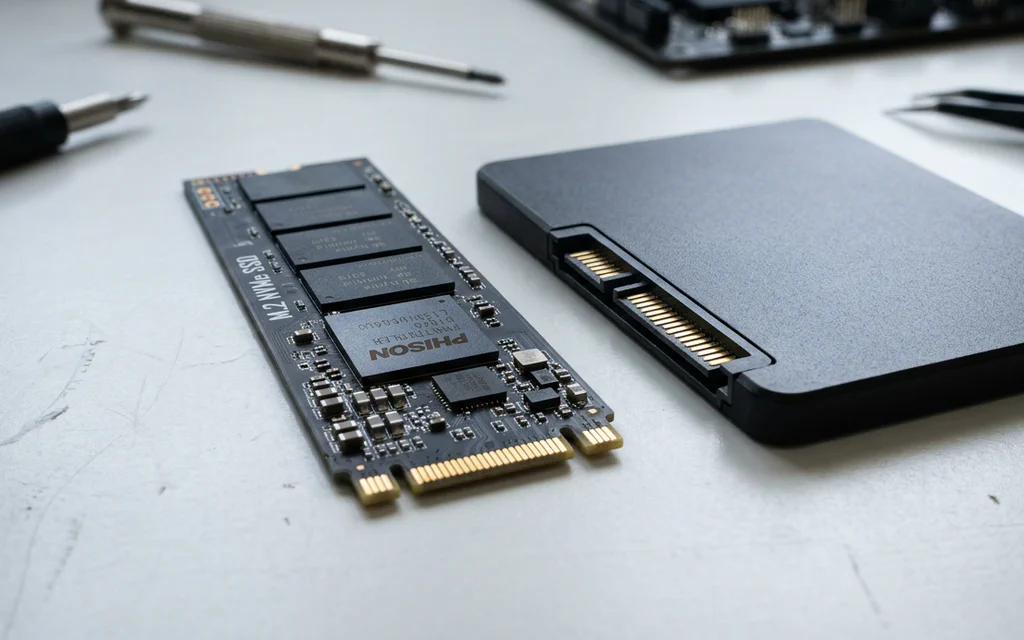
An M.2 NVMe SSD stick resting next to a 2.5-inch SATA SSD on a workbench.

NVMe vs SATA SSDs Explained: Speeds, Slots, and What Actually Matters in 2026

If you look at the packaging on a modern solid-state drive, the marketing numbers look absurd. A standard SATA drive advertises read speeds around 550 MB/s. A mainstream PCIe 4.0 NVMe drive advertises 7,000 MB/s — nearly thirteen times faster. A PCIe 5.0 drive pushes past 14,000 MB/s. Naturally, you would expect Windows to boot thirteen times faster and your games to load in the blink of an eye. Yet when you plug in that blazing-fast NVMe drive, Windows boots in 8 seconds instead of 10. Cyberpunk 2077 loads in 11 seconds instead of 13. Why does a 1,300% theoretical speed advantage turn into a barely noticeable difference in daily desktop use? And with both drive types sitting on store shelves in 2026, where does NVMe truly matter, and is there any reason left to buy a SATA drive? Let us break down how these two storage technologies work, compare their live market pricing and real-world performance, and highlight the most common compatibility traps when upgrading your PC or laptop. ...

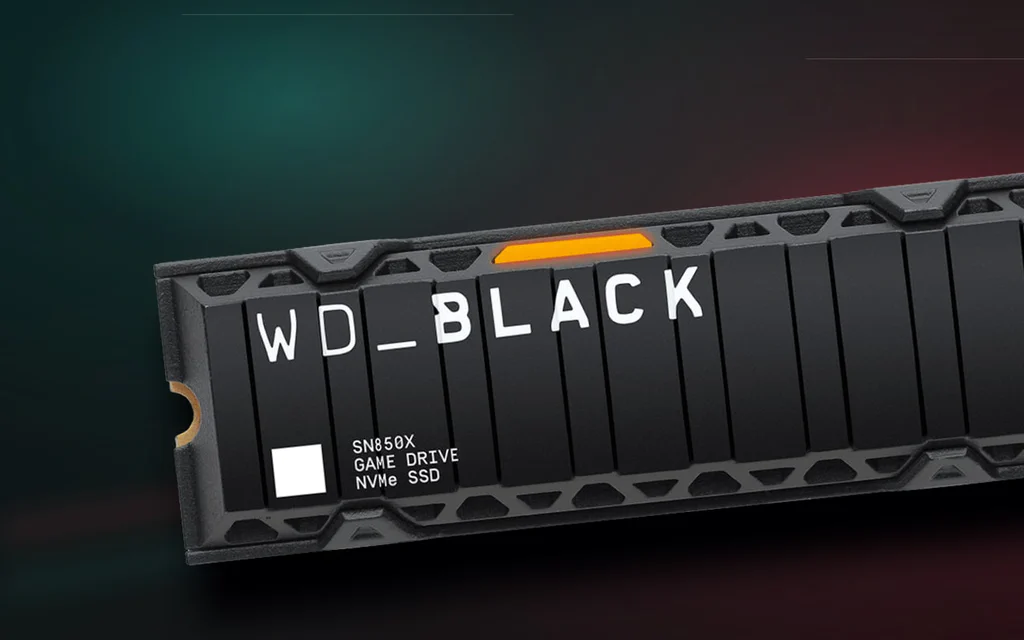
WD Black SN850X heatsink NVMe SSD shown as a premium product cover for the SSD buying guide.

Best SSDs to Buy in 2026: Pick by Device, Not Peak Speed

The fastest SSD is not automatically the best SSD to buy. That matters more in 2026 than it did a year ago. SSD prices are more volatile, Crucial’s consumer retail exit has changed the closeout calculus, Gen5 drives are finally genuinely fast, and marketplace listings have become noisy enough that a suspiciously cheap “Samsung 990 Pro” deserves a second look before checkout. So start with the device, not the headline speed. A PlayStation 5 needs a Gen4 M.2 drive with a heatsink. A thin laptop may reject a tall heatsink or a double-sided module. A gaming desktop usually wants a good 2TB PCIe 4.0 TLC drive, not a hot Gen5 flagship. A video editor may actually benefit from a Gen5 scratch drive, but only if the platform and cooling can support it. ...