High ping or packet loss in online games: test the network before replacing hardware

Request My game feels laggy even though FPS looks fine. Ping spikes, packet loss appears in the game overlay, or the match rubber-bands when someone else streams video, uploads files, or downloads updates. Do not buy a new graphics card for a network problem. First separate FPS stutter from network lag. If the frame rate is stable but movement jumps, shots register late, voice chat breaks up, or the in-game network overlay shows packet loss, start with the network path. ...
Use Steam Link or Remote Play to stream PC games to Android, TV, or another PC

Request I want to play a Steam game from my PC on an Android phone, Android TV, another computer, or a living-room screen. Some guides call this Steam Link, Steam Remote Play, or Remote Play Together, and I am not sure whether I should install the game on the phone, move files, or change Steam settings. Steam Link and Steam Remote Play stream a game from a computer that is running Steam. They do not install a normal Windows PC game as an Android app, and they do not bypass Steam ownership, DRM, account access, or game compatibility. Keep the game installed on the host PC, open Steam there, install the Steam Link app on the phone, tablet, TV, or supported client device, then pair the client with the host and start the game from your Steam Library. ...

Change where Steam installs games or move a game to another drive

Request I want Steam games to install on drive D: or another disk, or I need to move an installed Steam game without downloading it again. Some guides also mention Steam Link, Windows default install paths, or copying game folders manually. Use Steam’s own storage tools first. If you want new Steam games on another drive, add that drive as a Steam library folder, then choose it during install. If the game is already installed, move it from Steam’s storage settings instead of dragging the folder in File Explorer. ...

Gaming controller with VPN shield overlay.

How to Use a VPN on PS5 and Xbox Without Breaking Multiplayer

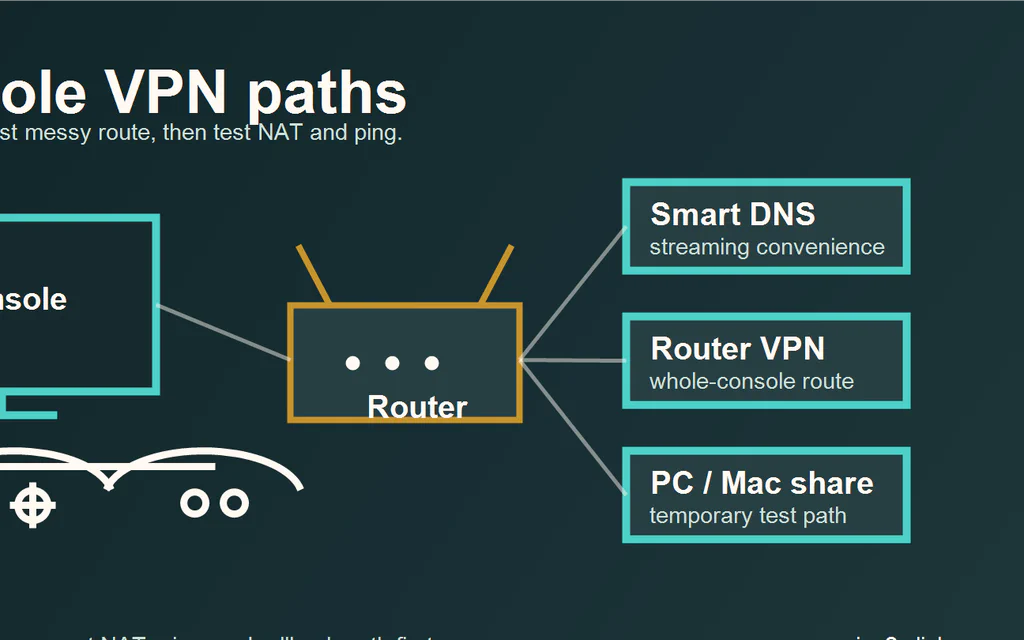
PS5 and Xbox do not run normal consumer VPN apps. You cannot open the PlayStation Store or Xbox store, install NordVPN, Surfshark, or ExpressVPN, and protect the console the same way you would protect a phone or laptop. That does not mean you have no options. It means the VPN has to sit somewhere else: in DNS settings, on the router, or on a computer sharing its connection. For most people, the honest answer is: Do not use a VPN for normal multiplayer unless you have a clear reason. It often adds routing complexity, and it can make NAT, party chat, matchmaking, or ping worse. Use Smart DNS for streaming-app convenience, not privacy. It changes DNS behavior for supported services, but it is not an encrypted VPN tunnel. Use a router VPN only if the router officially supports VPN client profiles and you know how to turn it off. This is the cleanest full-network method, but it can affect the whole house. Use PC/Mac sharing as a temporary test. It is useful for proving a setup before buying hardware, but it is not the nicest long-term console setup. The goal is not to force a VPN onto the console. The goal is to pick the least annoying method for the problem you actually have. ...

Game controller and keyboard on a dark gaming desk.

Best VPN for Gaming: Test Ping Before You Pay

A VPN is not automatically good for gaming. In many cases the best gaming VPN is no VPN at all: wired Ethernet, a nearby game server, clean Wi-Fi, and a stable ISP route will beat any paid tunnel. If you came here for names, our current short list is simple: NordVPN is the first service we would test for competitive PC route problems, Surfshark is the value pick for a gaming household with many devices, and Mullvad is the clean month-to-month test if you dislike long promo plans. If your normal connection is already stable, the right pick is still do not buy one yet. Use a VPN for gaming only when it solves a real network-path problem: your ISP route to one game server is unstable, you are on hotel/public Wi-Fi, you want to reduce direct IP exposure for streaming or a small event setup, you want a private device-to-device feature, or you need location routing for a specific game/service. If you are entirely new to how this routing works, read our VPN explainer first. Before keeping any subscription, measure ping, jitter, packet loss, login reliability, and matchmaking with VPN off, then with the nearest VPN server. A VPN that makes your own game worse is not a gaming upgrade. ...