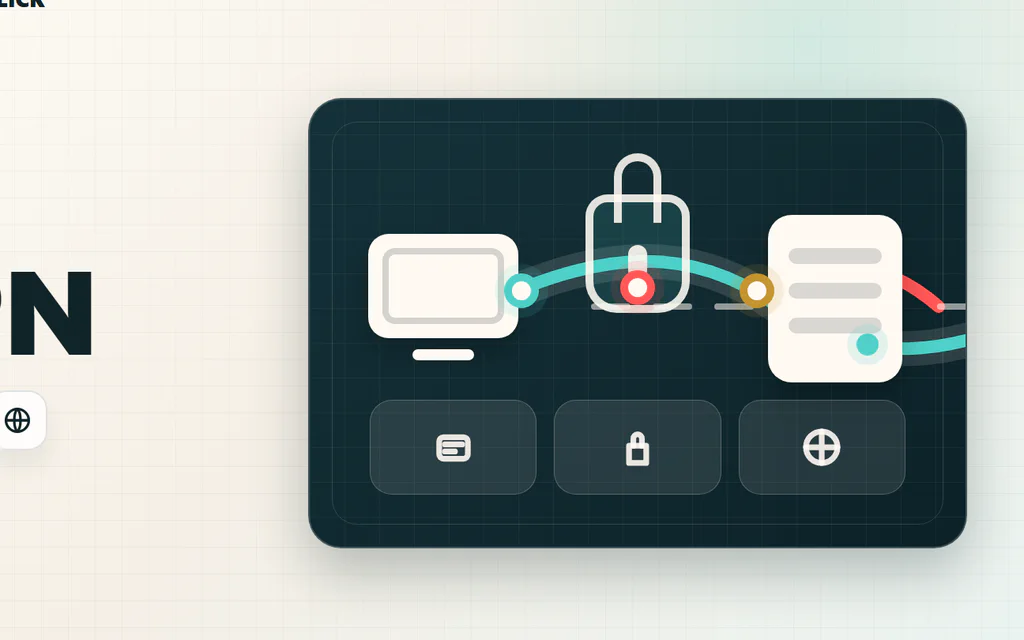
Schematic VPN route from a device through an encrypted tunnel to a VPN server and website.

What Is a VPN? What It Does, What It Does Not Do

A VPN is a privacy and routing tool. It creates an encrypted connection from your device to a VPN server, then sends your internet traffic from that server to websites and apps. That changes three practical things: people on the local network have a harder time seeing what you are doing, websites usually see the VPN server’s IP address instead of your home IP, and your traffic can appear to come from another city or country. It does not make you anonymous, stop phishing, clean malware, protect weak passwords, or erase tracking from accounts you log into. A VPN can be useful, but it is not a magic shield. The right question is: what problem are you trying to solve? ...
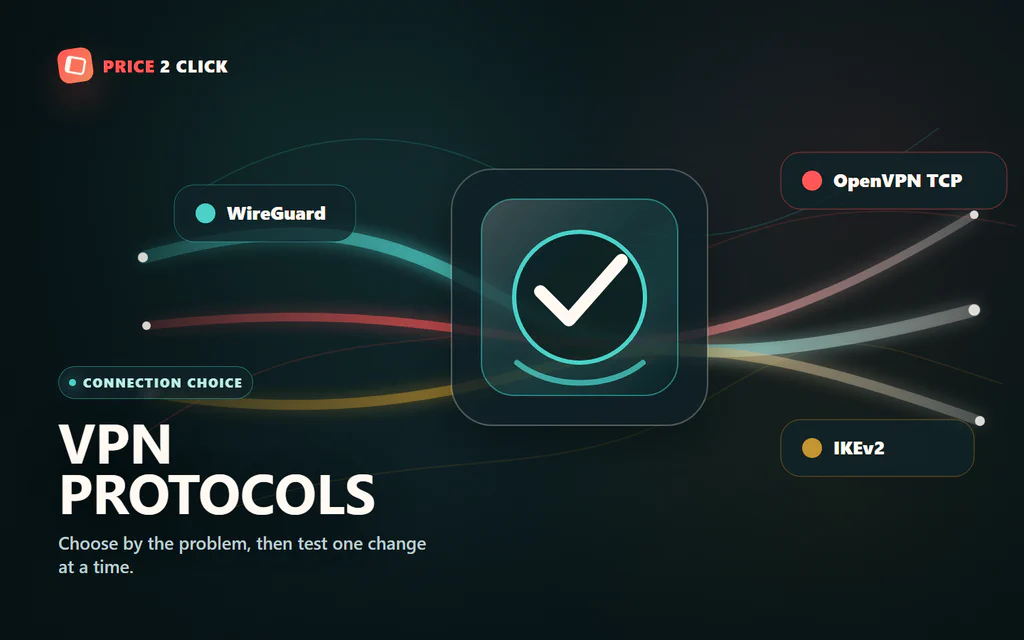
A VPN protocol selector with WireGuard, OpenVPN TCP, and IKEv2 paths converging through an encrypted route.

VPN Protocols Explained: Which One Should You Use?

Your VPN app probably has a setting called Protocol, Connection protocol, or VPN protocol. Most people leave it on Automatic, and that is fine until something feels wrong: slow downloads, high ping, blocked hotel Wi-Fi, a phone that drops the tunnel when switching networks, or one app that refuses to work through the VPN. For most normal home use, start with the app’s modern fast protocol: WireGuard, NordLynx, Lightway, or the provider’s recommended equivalent. If that works, do not overthink it. If it does not, the right fallback depends on the problem you are trying to solve. If you are still asking what a VPN changes in the first place, start with our plain-English VPN explainer first. This protocol guide assumes you already use a VPN and need to choose the connection mode. ...

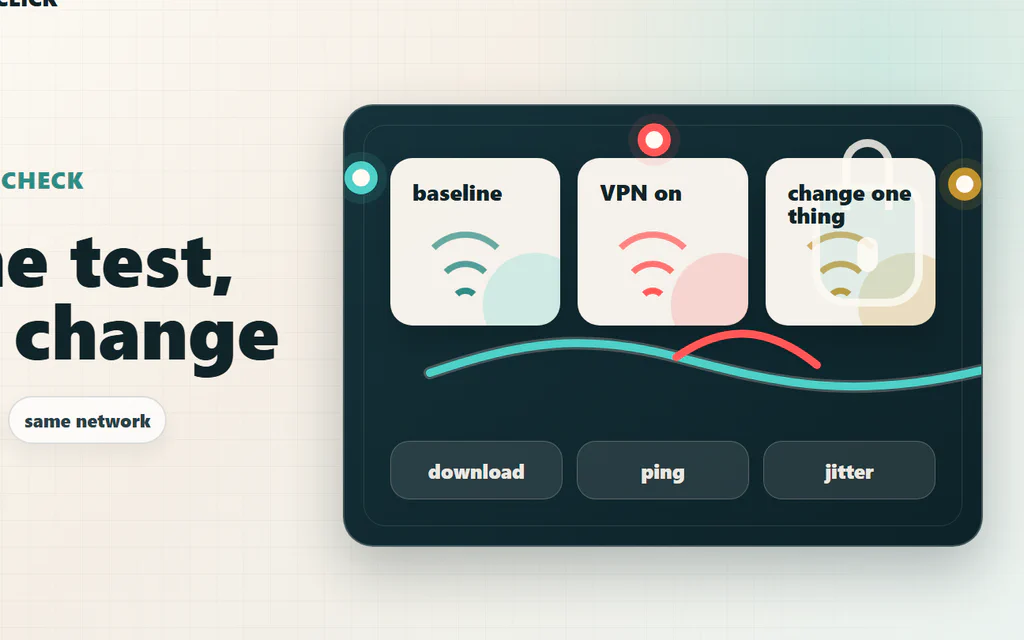
A VPN speed-check map comparing the same device, network, and test before changing VPN settings.

Does a VPN Slow Down Your Internet? How to Test It

Yes, a VPN can slow down your internet, but the useful question is narrower: is the VPN the real reason your connection feels bad, or is it exposing a Wi-Fi, ISP, server, protocol, or device problem that was already there? The fastest way to find out is not to trust one speed-test screenshot. Test the same device, on the same Wi-Fi, against the same speed-test server: first without VPN, then with the nearest VPN server, then with one protocol change. Compare download, upload, ping, and jitter. If ping jumps but download stays fine, you have a latency problem. If only upload collapses, the issue may be protocol, server load, or your ISP route. If both VPN and no-VPN tests are bad, the VPN is probably not the main culprit. For streaming and browsing, a small VPN hit often does not matter. For competitive games, video calls, cloud gaming, remote desktop, or big uploads, even a “fast” VPN can feel wrong if it adds unstable latency. Here is the practical way to test it, read the results, and fix the most common causes without guessing. ...