
If you just bought, reset or moved a Smart TV, set it up in this order: internet, software update, apps, HDMI ports, picture mode, sound output, privacy settings and one final test. Do that before signing into every service or pushing the TV back against the wall.
The point is not to tweak every menu. It is to avoid chasing the wrong problem. A “Netflix problem” may be old TV software, a “bad soundbar” may be the wrong HDMI port, and a “casting problem” may be a phone and TV sitting on different networks.
The 20-Minute Setup Route
Get online, update, wire devices, then tune picture, sound and privacy
If the TV is online, updated and plugged into the right ports, most setup problems become much easier to diagnose. Do these checks before you move the TV back against the wall.
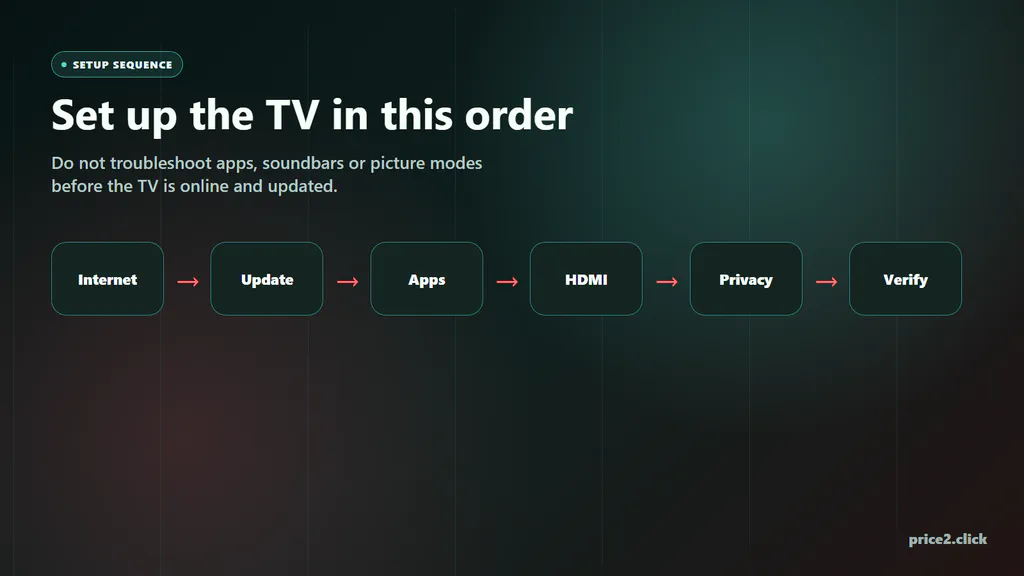
Do the setup in order. Random fixes are slower than a clean first pass.
What to Have Ready
You do not need a toolbox. You do need a few boring details before the TV starts asking questions.
- Your Wi-Fi name and password, unless you will use Ethernet.
- The remote, fresh batteries and your phone nearby for QR-code sign-ins.
- Login details for the streaming apps you actually use.
- A known-good HDMI cable for a soundbar, console, streaming box or PC.
- A quick look at the TV’s HDMI labels before you push it against the wall.
Do one small physical check before the first power-on: plug in the devices you already know you will use, but keep the TV easy to reach. The soundbar should be near the HDMI eARC/ARC port, the console or PC should be near the fastest HDMI input, and Ethernet should be connected now if the router is close enough.
If the TV asks for a brand account, you can usually finish basic setup with or without every optional personalization feature. The important thing is to avoid clicking through privacy prompts by habit. You can decide those after the TV is updated.
Step 1: Connect to Internet
For Wi-Fi, open the TV’s network settings, pick your home network and enter the password carefully. The success state you want is not just “connected to router.” You want the TV to say it has internet access, and you want at least one streaming app or the TV app store to load its home screen.
Ethernet is simpler if the router is close. Plug a cable into the TV’s LAN/Ethernet port and into the router. Many TVs switch to wired automatically; if yours does not, choose the wired connection in Network settings.
If Wi-Fi Connects but Apps Still Fail
Start with the safe checks:
- Restart the TV, router and modem.
- Forget the Wi-Fi network on the TV, then reconnect.
- Move the TV or router if the signal is weak.
- Try Ethernet for one test if you can.
- Only then look at advanced fixes such as manual DNS.
If every other device in the house is also offline, the TV is not the problem. Fix the network first.
Step 2: Update the TV Before Troubleshooting Apps
A Smart TV is a small computer with a giant screen. App stores, streaming apps, HDMI features and privacy menus all depend on the TV software being current.
| Platform | Where to look | What good looks like |
|---|---|---|
| Samsung | Settings > Support > Software Update, or a similar Support path. | The TV says it is up to date, or it downloads and restarts cleanly. |
| LG webOS | All Settings > Support > Software Update, or General > About This TV on some models. | Auto update can be enabled after the first manual check. |
| Roku TV | Settings > System > Software update. | The TV completes the check and reports the current build. |
| Google TV / Android TV | Settings > System > About > System update, with wording that varies by brand. | The TV finishes the update before app sign-in and casting tests. |
| Fire TV | Settings > My Fire TV > About > Check for Updates on many Fire TV devices. | The device reports current software and can reach Amazon services. |
Menu names move by model year, but the idea is stable: find the software update screen and run it once before you blame Netflix, YouTube, Disney+, casting or your soundbar. If an update installs, let the TV restart fully before opening apps.
Step 3: Install Apps Without Creating Clutter
Sign in to the services you actually use first. Open one app, play a short stream, then move to the next. That is slower than signing into everything at once, but it tells you exactly where a failure starts.
What you should see:
- The app opens without a repeated activation loop.
- A show or trailer starts playing.
- The TV returns to the home screen without freezing.
- The app remains installed after a restart.
If one app fails while others work, fix that app: force close it, update it, clear cache if the TV offers that option, or reinstall it. If every app fails, go back to internet and software update. Do not factory reset the TV just because one app has a bad sign-in loop.
Step 4: Plug Devices Into the Right HDMI Ports
This is where many “new TV” problems start. The HDMI label beside the port matters more than the port number.
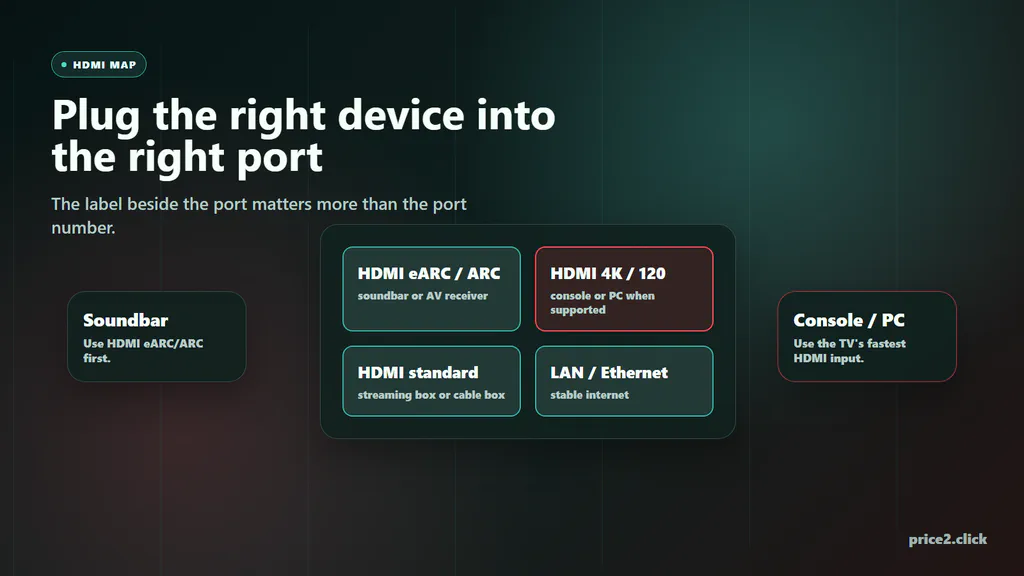
Soundbars, consoles and PCs do not all belong in the same HDMI lane.
Use this simple map:
- Soundbar or AV receiver: use the TV port labeled HDMI eARC or HDMI ARC.
- PS5, Xbox Series X/S or gaming PC: use the TV’s 4K/120, high-bandwidth or enhanced HDMI input if the TV has one.
- Streaming stick or cable box: any suitable HDMI input is usually fine.
- Older PC or laptop: HDMI is the reliable fallback when wireless casting is laggy.
eARC means enhanced Audio Return Channel. In plain English: audio from TV apps can travel back down one HDMI cable to the soundbar. CEC is the related HDMI control feature that lets the TV remote change soundbar volume or turn devices on and off. CEC is useful when it works, but if devices keep waking each other up, disable CEC on the least important device.
What You Should See
- The TV audio output says HDMI ARC, HDMI eARC, receiver or soundbar.
- The TV remote changes soundbar volume.
- The console reports the resolution and refresh options your TV actually supports.
- A PC shows the TV as a display and lets you choose duplicate or extend.
If a console or PC flickers at 4K/120 or HDR, use the correct TV port and a certified Ultra High Speed HDMI cable. Do not buy a new soundbar or GPU before checking the cable and input mode.
Step 5: Make the Picture Look Normal
Out of the box, many TVs are set to look bright on a store wall. At home that can mean harsh color, over-sharpening and the “soap opera” look where movies feel like cheap video.
For films and TV shows, start with Movie, Cinema or Filmmaker mode if available. Turn motion smoothing down or off unless you specifically like it for sports. Different brands name this differently: Samsung often uses Picture Clarity or Auto Motion Plus; LG uses TruMotion; Sony uses MotionFlow; other brands use Motion Enhancement or similar wording.
For games, turn on Game Mode for the console or PC input. That reduces input lag, which matters more than a tiny picture-processing improvement when you are controlling the game.
Sound has its own check. If you use a soundbar, the TV sound output should point to HDMI ARC/eARC or the soundbar, not TV speakers. Play a normal streaming app and a console or cable-box input before you call the setup finished.
Step 6: Do the Privacy Pass
Smart TV privacy is not paranoia. It is normal setup housekeeping, especially on TVs that ask to collect viewing data or personalize ads.
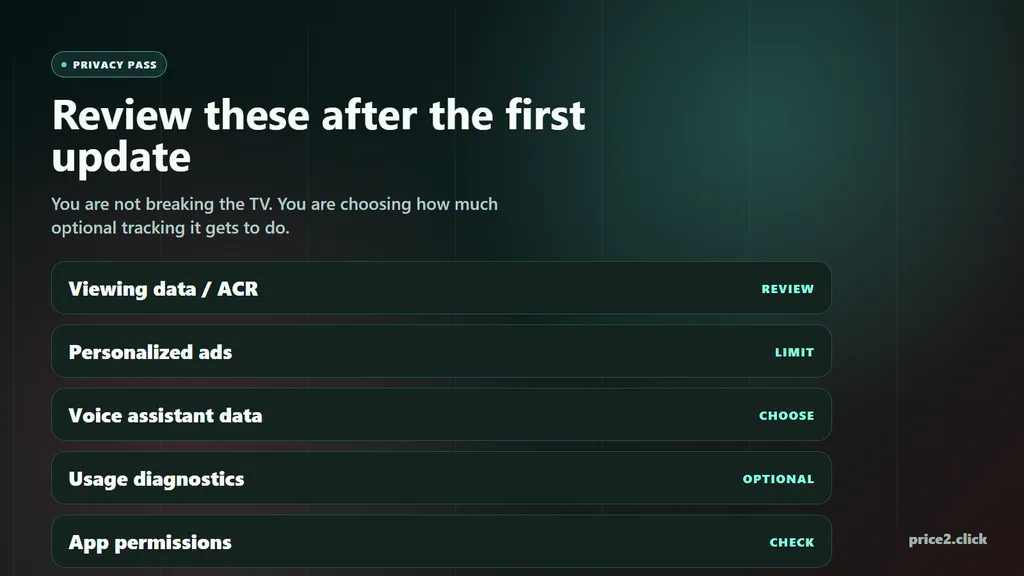
Privacy settings are part of setup, not something to remember months later.
Look for these areas:
- Viewing data / ACR: automatic content recognition can identify what appears on the screen for recommendations or advertising.
- Personalized ads: limits interest-based ad profiles on many platforms.
- Voice assistant data: decide whether voice recordings or transcripts can be stored.
- Usage diagnostics: optional performance and crash reporting.
- App permissions: microphone, location, camera and account access where the TV supports them.
Turning off optional data settings should not stop the TV from streaming. If a feature explains a real tradeoff, read it. If it is just “make recommendations better,” you can usually decline and revisit later.
Step 7: Connect a Phone or Computer
For phone casting, the phone and TV usually need to be on the same Wi-Fi network. If the TV does not appear as a cast target, check that the phone is not on mobile data, guest Wi-Fi, a VPN or a different network band that your router isolates.
For a Windows PC, try HDMI first if you care about reliability, games, work calls or readable text. Wireless Display/Miracast can be convenient, but it depends on the PC, Wi-Fi adapter, TV platform and router behavior. If you are not sure what GPU, Windows version or ports your PC has, use our Windows PC specs guide before you troubleshoot the TV.
For a Mac, AirPlay is the clean path when the TV supports it. If AirPlay is not available or the connection is laggy, HDMI with the right adapter is still the boring answer that works.
What you should see:
- The TV appears in the phone or computer’s casting list.
- A PC lets you duplicate or extend the display.
- The TV uses the expected resolution and the picture is not heavily cropped.
- Audio goes to the TV or soundbar you selected.
If wireless casting is delayed, do not fight it for gaming. Use HDMI.
Troubleshooting Flow
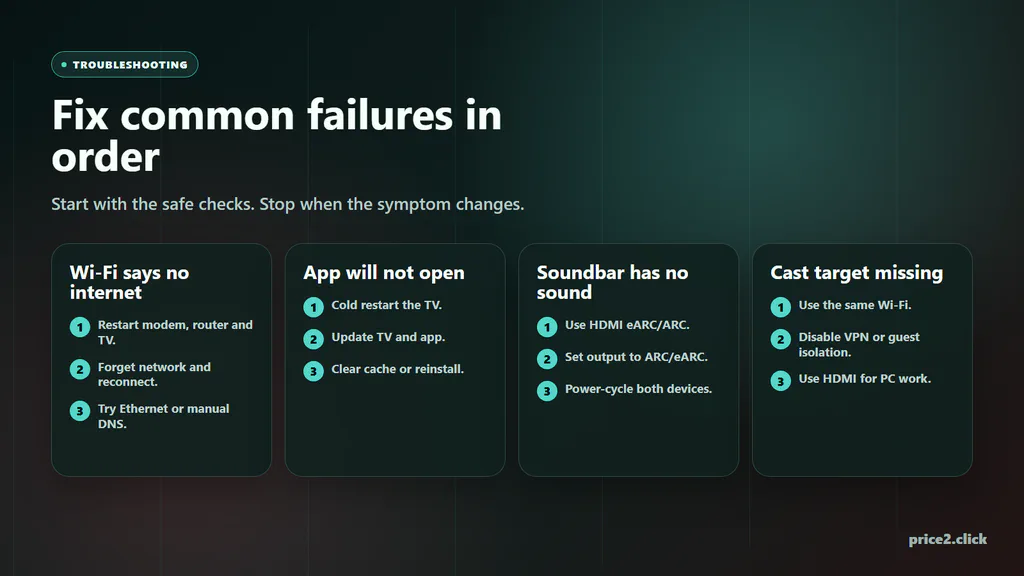
Use a short flow for the symptom you see. Do not change ten settings at once.
Wi-Fi Says Connected but No Internet
Restart modem, router and TV. Forget the network and reconnect. If the TV still fails, try Ethernet or a phone hotspot for one test. If the hotspot works, the problem is your router settings or home network, not the TV.
App Will Not Open
Cold restart the TV. Check for TV software updates. Update or reinstall the app. If only one app fails, the TV is probably fine. If every app fails, return to network troubleshooting.
Soundbar Has No Sound
Use HDMI eARC/ARC on the TV. Set TV sound output to ARC/eARC, receiver or soundbar. Enable CEC if the soundbar needs it. Power-cycle both TV and soundbar after changing HDMI wiring.
Console Does Not Show 4K, HDR or 120Hz
Move the console to the TV’s fastest HDMI input. Turn on the TV’s enhanced HDMI/input signal setting if your model has one. Use a certified Ultra High Speed HDMI cable when buying new or when 4K/120/HDR keeps dropping.
Cast Target Missing
Put the phone, computer and TV on the same network. Disable VPN for the test. Avoid guest Wi-Fi and router AP isolation. Update the TV and casting app. If the PC is the source and the job matters, use HDMI.
Final Verification
Stop when these pass:
- The TV says it has internet access.
- Software update reports current or completes successfully.
- At least one streaming app plays video.
- Soundbar or receiver plays TV app audio if connected.
- Console or PC input shows the expected mode.
- Movie and game inputs use different picture settings if needed.
- Privacy settings have been reviewed.
That is the point where the TV is actually set up. From there, small picture preferences are personal taste, not a setup emergency.
When Menu Names Differ
TV brands move settings around by model year, so use the wording as a map, not as a promise that every screen will look identical. If a menu name is different, search the TV settings for the function: network, software update, HDMI ARC/eARC, input signal, picture mode, sound output, privacy or app permissions.
Official help pages are useful when a brand hides a setting: Samsung, LG, Roku, Google TV and Fire TV all keep setup pages for their current platforms. For HDMI questions, HDMI.org is the clean reference for eARC and Ultra High Speed HDMI cable wording. For privacy, pay special attention to viewing data, personalized ads, voice data and diagnostics prompts.