Browse the full Price2Click archive of tech articles, buying guides, comparisons, and practical explainers.
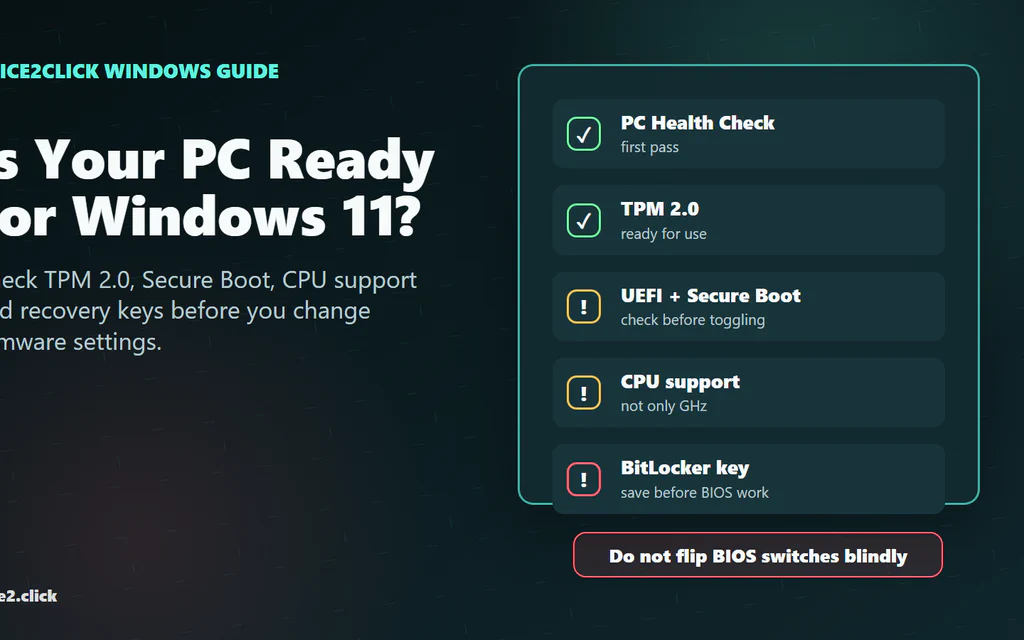
How to Check If Your PC Is Ready for Windows 11: TPM, Secure Boot, CPU and Recovery Keys
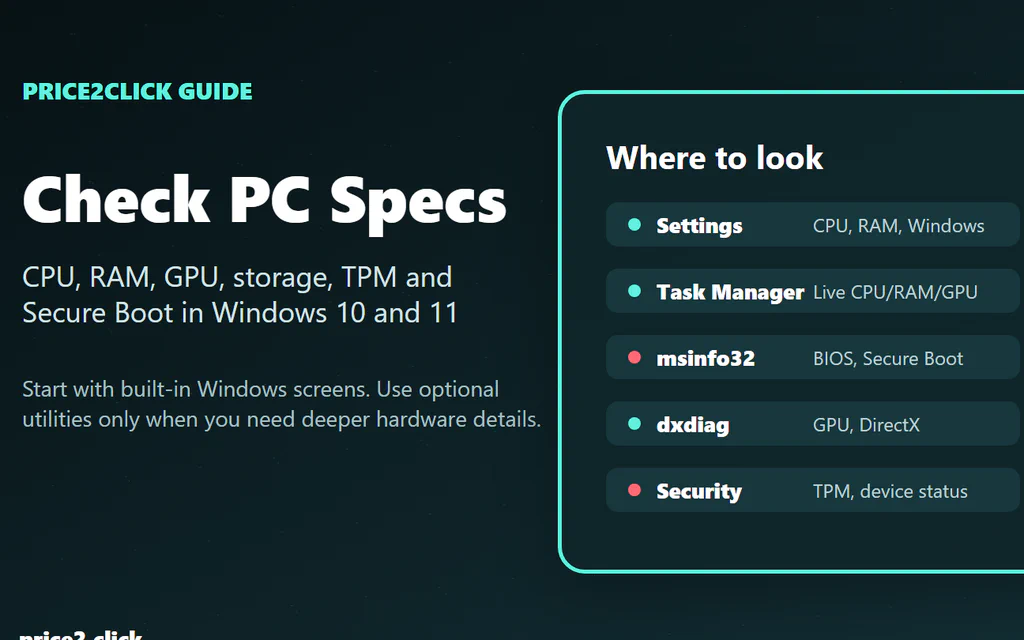
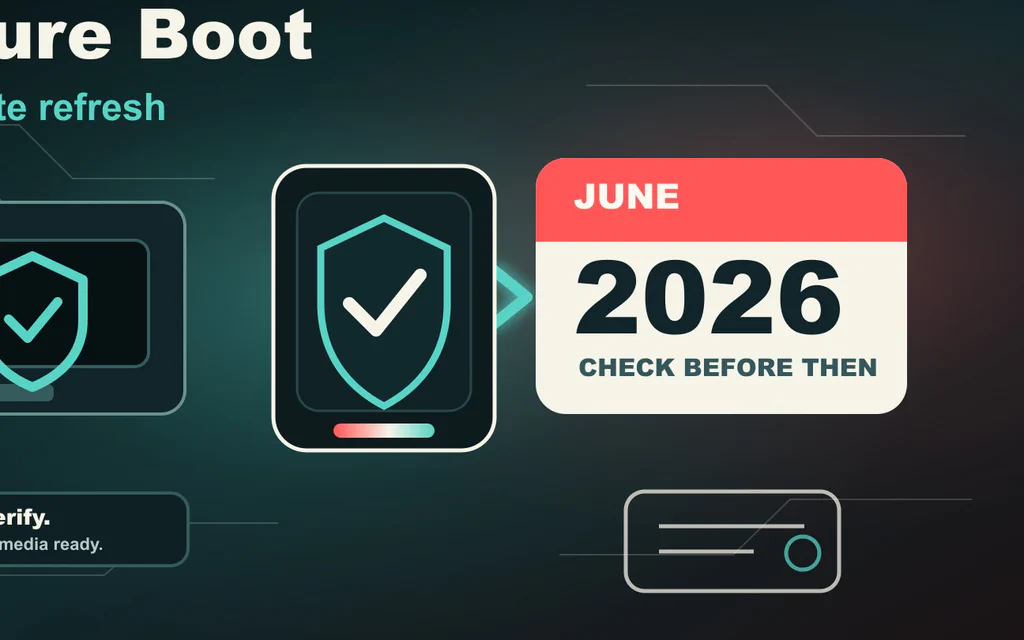
The fastest safe way to check whether your PC is ready for Windows 11 is to run Microsoft’s PC Health Check app, then confirm the result with two built-in Windows screens: tpm.msc for TPM 2.0 and msinfo32 for BIOS Mode and Secure Boot State. The important word is safe. A lot of Windows 11 upgrade problems happen after someone sees “TPM not found” or “Secure Boot unsupported,” opens BIOS, flips several settings, and then discovers the PC no longer boots or BitLocker wants a recovery key. This guide is built around that real-world failure point. It shows what to check, what each result means, and what to do next without treating every old PC like a simple settings toggle. ...