
Your PC still runs your games, but something is holding it back. Do you buy a faster graphics card, swap the processor, add more memory, or finally replace that old monitor? The annoying answer is that the right upgrade depends on why the machine feels slow. The good news: you can narrow that down before buying anything.
Let’s work through a real decision with an imaginary PC. It has a Ryzen 5 5600, an RTX 3060 12GB and a 1080p/60Hz display. We have $800 in new money, plus whatever we can realistically recover by selling old parts. We’ll look at GPU and CPU candidates, the motherboard, memory, storage and display, then see which combination makes sense.
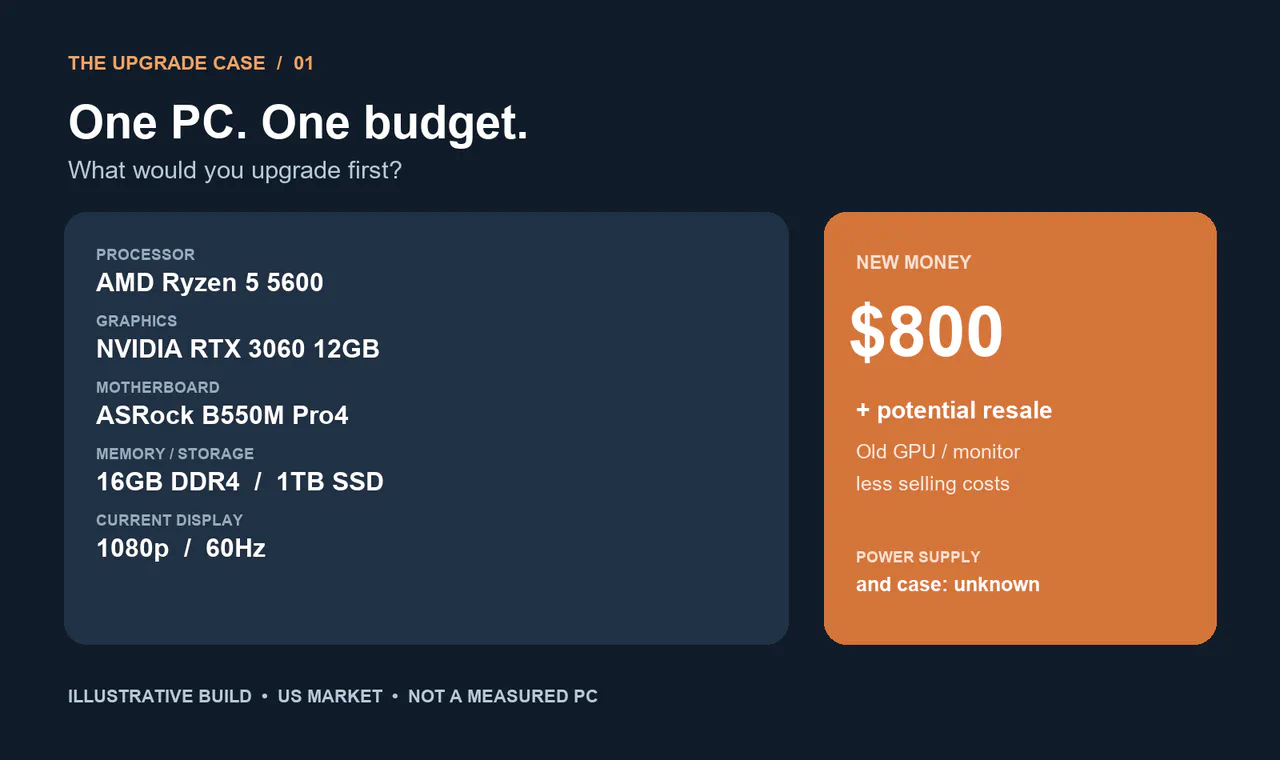
Our example build is hypothetical; no game tests were performed on it. Product screens and cited independent benchmarks are real. US prices are snapshots from November 7, 2026, not current checkout quotes.
Our working plan is a 1440p high-refresh monitor and, if the budget allows, a 16GB GPU. For now, the Ryzen 5 5600, B550 board, RAM and SSD stay put. Here’s how we got there.
What are we trying to improve?
Our example player wants more detail in a demanding single-player game and smoother motion in a competitive game. The monitor really is a 1080p/60Hz model. The $800 covers tax and delivery; selling the old GPU could add funds, but the sale is uncertain.
Let’s give our example PC a starting point. These figures are made up to illustrate the process, not results from a real machine:
- In a demanding game at 1080p, two runs through the same scene yield 58 and 60 fps at the preferred settings. Lowering render resolution yields 81 and 83 fps, with high GPU use.
- In a competitive game at 1080p, two runs yield 108 and 112 fps with the frame cap removed. The monitor is set to its actual maximum of 60Hz.
- Memory capacity and SSD space are sufficient for these games. The PSU model and case clearance are still unknown.
That points us toward the GPU for the demanding game and the monitor for the competitive one. It does not predict the frame rate after an upgrade. Let’s check the options and the full cost.
Step 1: Find the actual screen limit
A 60Hz monitor refreshes up to 60 times per second. If a game already runs above 60 fps, replacing only the graphics card cannot make that panel display 144 distinct refreshes per second. A faster GPU can still help frame times, settings, latency or future games; the point is to distinguish the rendered frame rate from what this display can show.
On Windows 11, open Settings → System → Display → Advanced display. Select the correct monitor and note its current resolution and refresh rate. If a faster option is offered, consult the display and cable specifications, select the appropriate refresh rate and test it. A monitor capable of 144Hz but set to 60Hz is a different problem from a monitor whose maximum is 60Hz.
Our example screen tops out at 1080p/60Hz. If yours already runs at 1440p/165Hz, you may be able to keep it and put more of the budget toward the PC.
Step 2: Identify the parts before choosing replacements
Press Windows + R, enter msinfo32, and record the processor, BaseBoard Product and BIOS Version/Date. Open Task Manager → Performance for the GPU and installed memory. The labels can vary by Windows version, and an OEM machine may report a model number that needs to be checked against the PC maker’s documentation. See our guide to checking PC specifications.
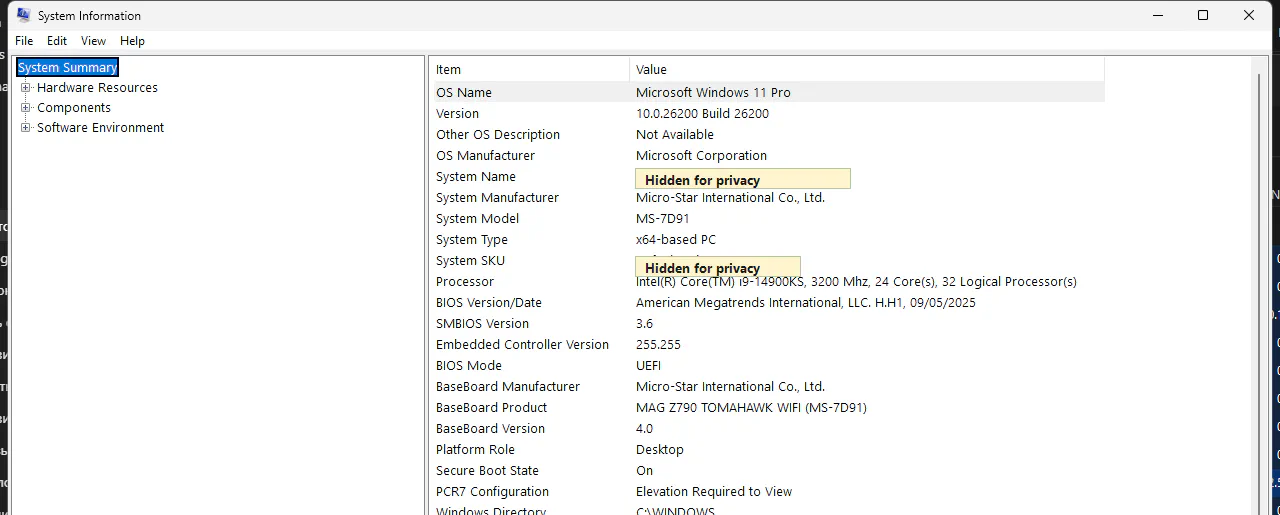
Real Windows screenshot from a different PC, with identifying fields hidden. It shows where to find the information; the displayed Intel system is not the hypothetical Ryzen build in this case.
Our example uses a B550M Pro4 and Ryzen 5 5600. ASRock’s page lists a PCIe 4.0 x16 slot and Ryzen 5000 family support. If you change the CPU, check the exact model against the board’s CPU support list and your installed BIOS. If your system already works, a GPU swap alone is no reason to flash the BIOS.
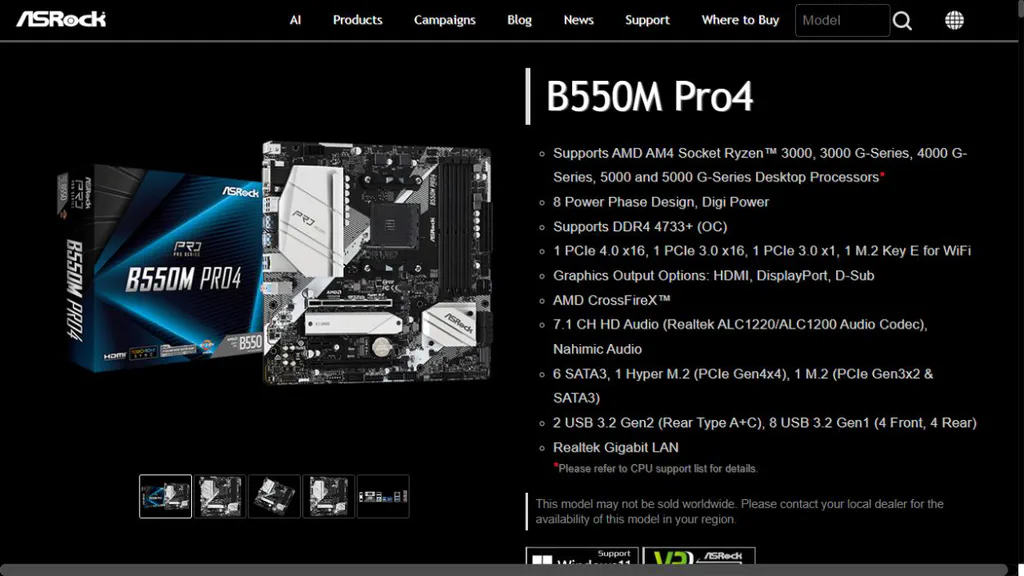
ASRock’s B550M Pro4 page, captured November 7, 2026. Match the board and processor to the manufacturer’s CPU support list and required BIOS.
Windows cannot reliably establish the PSU model or usable space inside the case. With the PC switched off and disconnected, check the supply label and cable connections without opening the power supply itself. Measure card clearance with front fans or radiators installed. Record the unknowns now; they become purchase conditions later.
Step 3: Work out what is slowing your game down
Before browsing parts, choose one repeatable scene in a game that bothers you. Note the game version, resolution, preset, ray tracing, upscaling, frame-generation setting and any frame-rate cap. Record average fps and, if your tool supports it, 1% lows. Run the same sequence at least twice: background activity and changing scenes can move the result.
Now change one factor and repeat the sequence. Lower resolution or demanding graphics settings while holding the rest steady. If frame rate improves clearly and GPU usage was high, graphics load is a useful lead. If it barely changes, investigate an FPS cap, CPU limits, memory pressure and background work rather than declaring the CPU guilty. A high overall CPU percentage is not required for a game to be limited by one busy thread.
These are diagnostic clues, not proof from a single number. Our CPU/GPU test guide walks through the repeated comparison.
For our case: the invented lower-resolution runs rise from roughly 59 to 82 fps, making GPU performance worth investigating. Our competitive game already produces more frames than the 60Hz panel can display, so a faster monitor is also on the shortlist. This is a diagnostic clue, not a guaranteed upgrade result.
A repeatable test you can actually perform
- Pick the game and scene you want to improve. Use a built-in benchmark when available; otherwise use the same 60-second route in an offline area. Close downloads and overlays you do not need, then let the game finish loading.
- In the game settings write down resolution, graphics preset, ray tracing, upscaling mode, frame generation and frame cap. If V-Sync or a 60 fps cap is enabled, note it and, for the diagnostic comparison only, test with the cap removed. Restore settings you prefer afterward.
- Use the game’s performance display or a trusted frame-time logging tool. Run twice, recording average fps and 1% low if both runs report it. If the two runs disagree substantially, investigate the scene or background activity before comparing hardware.
- Repeat at a lower render resolution while keeping the rest unchanged. If average and low-frame-rate results improve materially, GPU workload is a plausible constraint. If not, check caps, individual CPU-thread load and system memory. An online match is not a controlled benchmark.
- Record the result using the fields below, rather than trusting memory.
Baseline
- Game / scene: Your chosen game and repeatable scene
- Resolution, preset and extras: 1080p, chosen preset, cap noted
- Average / 1% low: Record your two runs
- Notes: Driver and game version
Diagnostic
- Game / scene: Same game and scene
- Resolution, preset and extras: Lower render resolution; other settings unchanged
- Average / 1% low: Record your two runs
- Notes: Note whether GPU load changes
After upgrade
- Game / scene: Same game, scene and settings as baseline
- Resolution, preset and extras: Same as baseline
- Average / 1% low: Record your two runs
- Notes: Explain any driver or game updates
If the game is already delivering, say, 100 fps on a genuine 60Hz panel, the display cannot show all 100 as separate refreshes. A faster panel may make motion more fluid; a GPU upgrade can still help latency, detail and demanding games. Conversely, if the game delivers 45 fps at settings you like, replacing the monitor alone will not turn that into 144 fps. Do both tests before deciding.
The other bottlenecks worth checking
A full SSD can affect updates and available space, but replacing a healthy SSD is not automatically a gaming FPS upgrade. If Task Manager shows memory pressure during the actual game and the system is paging heavily, investigate capacity and background tasks; 16GB by itself does not establish a problem. CPU limits deserve attention when lowering resolution barely changes fps, a frame cap has been ruled out and independent testing shows scaling on a comparable CPU. Check exact RAM slots, motherboard support and CPU cooler clearance before buying any replacement. Avoid buying three parts to fix a problem you have not isolated.
Step 4: What could replace the RTX 3060?
Let’s start with the card in our example, not a replacement picked in advance. On the RTX 3060 12GB page, set the page scenario to 1440p, scroll to Upgrade planner, and choose I already own this product. Enter how much extra cash you’re willing to put toward the GPU and what you expect to keep from selling your old one. Hit Show my upgrade options.
We use $224 resale as a planning assumption, based on the example sale and costs explained below. It is not a guaranteed payout. For the first pass we try $250 extra. That gives the planner $474 of buying power, before purchase tax and shipping.
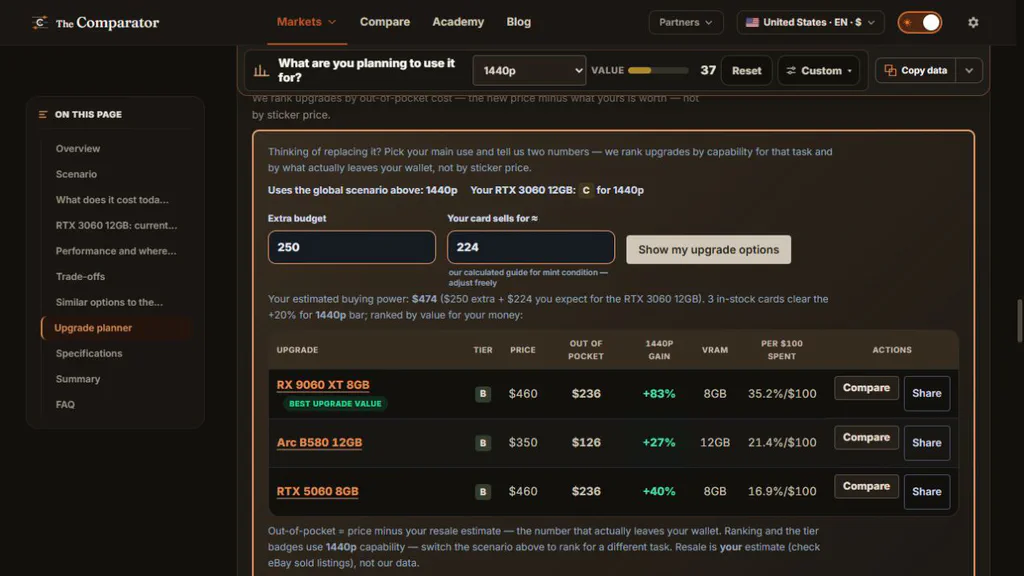
Actual 1440p planner result captured November 7, 2026. Prices are snapshots. Gain is the site’s modelled capability index, not measured FPS.
RX 9060 XT 8GB
- Tracked price: $460
- Price minus $224 resale: $236
- Memory: 8GB
- The catch: First by the planner’s value metric, but less VRAM than our 12GB card
Arc B580 12GB
- Tracked price: $350
- Price minus $224 resale: $126
- Memory: 12GB
- The catch: Cheaper step, but a smaller modelled gain; check game-specific performance and exact board power requirements
RTX 5060 8GB
- Tracked price: $460
- Price minus $224 resale: $236
- Memory: 8GB
- The catch: Keeps us in the NVIDIA ecosystem, but also reduces available VRAM
That first result is worth a closer look, not an automatic buy. In TechSpot’s 8GB versus 16GB RX 9060 XT testing, Horizon Forbidden West at 1440p Very High with quality upscaling ran into serious differences between the two memory capacities. Other games and settings behave differently, so check your games. For our example, which includes demanding 1440p single-player games, going from 12GB to 8GB deserves a hard look at benchmarks and texture settings.
What if we can spend more?
Now try $450 extra, keeping the same $224 resale estimate. That gives us $674 to spend on a card. The planner still puts the RX 9060 XT 8GB first, followed by the Arc B580 and RTX 5060 Ti 8GB. It reports six qualifying cards, so use the shortlist as a starting point and check other options too.
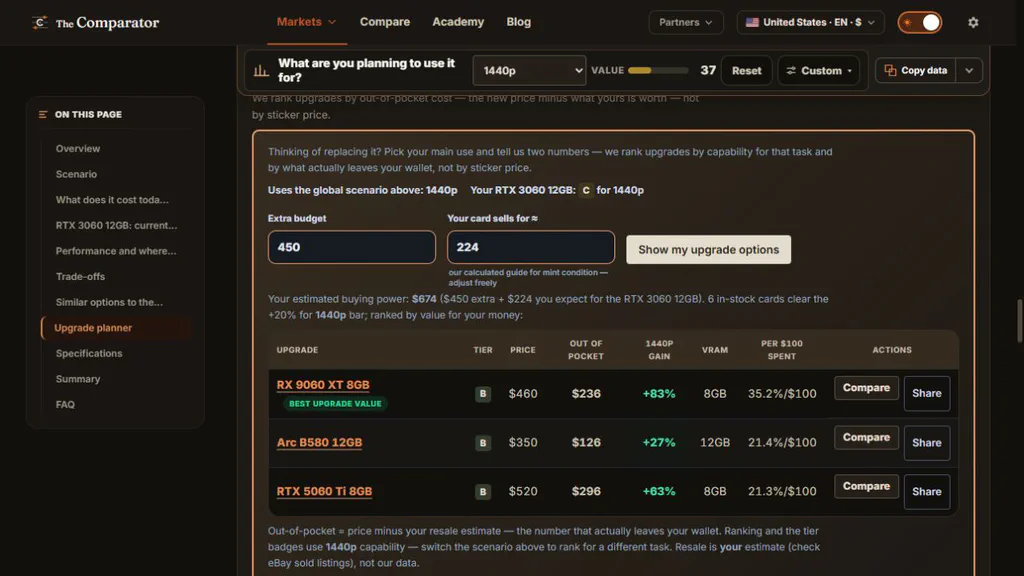
Same tool, same resale assumption, more room to spend. The 16GB card is not shown in this captured top-three list.
We also found an RX 9060 XT 16GB offer at $660. After our estimated $224 sale, that is $436 before tax and delivery. The card fits our $674 price ceiling, although it does not appear in the three results shown above. The 16GB model costs $200 more than the listed 8GB version, so the right choice depends on your games, settings and how much you want to leave for the monitor.
The planner’s +83% for the 8GB result is a calculated scenario index, not an FPS promise. It does not replace a game benchmark, does not know the complete PC, and does not verify whether an individual board fits the case. Let’s check a real game before choosing.
What about the processor, motherboard, RAM and SSD?
Processor: keep the Ryzen 5 5600 for the first stage. Our invented lower-resolution test improved, so the GPU deserves investigation before a processor swap. That does not mean the CPU can never limit a competitive game. Repeat the test in both games. If CPU performance is the problem, compare AM4 options such as the Ryzen 7 5700X3D, using independent game tests. Check the exact B550M Pro4 CPU support list, installed BIOS, cooler and full price. A move to AM5 also requires a motherboard and DDR5, so compare the whole platform cost.
Motherboard: keep the B550M Pro4. It has the full-length PCIe slot for our GPU and an AM4 socket for the current processor. A newer board alone is not a sensible way to buy more gaming FPS. Revisit it if the chosen CPU needs another platform or the board lacks a feature we actually need.
Memory: keep the 16GB initially. In our example the games and background apps fit. During your own test, check memory pressure: if available RAM is exhausted and the system is paging, additional compatible RAM may address stutters. Confirm the configuration and supported memory before ordering.
SSD: keep the 1TB drive while capacity and health are adequate. Its exact model is unknown. ASRock lists two M.2 sockets with different capabilities; identify the free slot and supported format before adding a drive. More capacity can solve a storage problem, but a faster SSD does not guarantee higher average FPS.
That keeps the example’s budget focused on the two improvements the test actually points to: the display and graphics card. We will test the existing card on the new screen before deciding whether to spend the rest.
Step 5: Check a real benchmark, and its test system
TechSpot tested Forza Horizon 6 with both cards. In its native 1440p Extreme test, without ray tracing or frame generation, the RTX 3060 averaged 48 fps and the RX 9060 XT 16GB 77 fps. That is about a 60% increase in that test. At 1440p High, the same report gives 73 fps versus 115 fps.
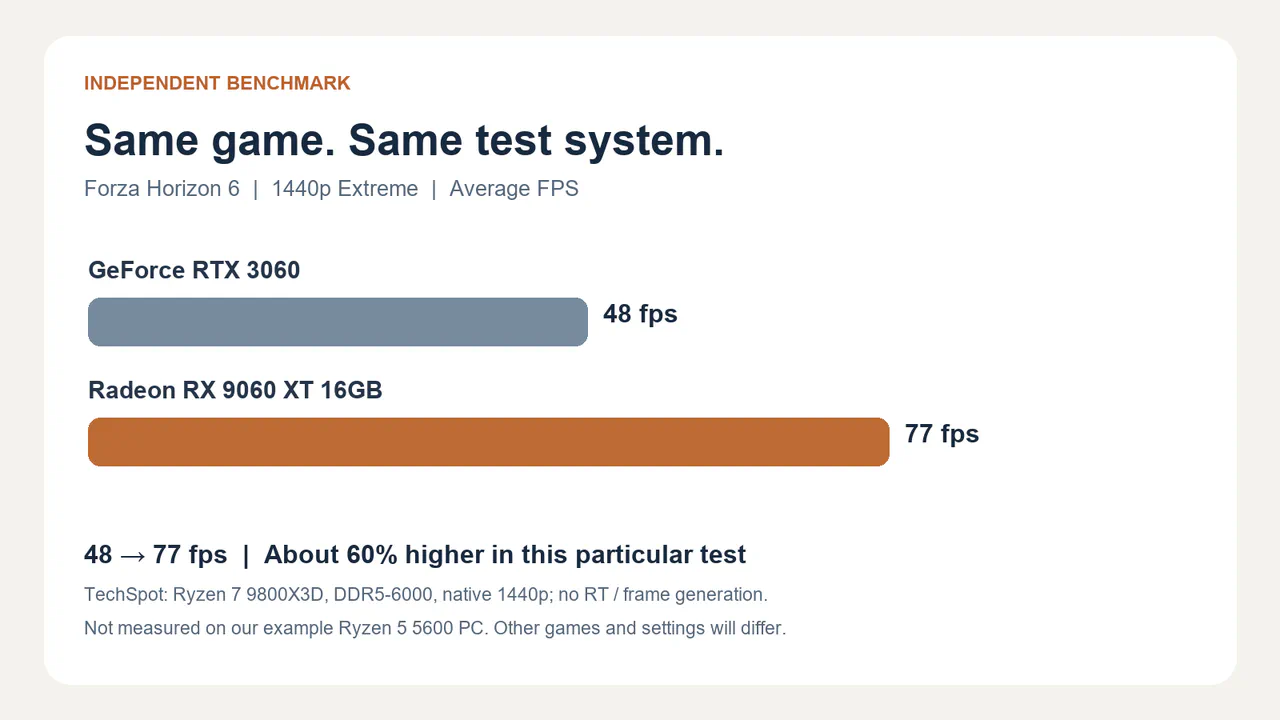
Our chart of TechSpot data. This is an independent test, not our own benchmark.
TechSpot used a Ryzen 7 9800X3D and DDR5-6000, so don’t expect those exact results from our Ryzen 5 5600 build. The processor matters especially when chasing high frame rates. Look for tests of your games on a comparable system; TechSpot’s CPU/GPU scaling investigation includes the Ryzen 5 5600.
The monitor decision changes how we use these results. If the goal is 1440p image detail, a new display provides that resolution but the existing GPU must render more pixels. If the goal is competitive responsiveness, compare performance at the settings actually used in those games, then consider a 1080p or 1440p high-refresh monitor. A 180Hz panel does not make a 60 fps game run at 180 fps.
Step 6: Make the $800 work harder by selling the old parts
Selling the old graphics card can turn a one-part budget into a two-part upgrade. The crucial number is the amount you keep, not the asking price. The monitor may be sellable too, although bulky packaging and shipping can wipe out the value; check local completed sales and transport cost before counting it.
Find out what the RTX 3060 could sell for
On eBay, search for the exact brand, model, 12GB memory version and condition. In the filters choose Sold Items; check whether each result actually sold and whether a Best Offer obscures the accepted price. Compare several recent completed sales, not the cheapest broken card or someone else’s unsold asking price. Note shipping, included accessories and condition. Search locally as a second route and compare the net amount, not only the headline price.
We checked one completed eBay listing: a tested HP OEM RTX 3060 12GB showed $279 sold on August 31. This is a real historical example, not a valuation of our unspecified card or a promise it will sell for that amount. Its exact variant, seller reputation, date, buyer-paid shipping and taxes can differ from yours. Gather several comparable recent sales before setting a price.
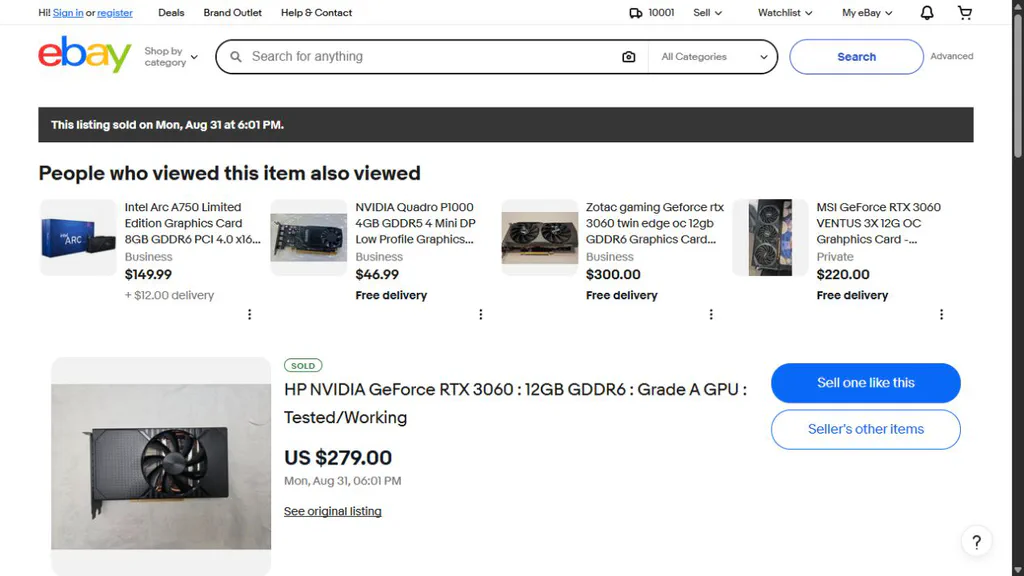
One completed listing, captured November 7, 2026. Check multiple recent comparable sales before estimating your own proceeds.
For the calculation below we use a purely illustrative $279 sale, minus a hypothetical total of $55 for fees, postage and packing. That leaves $224 net. The $55 is a planning assumption, not a quoted eBay fee. Actual selling fees depend on category, account, buyer-paid shipping and tax, promotions and other details. Check eBay’s seller-fee rules and a real shipping quote for your account. Allow for possible returns or disputes.
Compare the upgrade routes
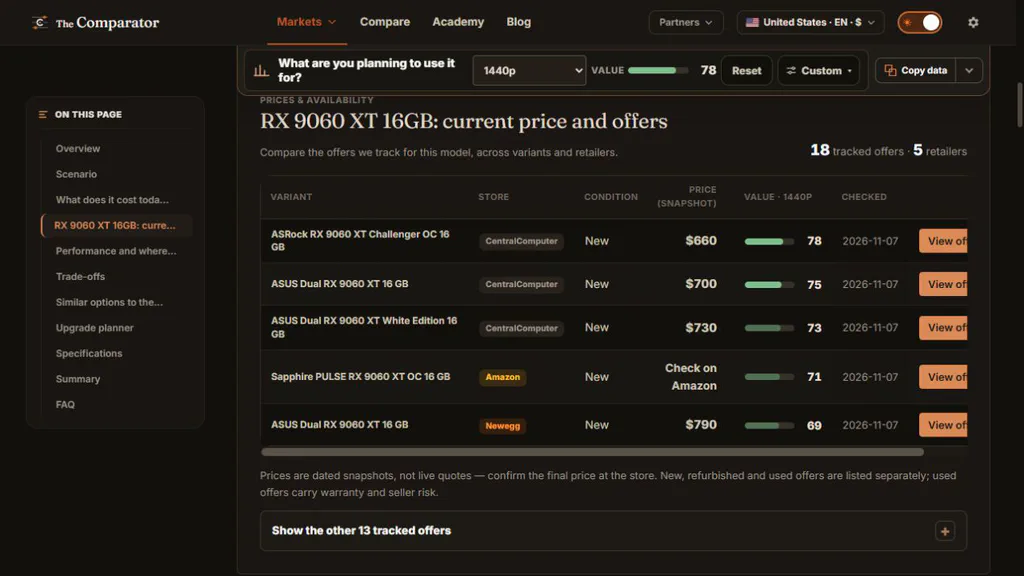
Comparator’s US offer list on November 7. The retailer’s checkout and current availability were not verified.
On November 7, Comparator showed an ASRock RX 9060 XT Challenger OC 16GB at $660. A search result for a Samsung Odyssey G5 G50F 27-inch QHD 180Hz showed $279.99. Both direct store pages restricted our checks, so these are comparison snapshots, not confirmed orders.
Monitor first; keep old GPU
- GPU: $0
- Monitor: $279.99
- Proceeds counted: $0
- Net project cost before purchase tax/delivery: $279.99
- Decision: Potential improvement in refresh/resolution; test existing GPU at 1440p
GPU first; sell old GPU
- GPU: $660
- Monitor: $0
- Proceeds counted: $224 illustrative
- Net project cost before purchase tax/delivery: $436
- Decision: Candidate if GPU performance is the real problem; old 60Hz display remains
8GB GPU + monitor; sell old GPU
- GPU: $460
- Monitor: $279.99
- Proceeds counted: $224 illustrative
- Net project cost before purchase tax/delivery: $515.99
- Decision: More room for tax and shipping, but lower VRAM; check the games first
Both; sell old GPU
- GPU: $660
- Monitor: $279.99
- Proceeds counted: $224 illustrative
- Net project cost before purchase tax/delivery: $715.99
- Decision: Leaves $84.01 of the $800 for purchase tax, delivery and other costs
Both; no successful sale
- GPU: $660
- Monitor: $279.99
- Proceeds counted: $0
- Net project cost before purchase tax/delivery: $939.99
- Decision: Already $139.99 above $800 before purchase tax/delivery
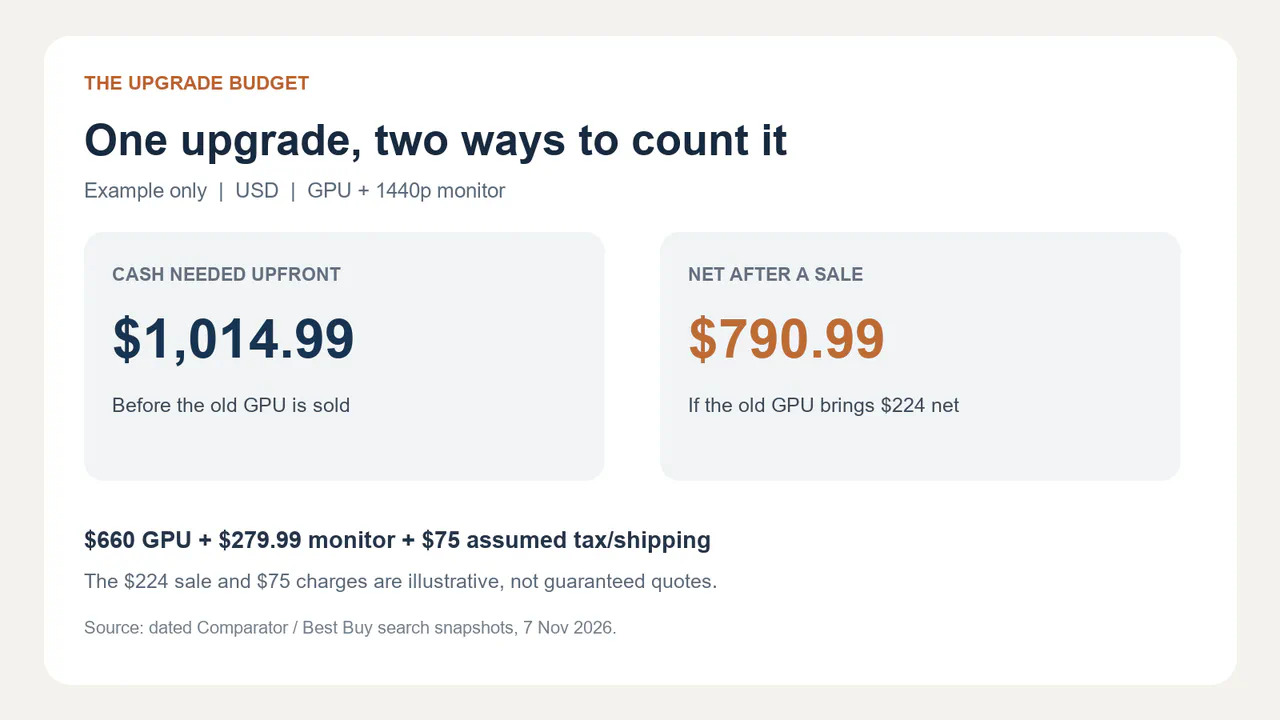
The purchase charges and resale proceeds are planning assumptions, not verified checkout or payout.
The combined route needs at least $139.99 net resale before purchase tax or shipping just to reach $800. If purchase tax and delivery total an illustrative $75, it needs at least $214.99 net. At the example $224 net, the final net cost would be $790.99, leaving $9.01. That is a narrow margin; a price change, shipping charge or required PSU could erase it. Do not mistake these assumed charges for a real checkout.
Upfront cash is different from net cost. If both purchases and the illustrative $75 charges come first, you need $1,014.99 before receiving any sale proceeds. If $800 is also the maximum cash available at any moment, buy in stages: check the monitor and its return window, verify the new GPU and power supply, then sell the old card only when you have a workable way to use the PC and can absorb the risk of an unsold card. The Ryzen 5 5600 in our example has no integrated graphics, so removing its only GPU leaves no normal display output. A spare compatible GPU or temporary access to another PC can help; do not assume either is available. Keep the old card until the replacement has passed testing if your cash position allows it.
How to sell without creating another problem
Photograph the actual card, its exact model label with serial obscured, ports and any known wear. Describe whether it was repaired, tested, or has a receipt; never claim warranty transfers without checking the manufacturer. Pack it in an anti-static bag and a rigid, padded box. Record the item and tracking, use the platform’s own payment and shipping rules, and never publish full serial numbers or accept an off-platform payment solely because a buyer requests it. For a monitor, compare local pickup against an insured shipment with proper packaging; a second display or backup GPU may be worth more to you than the expected proceeds.
Step 7: Will the exact card fit?
Go from GPU family to the exact board model in the listing. Open its manufacturer’s specification and record its length, height, slot thickness and PCIe power connector. Compare those with the case as it is built today, not just an empty-case headline number. Check the room for the power cable and whether a front fan or radiator reduces the available length.
Then identify the exact PSU model, its available PCIe cables, the card maker’s recommended system power and the rest of the PC. A PSU label reading 650W is not enough to prove its condition, the required connectors or suitability for every system. Never reuse modular PSU cables from another unit merely because the plugs fit; use the cables specified for that PSU.
For the ASRock Challenger 16GB in our example, ASRock lists 249 × 132 × 41 mm, one 8-pin power connector and a 550W recommended PSU. The recommendation applies to the whole system and is not a measurement of the card’s power draw. A real buyer can compare those dimensions to the free space in their own case, then verify the PSU model and its cable against the manufacturer’s documentation.
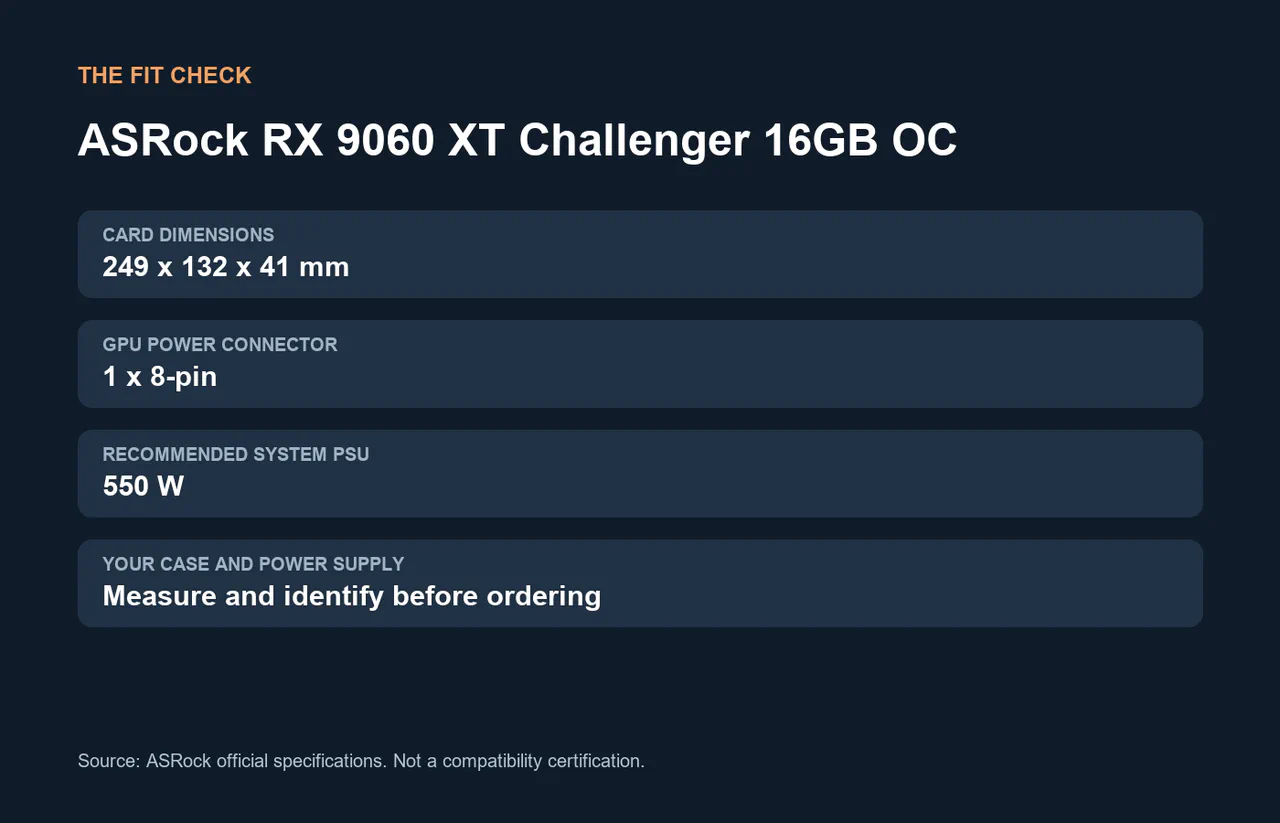
Our diagram using ASRock specifications; case and PSU compatibility still need checking.
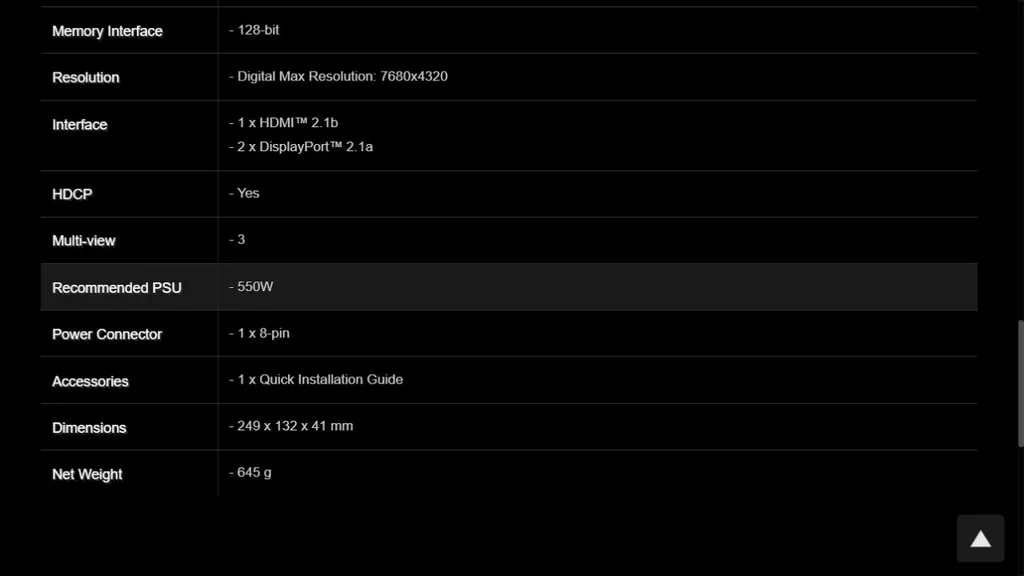
The manufacturer’s specification page for this exact card, captured November 7, 2026.
For this case, PSU and case are unknown. Result: compatibility remains unconfirmed. We would need the exact GPU SKU, PSU model and available cables, and a case measurement before ordering. A slot in the motherboard is only one part of the answer.
Step 8: Compare a used listing without confusing it with a new one
Search the marketplace for the complete model and select the used condition filter. Check the title and the detailed condition: a search for “16GB used” can still surface 8GB or new cards. Open the listing and record the exact SKU, asking price, shipping, seller location, return window and whether the item is sold as working, untested or for parts. A price seen by a visitor in another country is not necessarily the delivered US price.
Ask for clear photos of the actual card, power connector, PCIe contacts, rear bracket and model label. Ask whether it was repaired, whether all outputs work and what is included. If testing is possible, compare the reported model and VRAM with the listing and run a representative workload, watching for display corruption, crashes and abnormal fan behaviour. A short pass does not establish remaining life. Meet safely and do not pay outside the platform if doing so removes the protection you expect.
A real listing: would this used card save money?
On November 7, we opened this eBay listing with delivery set to ZIP 10001. The seller described a Gigabyte RX 9060 XT Gaming OC 16GB as used and “barely used.” The asking price was $680, plus $19.85 shipping: $699.85 before tax. The page said the seller does not accept returns. An optional protection plan cost another $64.99; do not assume what it covers without reading its terms.
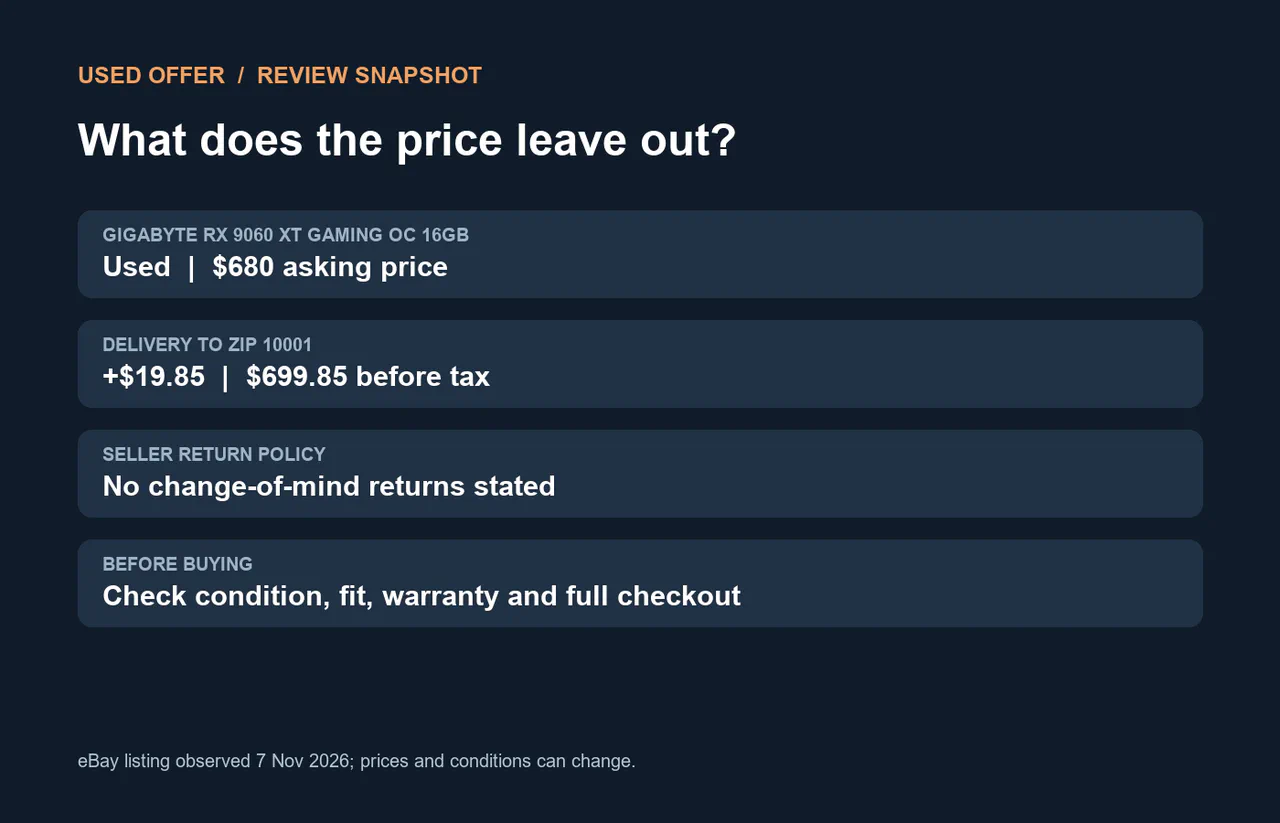
Our summary of the listing as observed on November 7, 2026.
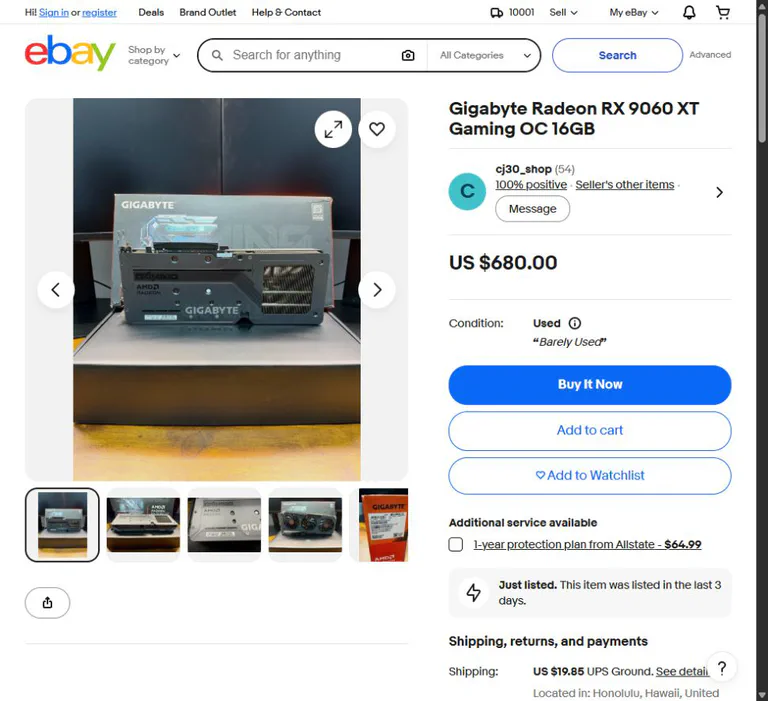
The listing as viewed for delivery to ZIP 10001 on November 7, 2026. The offer and its terms may change.
Here is our decision process:
- Compare the delivered starting cost. $699.85 before tax is already $39.85 above the $660 new ASRock listing observed in Comparator before delivery and tax. These are different manufacturers’ variants and the new offer is not checkout-verified, so this is a screening comparison, not proof of the final price difference.
- Read what is actually promised. “Barely used” does not tell us the GPU’s load temperatures, fan condition, repair history, purchase date or warranty transferability. Ask for the exact model label, proof of purchase with personal details removed, and a recent demonstration under load before deciding.
- Separate return rights. “Seller does not accept returns” makes a change-of-mind return uncertain. eBay’s Money Back Guarantee may still apply to eligible items that arrive damaged or not as described; its conditions and deadlines matter.
- Check fit again. This Gigabyte model is not the ASRock card checked earlier. Find the dimensions and connector requirements for this exact variant; do not reuse another card’s measurements.
Our call: pass on this listing for the example. Its price and limited seller return policy do not make a convincing case against the observed new offer. That is not a judgment about the seller or the card’s authenticity. If the comparison offer is unavailable, restart the comparison with verified current prices and terms.
Step 9: Keep the warranty and return evidence
Save the listing, order confirmation, receipt and the exact return terms before paying. A store’s voluntary change-of-mind policy is not the same as a remedy for an item that arrived broken or materially different from its description. For an eligible US eBay order, read the Money Back Guarantee policy, including deadlines and exclusions. If a problem occurs, start from the order, choose the accurate reason, attach clear evidence, and follow the return and tracking instructions.
Manufacturer warranty terms differ. Intel says it does not honor warranty requests for used or refurbished processors; that does not automatically remove any separate seller obligation. A matching serial number or warranty lookup is useful evidence, not a complete authenticity test. Do not publish a full serial number in your screenshots.
In the US, the FTC explains that a manufacturer generally cannot require a particular paid part or service to retain warranty coverage unless an exception applies; a company may refuse coverage for damage caused by the installation or third-party component. Keep the terms and receipts and check the applicable rules for your actual purchase.
Our plan: monitor first, then decide on the GPU
Our first purchase would be a 27-inch 1440p high-refresh monitor, once we’ve checked its price, return terms and connection. The competitive game already renders over 100 fps in our example, so a faster panel can make better use of those frames. Keep the RTX 3060 and try it at the new resolution before buying a GPU. If competitive speed matters more than image detail, compare a good 1080p high-refresh screen too.
For the demanding game, our shortlist is the RX 9060 XT 16GB at the observed $660 snapshot and the planner’s cheaper RX 9060 XT 8GB at $460. We prefer investigating the 16GB version for this example’s demanding 1440p games: moving from 12GB to 8GB carries a trade-off in some games. That is conditional on a verified price, relevant independent game tests, and the exact card fitting the PSU and case.
The two observed prices plus a hypothetical $75 for purchase tax and delivery total $1,014.99 upfront. If the old card sells for $224 net, the project costs $790.99 net, leaving $9.01 of the $800 budget. That margin is thin. If we cannot fund more than $800 at any moment, the old card does not sell, the PSU needs replacing or checkout totals rise, buy the monitor first and wait, or reconsider a cheaper GPU after checking the 8GB compromises. Do not count an unsold card as money in hand.
We would not add a CPU, motherboard, RAM or SSD to the first purchase. The example has not established that they would solve the problems more effectively. Retest after the display and GPU changes; if memory pressure or a CPU limit appears, revisit that component with the new evidence.
Step 10: Install, check and measure the result
Before changing hardware, download the new graphics driver from the GPU manufacturer’s official site, save your benchmark notes and keep the receipt. Power down, switch off and unplug the PC; follow the case and component manuals. Disconnect the old card’s power cable, release the PCIe latch without forcing it, and install the new card firmly in the appropriate slot. Attach the correct power connector using the PSU’s own specified cables. Connect the display to the graphics card, not an inactive motherboard output. If you are unsure about physical installation, use a qualified technician and include that cost in the budget.
Once Windows starts, install the correct driver and restart if requested. Confirm the GPU name and video memory in Task Manager or the manufacturer’s software. Set the monitor’s native resolution and intended refresh rate under Settings → System → Display → Advanced display; check the monitor’s on-screen menu and documented cable/port requirements if the option is missing. Enable variable refresh where supported and desired, using the display and GPU instructions. Inspect for unusual noise, missing fans, unstable output or crashes. A short stress test is a useful initial check, not a guarantee of future reliability.
Now repeat the same baseline: same game version where practical, scene, resolution, settings, cap and logging method. Record two runs and compare average fps and 1% lows. Test a second game if you play one regularly. A new 1440p monitor changes the workload, so run one test at the old 1080p settings for a like-for-like GPU comparison and another at your new preferred 1440p settings for the actual experience. Do not compare a 1080p pre-upgrade run with a 1440p post-upgrade run and attribute the difference only to the card.
If the new card is unstable, first reseat connections with power disconnected, verify the correct driver and inspect temperatures with a reliable monitoring tool. Do not open the power supply or attempt board-level repair. Preserve evidence and contact the seller within the applicable return period. If the card works but the gain is small, revisit frame caps, CPU load, settings and the independent benchmark’s test system before buying another component.
A practical buying checklist
- Before shopping: record the exact PC, motherboard, GPU, display, PSU and case; identify the game and what feels wrong.
- Before choosing a part: take a repeatable baseline, compare independent tests and decide whether the target is resolution, frame rate, responsiveness or all three.
- Before paying: check the exact model, dimensions, connectors, full delivered price, seller, condition, warranty and return conditions. Calculate proceeds from old hardware separately from cash required upfront.
- After installing: verify the hardware, resolution and refresh setting; repeat the baseline and keep the documents until the return and warranty periods are clear.
A good upgrade solves the problem you measured. Keep the receipts, recheck the numbers at checkout, and leave enough room in the budget for the surprises that a parts list cannot predict.