
A laptop can still turn on and be finished as your laptop. Perhaps its battery no longer gets you through the commute. Perhaps the memory is full whenever your work apps are open. Or a broken charging port turns an otherwise healthy machine into an expensive repair.
You cannot predict its retirement date from the logo. You can check which of those problems would be affordable to fix.
For a four-year purchase, start with three things: enough capacity where upgrades are impossible, an obtainable battery with a sensible repair route, and support for the software you actually need. A fast processor helps, but it cannot compensate for every other limit.
We compared five specific laptop designs, checked their service documents and looked at US replacement-part listings. This is a buying method, not a durability ranking or a promise that any model will survive four years. The older examples are useful when assessing refurbished and clearance stock; they are not a shortlist of the latest laptops.
Start with the year you want to stop shopping
Suppose you are buying in November 2026 and want to keep the machine until late 2030. Your day involves a browser, documents, video calls and occasional photo editing. You sometimes work away from a socket. That is our hypothetical buyer, not a laptop we have physically tested.
Write down the awkward parts of that day before looking at specifications:
| Your actual requirement | What to check before paying |
|---|---|
| Calls while a large workbook and browser are open | Whether that combination runs comfortably, including memory pressure and fan noise |
| Several hours away from power | Runtime in a comparable workload, battery condition if used, and a replacement route |
| A growing local photo collection | SSD capacity, whether the drive is replaceable, and whether expansion means replacing the existing drive |
| One machine for paid work | Repair turnaround, a backup, and a way to keep working during service |
| Keeping the laptop until 2030 | OS and application compatibility, firmware support and capacity you cannot add later |
For ordinary office use, 16GB is a reasonable starting point to investigate. It is not a four-year guarantee. If your work already involves virtual machines, large creative projects or other known memory-heavy tasks, price the capacity those tasks need now. A fixed-memory laptop deserves a more cautious capacity decision than one with a practical upgrade path.
Do not buy an unsuitable keyboard, dim screen or noisy machine because the memory looks generous. Those are the parts you will live with every day. Our ultrabook buying guide covers the broader portability trade-offs; here we are checking what happens after the honeymoon.
Five laptops, five different ownership decisions
The names below are deliberately precise. A ThinkPad T14 is not a T14s. A 2024 Latitude 5450 is not the older Latitude E5450. Even within Framework’s 13-inch family, the memory format changes with the platform.
Framework Laptop 13: AMD Ryzen AI 300, 2025
Memory: two DDR5 SO-DIMM slots; manufacturer supports up to 96GB. Storage: one replaceable M.2 2280 SSD.
Framework Laptop 13 Pro: Intel Core Ultra Series 3, 2026
Memory: one replaceable LPCAMM2 module, up to 96GB. Storage: replaceable SSD; follow the Pro’s own storage guide.
ThinkPad T14 Gen 5 Intel: 21ML/21MM
Memory: two DDR5 SO-DIMM slots; Lenovo lists up to 64GB. Storage: one M.2 2280 slot.
Dell Latitude 5450: 2024 P165G family
Memory: two DDR5 SO-DIMM slots; Dell lists up to 64GB. Storage: one M.2 2230 slot.
MacBook Air 13-inch M2: 2022, A2681
Memory: no ordinary memory-module upgrade. Storage: no ordinary internal SSD-module upgrade.
Capacity limits here are the manufacturers’ documented support or offering limits, not proof that every larger third-party part is impossible. The service guides below show the differences that affect an upgrade.
Two memory slots do not mean one is empty
Imagine two listings that both say 16GB RAM. One contains 1 × 16GB; the other contains 2 × 8GB. On a compatible two-slot machine, moving the first to 32GB can mean adding a suitable 16GB module. The second needs replacement modules to reach 32GB.
That changes the shopping bill and leaves different parts to sell or keep. It can also change memory-channel operation. Check the supported combination and the installed layout, rather than treating the number of slots as a performance result.
Ask for the installed layout, not just the total capacity. If the seller cannot establish it, budget for replacing the memory you might find inside. Do not assume an empty socket from a stock photograph.
Replaceable memory is not always SO-DIMM
Framework’s Intel 13 Pro uses a single LPCAMM2 module. The Ryzen AI 300 Laptop 13 uses two DDR5 SO-DIMMs. A spare module from one does not become an upgrade for the other.
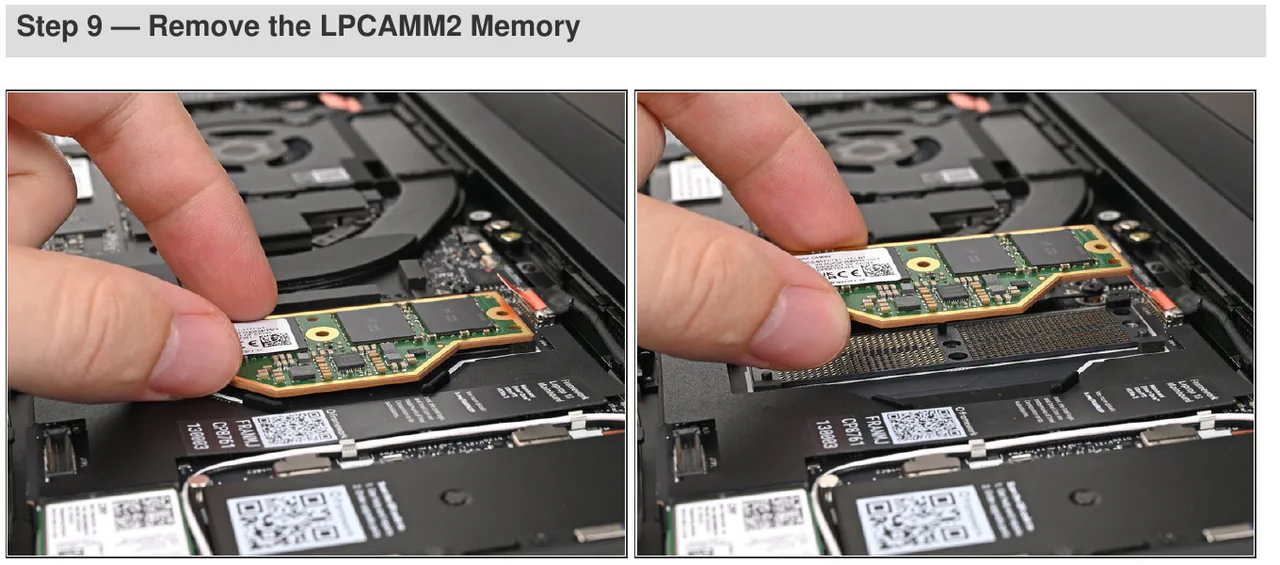
Photo: © Framework, Laptop 13 Pro memory guide, release 1.01, page 8, cropped excerpt. This shows the module design, not a complete repair procedure. Use the current guide for preparation and handling.
The buying consequence is less exciting than the acronym: price the exact compatible memory before choosing a low-capacity configuration. An upgrade socket has value only if you can obtain and afford the module when you need it.
It is particularly unwise to assume memory will always be cheaper later. In its November 6, 2026 pricing update, Framework reported increases for several DDR5 capacities after earlier lower-cost inventory ran out. That does not forecast every retailer’s prices. It does give you a reason to compare today’s fully configured price against today’s base machine plus the actual upgrade.
A replaceable SSD can still be a replacement job
The Lenovo and Dell examples each have one documented SSD slot. You cannot keep the original drive internally and simply add a second one in that slot.
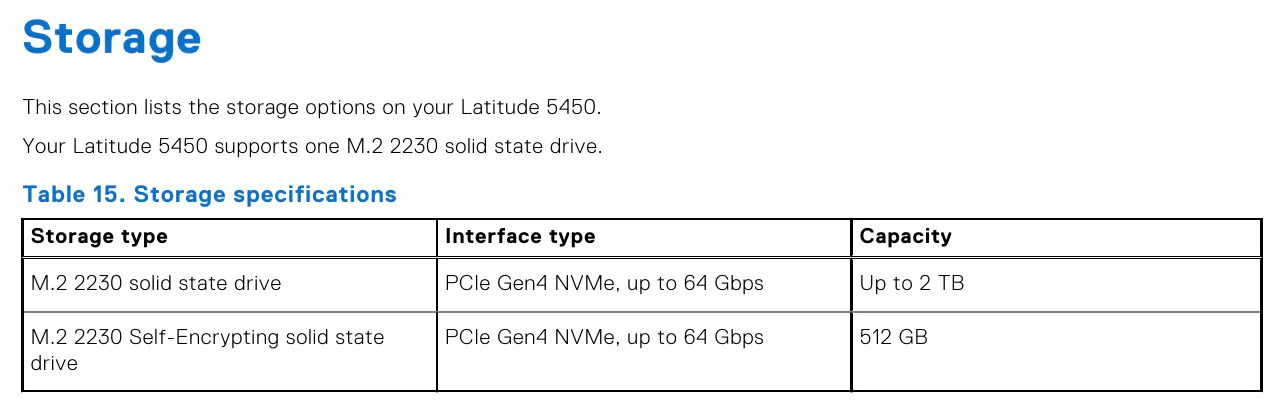
Source: © Dell, Latitude 5450 owner’s manual, October 2024 revision, page 23 excerpt. The drive is 2230, not the longer 2280 used in the Lenovo example.
For a drive upgrade, include a backup, migration or a clean installation, and any enclosure or shop work you need. Confirm the right physical size, interface, clearance and supported configuration. Then decide what happens to the old drive. An external enclosure can make it useful, but adds another item to buy and carry.
On the M2 Air, choose the internal capacity at purchase. An external SSD can hold media, but it does not increase unified memory, and it is not equally convenient for every application. A cable and a drive dangling from a laptop are a real portability trade-off.
Our comparison: for uncertain future memory needs, a practical module upgrade is valuable. For a stable workload and a machine already configured with enough memory, fixed memory can be a reasonable compromise. The mistake is buying too little on the assumption that every laptop can be upgraded.
Walk through a listing before trusting the word “upgradeable”
Take a hypothetical used listing: ThinkPad T14 Gen 5 Intel, 16GB RAM, 512GB SSD. There is no seller or price attached to this example. Here is how to turn that vague description into a decision.
1. Establish which machine it actually is
Ask for the full machine type/model and match it to the manufacturer’s support page. For this example, the Intel T14 Gen 5 documentation covers 21ML/21MM. Confirm the offered configuration rather than borrowing specifications from a T14s, an AMD listing or another generation.
Result to record: exact model, processor, screen specification, installed memory layout and battery variant. If the seller has only copied a family specification sheet, those installed details remain unanswered.
2. Read the memory and storage sections together
Open Lenovo’s T14 Gen 5 Intel specification PDF. The memory section lists two SO-DIMM slots. The storage section continues onto the next page and identifies one M.2 2280 slot.
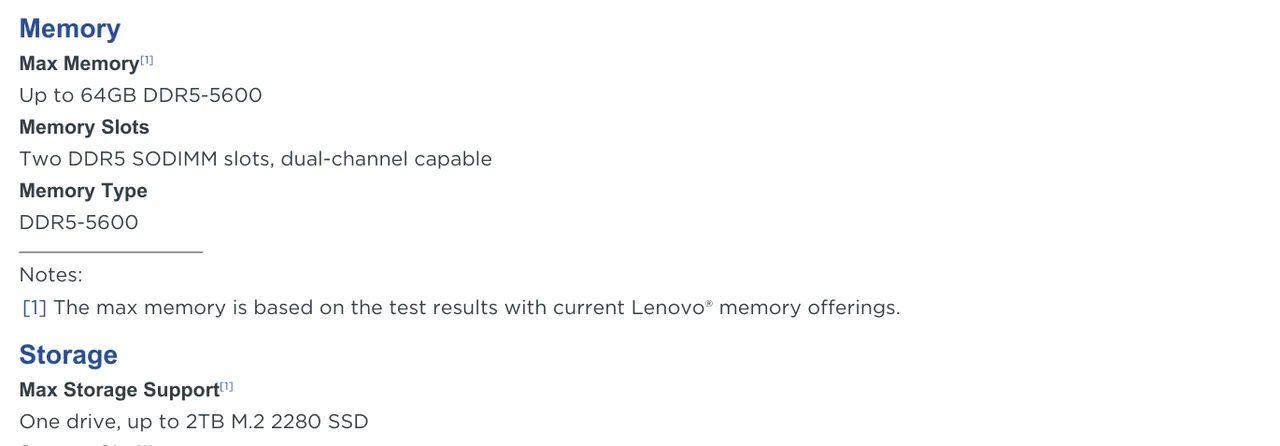
Source: © Lenovo, ThinkPad T14 Gen 5 Intel PSREF, May 6, 2026, page 3 excerpt. Check page 4 as well for the complete storage-slot description.
Result: a future 32GB upgrade is plausible, subject to the installed layout and compatible modules. More internal SSD capacity means replacing the present drive, not adding another alongside it. Put those two jobs on separate lines in your budget.
3. Find the repair route, not just the teardown
Lenovo’s customer-replaceable parts list includes memory and the M.2 SSD as self-service parts. It lists the large 52.5Wh battery as an optional-service part. The family specification also includes a 39.3Wh battery; do not silently give that variant the same service classification.
Ask which battery is actually installed and use Lenovo’s serial-specific parts lookup to obtain its part number or an approved substitute. A listing saying “fits T14” is not enough. Connector, mounting and the relevant model/variant must match.
Result: you now know which items you might handle yourself and which you would quote through a repair shop. You have not yet established that a replacement is in stock or that its installed price is acceptable.
4. Resolve the unknowns before the return deadline
Ask for a battery report and confirmation of the memory layout. If the seller cannot provide them, only proceed with an inspection and return arrangement that you understand. During that window, test the actual laptop and compare it with the listing.
If the machine has 2 × 8GB, a worn battery and a small SSD, the bargain is really a laptop plus three potential jobs. If it already has suitable capacity and the battery meets your mobile needs, the same model can be a much simpler purchase.
That is why a family name or repairability score cannot decide between two individual used units.
Put a real battery on the shopping list
A service manual answers “can this be removed?” A parts page answers a different question: “what can I order today?” A shop quote adds the labor, consumables and service terms.
We checked these US pages on November 17, 2026. These are spare-part observations, not installed repair quotes. Tax, shipping, tools and labor are not included unless a seller explicitly adds them.
- Framework Laptop 13, new 61Wh battery, FRANGWAT01: $69. A new part price; follow the platform’s BIOS requirements before installation.
- Framework Laptop 13, refurbished 61Wh: $49. The $20 saving buys a refurbished part; compare condition and coverage with the new option.
- Framework Laptop 13 Pro, 74Wh: back-in-stock notification. A documented replacement path, but no orderable US spare in the observed page state.
- iFixit MacBook Air M2 A2681 battery, new, Part Only: $119.99. An aftermarket part, not Apple service or a complete installed-repair price.
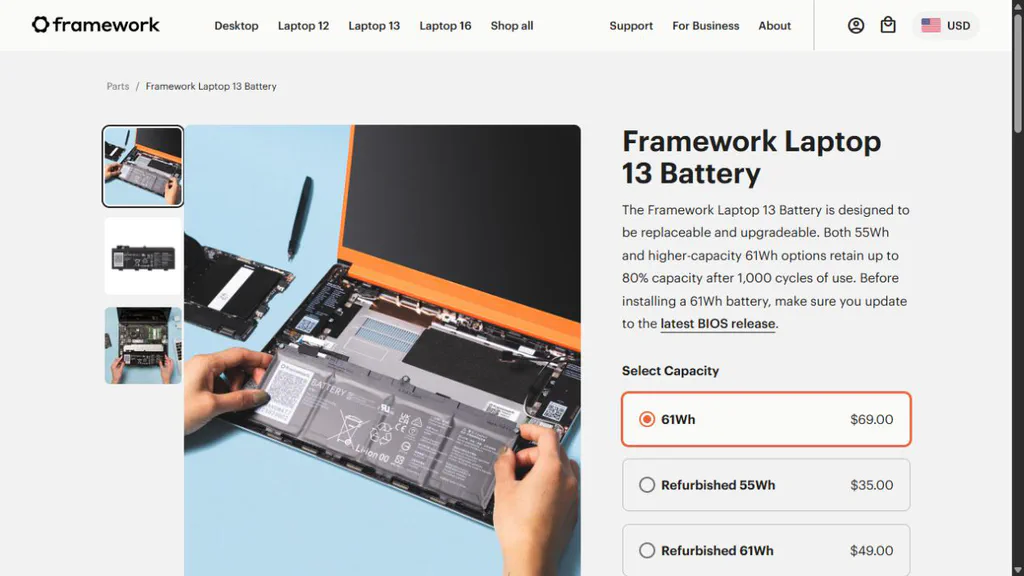
The selected new 61Wh option is $69; the refurbished 55Wh option is a different-capacity product. Source: Framework’s battery store, US selection, November 17.
The Pro’s larger battery also illustrates a compatibility trap: Framework says its 74Wh part requires both the Pro Bottom Cover and the Pro Input Cover. It is not a battery-only upgrade for an older chassis. Check the full conversion cost before comparing capacities.
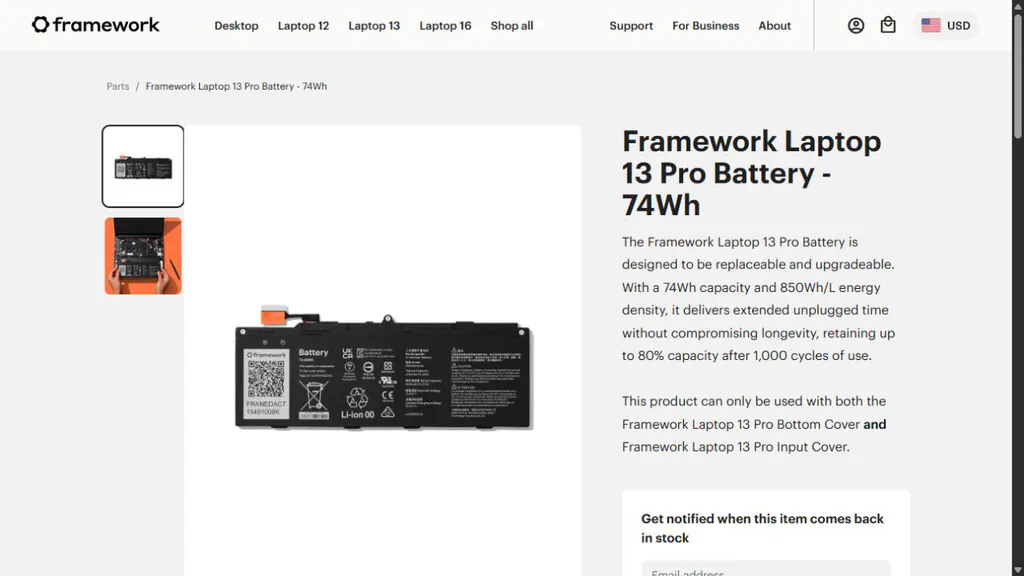
Source: Framework Pro 74Wh battery page, November 17. A repair guide and an obtainable spare are separate checks.
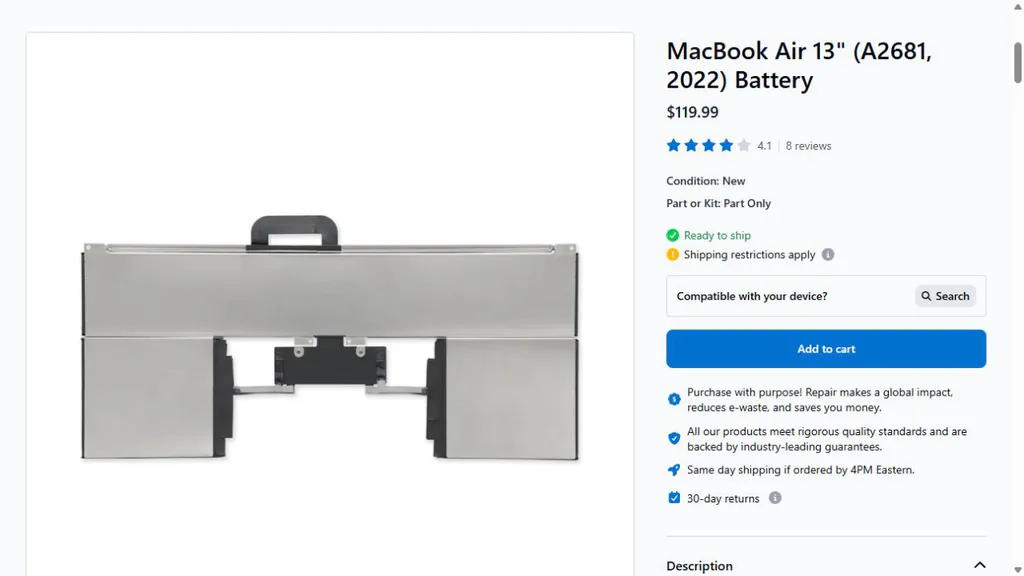
Source: iFixit’s A2681 battery listing, November 17. “Part Only” is the important qualifier.
For the Air, iFixit’s replacement guide involves adhesives and tools, with an estimated one to two hours and moderate difficulty. That is the guide’s estimate, not a time we measured. Confirm the consumables included with the selected part and ask a shop for an all-in price if this is not a repair you want to perform.
For the Lenovo and Dell examples, start with the serial number or Service Tag and get a compatible-part and installed-repair quote. We have not established a comparable US installed price for them. A cheap battery advertised under a broad family name would not fill that gap honestly.
Ask the shop one useful question
“For this exact model and serial, what is the total battery replacement price, including the part’s condition and source, labor, consumables, tax, turnaround and repair warranty?”
Then ask whether the machine must be left while the part is ordered and whether data access or a drive removal is necessary. Arrange a backup either way. A lower quote can lose its appeal if it leaves your only work laptop unavailable for a week.
Do not compare an original new battery, a used original and a new aftermarket battery as interchangeable offers. Check seller identity, stated compatibility, return terms and coverage. A familiar-looking label or a plausible capacity claim is not proof of origin.
Read battery health without turning it into a countdown
On Windows, open Terminal or Command Prompt and run:
powercfg /batteryreport
Open the HTML file at the location the command prints. Under installed batteries, compare design capacity with full charge capacity. Some machines do not report every field, including cycle count.
For example, 42,000mWh divided by 52,500mWh is 80%. Those are illustrative values, not a report from a tested laptop. They suggest less stored energy than the design figure; they do not promise four hours of use or reveal an exact failure date.
On a Mac, check Battery Health and the cycle information in System Information. Apple’s cycle-count guidance lists 1,000 cycles for the M2 Air. A cycle can accumulate across partial discharges. Reaching the listed count is not a timer that switches the battery off.
Now do the test that matters to you: use your normal brightness, call app and workload away from power. Record the start/end charge and time. A favorable health percentage cannot make an inefficient workload fit your commute. Conversely, a lower percentage need not justify a repair if your actual runtime is still sufficient.
Separate three numbers: current charge, estimated battery health and useful runtime. A laptop sitting at an 80% charging limit is not necessarily at 80% health. A health figure alone is not a universal warranty threshold either.
Avoid unnecessary heat and use the manufacturer’s battery-care controls where available. You do not need to repeatedly drain a battery to zero to “train” it. If the case or trackpad is lifting or the battery appears swollen, stop using it and seek appropriate service rather than continuing a runtime experiment.
The repair that makes a battery look cheap
Before paying extra for repairability, check the failures that would be most disruptive for your machine.
Charging: use the service manual to see whether the relevant port is on a separate board or part of a larger assembly. USB-C charging on the specification sheet does not tell you the repair bill. If the machine supports more than one charging port, verify which ports actually charge; do not assume every USB-C socket does.
Display and hinges: ask whether the quote covers a panel, a complete display assembly, or chassis damage as well. Match resolution, touch support and other relevant screen options. A low panel-only price does not pay for damaged mounting points. For a used laptop, check hinge movement and case separation gently; forcing a suspect hinge can make the damage worse.
Keyboard and trackpad: spilled coffee can change several parts at once. A keyboard listed as replaceable does not make liquid damage a cheap keyboard-only repair. The T14’s keyboard is on Lenovo’s self-service list, but that tells you the service route, not the outcome of a spill.
Cooling: compare sustained-workload reviews for the exact configuration, not just a quick processor score. A machine that becomes unpleasantly loud in your normal work can be the wrong purchase while completely healthy. Follow its service instructions for cleaning; replacing thermal materials is not a routine requirement for every owner.
Charger and travel kit: include the charger, cable, sleeve and any dock or external drive you actually carry. The smaller laptop can be the heavier bag once its accessories are included. Check the laptop’s required charging profile and the charger’s shared-port behavior before assuming a phone charger replaces the supplied adapter.
There is no need to predict every accident. Establish the route for a battery, a charging fault and the screen. If any would be unaffordable and you cannot tolerate that risk, compare protection or a different machine before checkout.
Check three support clocks separately
A four-year plan needs hardware service, operating-system updates and application compatibility. They do not expire together.
Windows: a release deadline is not the laptop’s retirement date
Microsoft’s Windows 11 Home and Pro lifecycle page lists support through October 2027 for version 25H2 and October 2028 for 26H2. Those dates belong to individual releases. They do not mean Windows 11 as a whole retires in 2028, or that every compatible laptop is promised all future releases.
Check the offered machine’s current supported release, eligibility for the next applicable update, and the manufacturer’s firmware and driver pages. A seller’s “Windows installed” statement does not answer any of those questions. Employer VPNs, specialist apps and school requirements deserve their own check.
Mac: hardware-service policy is not a macOS promise
Apple’s service policy measures vintage status from when Apple stopped distributing a product, not when you bought your used example. It describes a five-to-seven-year vintage interval and possible longer battery-only service, subject to parts availability and other applicable terms.
You cannot turn that into a guaranteed number of future macOS releases. Check the exact model’s present OS compatibility and your essential applications. A 2022 laptop bought in 2026 does not become a new 2026 platform.
Chromebook: read the model’s actual update date
For a Chromebook, find the exact model on Google’s Auto Update policy page. The policy’s platform-based update period does not start afresh when a shop sells old stock. Compare the displayed date with your intended ownership period.
Changing operating systems may extend the usefulness of some hardware. It is not a solution if the replacement OS cannot run a required app, examination tool or workplace service.
Warranty is a bill-paying question
Look up the serial-specific coverage before ordering an upgrade. Battery coverage can differ from the machine’s main warranty. For a Dell, use the Service Tag to check the purchased terms rather than assuming the battery has the same coverage as the rest of the laptop.
Check notices as well as the standard terms. Framework has published a 61Wh battery BIOS and coverage notice. Read the current instructions for your platform and ask support about eligibility before treating a battery problem as an automatic out-of-pocket purchase. Do not install a firmware file for a different model.
In the US, the FTC explains that using an independent repairer or third-party part generally cannot, by itself, void warranty coverage. Coverage can still be refused for damage that part or repair caused; the rule has exceptions. This is not permission to ignore a service manual or a promise that every DIY mishap is covered.
Save the invoice, configuration, serial, seller’s condition description and written service terms. Before buying an extended plan, check battery wear exclusions, accidental-damage coverage, deductibles, turnaround and who actually performs the repair. “Three years of protection” is not a useful comparison until you know which bill it would pay.
When is paying more for repairability worth it?
An upgradeable machine can save a replacement purchase when capacity becomes the problem. It can also cost more up front and never need an upgrade. Treat that flexibility as something with a price, not free future savings.
Here is a deliberately invented comparison. All three laptops are assumed suitable for the buyer’s work today. These are illustrative USD budgets, not current laptop or repair offers. Taxes, financing and resale are excluded consistently. A battery-service allowance is a scenario, not a prediction that every laptop will need the job.
A. Fixed memory, enough capacity from day one: $900 purchase + $180 battery service = $1,080 if that service is needed.
B. Upgradeable, buy enough capacity now: $1,050 purchase + $140 battery service = $1,190 if that service is needed.
C. Lower-capacity upgradeable laptop, upgrade later: $900 purchase + $180 memory upgrade + $140 battery service = $1,220 if both jobs are needed.
In that scenario, B costs $110 more than A, even though its battery service is cheaper. If no battery work is needed, the initial premium is $150. If C needs the assumed memory upgrade, it ends up $30 above B. If it never needs it, C is cheaper than B. Those outcomes follow the assumptions; they are not measured ownership costs for the five real models above.
The useful question: is the option to expand worth the extra price to you? A person with a stable, already-satisfied workload may prefer A. Someone whose future work plausibly needs more memory may value B’s flexibility. C makes sense when keeping cash now matters and the upgrade is both optional and practical, not when the buyer already knows the base capacity is insufficient.
For a repair-versus-replace decision, compare against a replacement that actually meets your needs, including setup and migration. A $180 repair that restores a suitable laptop can make sense. Spending the same $180 on a laptop that still lacks enough fixed memory may leave the real problem untouched. A universal “repair only below half the laptop’s price” rule misses that distinction.
Also separate cash needed today from eventual net cost. An old laptop advertised for $250 has not funded your new purchase. Use completed comparable sales, subtract fees and shipping, and account for when the proceeds become available. Keep access to a working machine until you have tested its replacement if your cash position allows it.
Use the return window as an acceptance test
Read the seller’s actual deadline, condition requirements and fees before ordering. A manufacturer warranty is not a substitute for a shop’s return policy. Then do the checks early enough to act on the result:
- Match the delivered configuration. Check model, memory, storage, screen and charger against the order. Save the listing and receipt.
- Run your normal work together. Open the actual call, documents and browser session you bought the machine for. Watch for persistent memory pressure, distracting noise or delays. A short benchmark alone cannot reproduce your working day.
- Try your mobile stretch. Record runtime at a normal brightness and workload. Check sleep behavior during a normal break and note unexpected drain; do not assume an advertised video-playback figure describes calls.
- Connect your actual equipment. Test the monitor, dock, charger, headset and required ports. An untested dock is an unresolved part of the purchase.
- Check the physical machine. Keyboard, trackpad, webcam, speakers, screen and gentle hinge movement all matter. With used stock, compare wear and battery condition with the seller’s description.
- Set up recovery. Install applicable official updates, make a backup and confirm you can recover a sample file. Record support details while the receipt is easy to find.
If the delivered laptop fails a requirement, document that specific result and contact the seller through the agreed return process. Do not start buying parts to rescue a fundamentally unsuitable purchase while the return deadline runs out.
For a second-hand inspection, our used and refurbished student laptop guide goes further into seller, condition and handover checks.
Keep this beside the listing
For each finalist, write down:
- Exact identity: model, generation, machine type or model identifier, installed configuration.
- Fixed limits: memory you cannot add, processor/graphics limits and display compromises you accept.
- Expansion: occupied memory slots, compatible module type, SSD size and slot count, migration needs.
- Battery route: exact compatible part, new/refurbished/aftermarket condition, current availability and installed quote.
- Other repair route: charging port and display assembly, parts source and likely service turnaround.
- Support: current OS compatibility, required apps, firmware source and any published update date.
- Money and continuity: full purchase total, optional upgrades separated from necessary work, backup machine and cash before resale.
- Exit route: return deadline, condition rules, warranty coverage and saved evidence.
Open the printable comparison worksheet and fill it for two candidates. Blank answers are questions for the seller, not reasons to invent a reassuring score.
Questions worth asking before checkout
Is five years a normal laptop lifespan?
It is a planning target, not a promise. Workload, battery condition, damage, fixed capacity, support and repair economics can end useful ownership at different times. Ask whether the exact machine can still do your work, then check what would restore it if one part becomes the limit.
Will 32GB make a laptop last longer than 16GB?
It gives more capacity for workloads that need it. It does not fix a worn battery, a cracked hinge or an unsupported required app. Compare the cost of buying 32GB now with a real later upgrade; on a fixed-memory design, that choice belongs at checkout.
Is soldered memory a reason to reject every laptop?
No. It removes a normal upgrade path, so capacity needs more thought. A fixed-memory laptop with enough capacity, suitable runtime and an acceptable service route can be a better fit than an upgradeable one you dislike using.
Does a removable battery mean cheap service?
No. Check compatibility, availability, tools, consumables, labor and coverage. The US Pro battery page in our check had a replacement guide but a back-in-stock form. That is a practical difference a teardown alone would miss.
Should I buy a spare battery for use years later?
Not automatically. A stored spare also ages, and today’s purchase uses money you may not need to spend. Check the manufacturer’s storage guidance and your service options. A verified supply route is useful; stockpiling an unnecessary battery is a different decision.
What should decide between two otherwise suitable laptops?
Compare the cost of the configuration you need, your actual daily experience, and the one or two future jobs most likely to matter to your use. Prefer the machine whose limits and repair route you understand. You are buying four useful years, not a collection of upgrade promises.
Research and US part-page observations checked November 17, 2026. We did not perform durability testing or obtain installed service quotes. The construction comparison uses the exact models and document editions identified above; prices and stock can change.