
Buy the smallest SSD that comfortably holds the files you want to keep, the additions you can reasonably see coming, and the temporary space your work needs. That might be 1TB for a well-managed laptop, 2TB for a growing game library or 4TB for large active projects. The useful question is how much of that space you will actually use.
An expensive SSD market makes that question worth answering before you shop. Going too small can mean another purchase and migration later. Going too large ties money up in empty capacity while your backup, RAM or other upgrade waits.
Start with these three worked examples, then replace the figures with your own.
The short answer, with the numbers behind it
These are planning examples, not measurements of three real computers. All workload figures use GiB, the binary units behind the capacity numbers Windows commonly labels “GB”. The reserve is a chosen 20% planning margin, not a rule every SSD requires.
| What needs to fit | Everyday laptop | Gaming PC | Active creative projects |
|---|---|---|---|
| Files, OS and apps you will keep | 260 GiB | 400 GiB | 1,400 GiB |
| Planned additions | 60 GiB | 320 GiB | 400 GiB |
| Growth allowance | 80 GiB | 120 GiB | 300 GiB |
| Temporary working or update space | 40 GiB | 160 GiB | 300 GiB |
| Peak planned occupancy | 440 GiB | 1,000 GiB | 2,400 GiB |
| Capacity needed with the chosen reserve | 550 GiB | 1,250 GiB | 3,000 GiB |
| First size to investigate | 1TB | 2TB | 4TB |
The difference is the workload, not the type of person. A gamer who keeps two games installed might fit the first column. A photographer with most finished projects archived elsewhere might not need the third.
First, measure what you need to keep
In Windows, open Settings → System → Storage and check the drive you are replacing. Look at installed apps, personal files and temporary files. If you have several drives, inventory them separately: a new system SSD does not need to hold a second drive’s entire library unless you intend to move it.
For another drive in Windows, use Advanced storage settings → Storage used on other drives. Record its used space before deciding whether those files belong on the new SSD.
Write down three groups:
- Keep here: Windows, apps, active work, the games you actually want installed and personal files that need to travel with the computer.
- Move elsewhere: finished projects or archives that can live on another suitable drive. If those files matter, plan a backup as well as a new location.
- Remove: replaceable downloads, old installers and games you are happy to download again.
Do not delete first and ask questions later. Verify an archive copy before removing its source. Moving the only copy to an external drive changes its location; it does not create a backup.
For a one-slot laptop, this exercise is particularly useful. Buying a small replacement now can leave you doing the same cloning, enclosure purchase or reinstall again a year later. On a desktop with a free compatible slot, keeping the existing system SSD and adding a second drive may be the easier route.
Why a 1TB SSD does not show up as 1,000 “GB” in Windows
Manufacturers use decimal capacity: 1TB is one trillion bytes. Divide that by 1,073,741,824 bytes per GiB and you get about 931GiB. That difference is largely a unit conversion, not evidence that the drive has already lost space.
| Label on the SSD | Capacity in GiB, before filesystem and system use |
|---|---|
| 1TB | About 931 GiB |
| 2TB | About 1,863 GiB |
| 4TB | About 3,725 GiB |
Formatting, recovery partitions and installed software use some of that capacity. Do not compare a folder total reported in Windows with “1,000GB” on a shop page as though the numbers use the same unit.
If your inventory says 900GiB must fit, a 1TB drive is already a tight choice. It is not a nearly empty drive with another 100GB waiting to be found.
Add the space you need while doing things
The installed size of your files is only part of the story.
Game updates need working room. A small download can alter a large packed file. Valve’s SteamPipe documentation describes building a replacement pack alongside the old one before committing the update. That means the download size alone is a poor guide to the free disk space an update may need. The exact requirement depends on the game and its packaging.
Creative projects can exist in several forms at once. Camera originals, proxies, preview files and exports may share the same SSD. Count the overlap you actually keep, rather than only the finished video. If your app’s scratch or cache location is another drive, put that allowance there instead of counting it twice.
Migration can also need a temporary home. An enclosure, an image backup or another disk may be part of the upgrade cost. Check the exact laptop’s slots and supported SSD dimensions before assuming the old drive can stay installed.
The useful allowance is the one that matches your work. A compulsory “leave exactly 20% empty” rule cannot tell you how much room tomorrow’s update or project will need.
A simple way to calculate the size
Add the files you will keep, planned additions, expected growth and temporary working space. Then decide how much reserve you want beyond that peak.
Required capacity = peak planned occupancy ÷ (1 − reserve fraction).
For the gaming example:
(400 + 320 + 120 + 160) ÷ 0.8 = 1,250GiB.
A 1TB drive’s roughly 931GiB cannot hold that plan. A 2TB drive’s roughly 1,863GiB can. You have a reason to buy 2TB that is stronger than “that’s what gaming PCs usually get”.
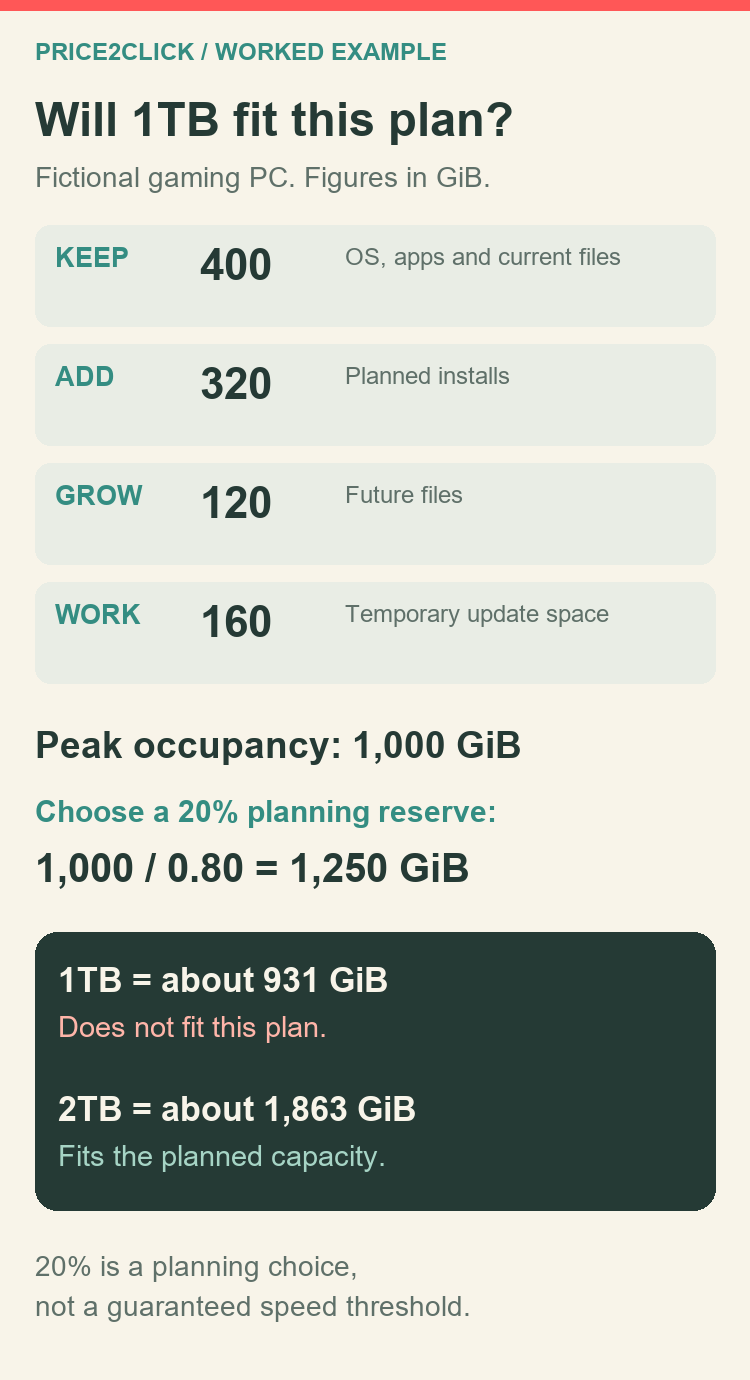
A worked planning example. The 20% reserve is a choice, not a universal SSD requirement.
Why divide by 0.8 instead of adding 20%? If 1,000GiB will be occupied and you want that to be 80% of capacity, the whole drive must be at least 1,250GiB. Multiplying by 1.2 gives 1,200GiB, which leaves only 16.7% free.
Treat the reserve as a decision you can change, not a performance guarantee. Different SSDs, filesystems and workloads behave differently. Your peak-working-space allowance may matter more than a tidy percentage.
Download the blank capacity worksheet or the three filled examples. The blank CSV contains prompts, not formulas or macros. Keep the units consistent when filling it in.
Three ways this changes the purchase
1TB: enough for the laptop that stays under control
Our everyday laptop needs 440GiB at its planned peak. With the selected reserve, its target is 550GiB. A 1TB SSD has room for that without pretending the whole terabyte is available for personal files.
Moving to 2TB buys convenience and more future flexibility. It does not automatically make documents, browser tabs or video calls twice as fast. If the budget is tight, the extra money may do more in a separate backup drive or another proven bottleneck.
The warning sign is not “you use a laptop”. It is that your plan depends on constantly removing files you actually need. If the library already sits close to the 1TB limit, buying 1TB again just postpones the problem.
2TB: room for the library you want installed
The gaming example needs 1,000GiB at peak and a 1,250GiB target with the chosen margin. A 2TB drive fits; a 1TB drive does not.
There is still a choice between replacing and expanding. If the current SSD is healthy and a compatible slot is free, a second drive lets Windows and existing files stay where they are. If there is only one slot, compare the total replacement route, including migration and what happens to the old drive.
Do not count a larger SSD as more FPS. Capacity stops you running out of space. Loading performance is a separate question, and a bigger headline read speed is not a direct prediction of loading time. Our SSD buying guide handles model and device choices after the capacity decision.
4TB: useful when the active work really needs it
The creative-project example reaches 2,400GiB at peak. Its target with the selected reserve is 3,000GiB, which fits a 4TB drive but exceeds the roughly 1,863GiB of a 2TB model.
Before buying, separate active work from finished archive. Keeping everything on one fast SSD is convenient, but not every completed project needs expensive working-drive space. A smaller active SSD plus a suitable archive and backup arrangement may be a better use of the budget.
On the other hand, repeatedly moving a live project between drives costs time and creates opportunities to lose track of files. If several large projects must stay available together, that convenience is a real reason to pay for 4TB.
More capacity also means more data to protect. A single 4TB SSD is not a backup plan. Backup capacity depends on the files you protect, versions and retention, not just matching the number printed on the working drive.
Compare the extra dollars, not only the price per TB
Use final comparable quotations: same currency, tax treatment, delivery, condition and credible seller terms. Then calculate both the unit cost and the extra bill.
Here is a dated example we can actually show. Our November 10 US Amazon capture listed the Samsung 990 PRO 2TB, MZ-V9P2T0B/AM, at $389.99. Tax and checkout were not verified. This is a worked price comparison, not a current offer or a recommendation to buy that drive.
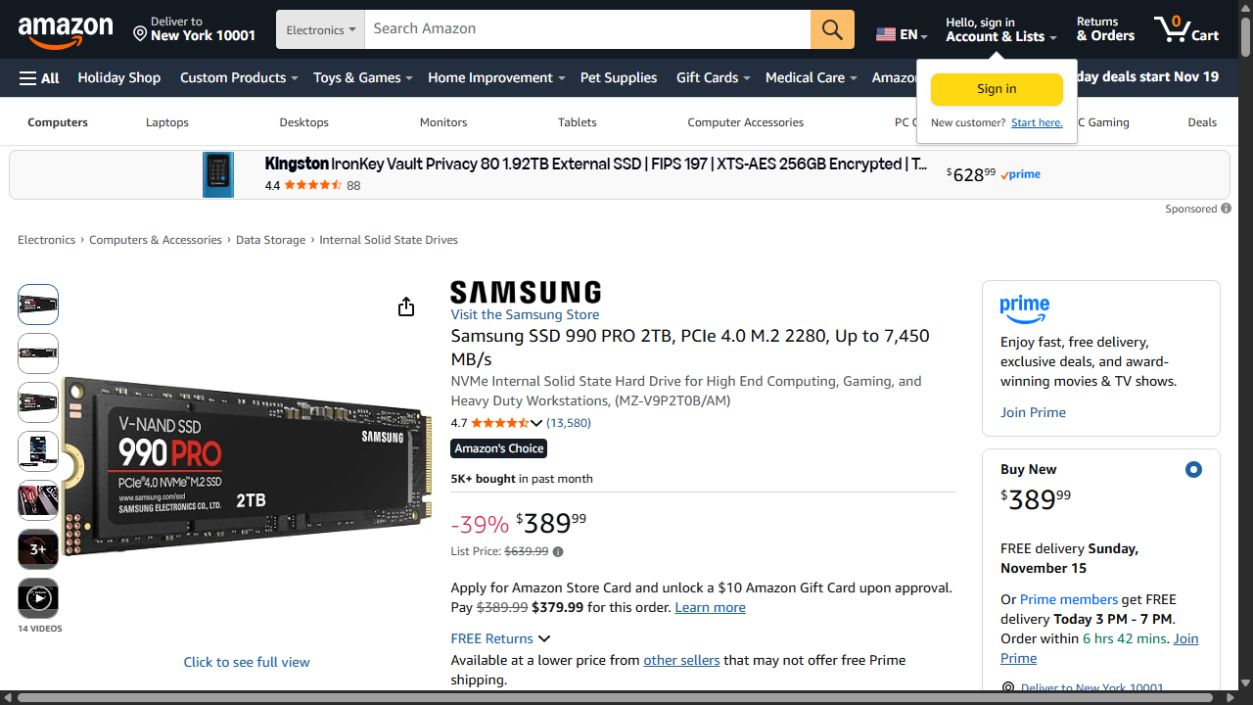
A dated item-price example, captured November 10, 2026. Use fresh, comparable totals for your own purchase.
That captured item price works out to about $195 per advertised TB. Instead of inventing two competing offers, calculate the prices they would need to beat:
| Option you are checking | Unit-price comparison against that captured 2TB offer |
|---|---|
| Another 1TB drive | $194.99 or less would mean a lower price per TB |
| The captured 2TB example | $389.99 ÷ 2 = $194.995 per TB |
| Another 4TB drive | Below $779.98 would mean a lower price per TB |
The 1TB and 4TB figures are calculated break-even thresholds, not observed offers. They compare item prices on the same basis. For an actual order, redo the calculation with comparable delivered, tax-inclusive totals and suitable products.
A 4TB offer can win the unit-price calculation and still be wrong for the everyday laptop. You would pay more upfront for capacity its plan does not need. For the creative-project example, the extra capacity solves a problem a 2TB drive cannot. For a one-slot laptop near its limit, the premium may also avoid a second replacement and migration later.
For otherwise comparable drives, 2TB has a lower price per TB than 1TB whenever its total is less than twice the 1TB total. But a cheaper ratio does not cancel a hard budget or make two different-quality drives equivalent.
Do not use an old minimum as today’s price ceiling
SSD prices have changed substantially. Samsung’s October 2026 results linked higher memory pricing to server demand and capacity constraints. TrendForce’s November 11 outlook, meanwhile, expected client SSD contract-price growth to slow to below 5% for Q4. Those are industry and OEM signals, not a timetable for consumer discounts.
The practical response is to compare recent history and available alternatives. A drive being more expensive than its old low does not, by itself, prove today’s discount is fake. It also does not make any current offer good value.
If you can wait, set alerts for several suitable models around a budget you are prepared to pay. If you need storage now, solve that need with the best appropriate current option rather than an unavailable historic bargain. For more on reference prices and seller checks, use the Black Friday shopping guide.
Capacity, TLC, QLC and HMB answer different questions
Capacity tells you what fits. The flash, controller, cache and exact drive design help explain how it behaves while you use it.
TLC and QLC store different numbers of bits per cell. A capacity-focused QLC model can make sense for a read-heavy library when its price and tested behaviour fit the job. For frequent large writes, investigate sustained-write results for the exact capacity you plan to buy, including what happens after its fast write cache is used. Do not turn either label into a universal quality verdict.
HMB, or Host Memory Buffer, lets a compatible NVMe SSD use a portion of the computer’s memory. It is not extra storage capacity or a large buffer for all your files. A DRAM-less drive using HMB is not automatically unsuitable for a normal PC, and onboard DRAM alone does not prove another drive is the better buy.
Do not assume all capacities in a family perform identically. Check the exact model’s specifications, warranty limits and independent workload tests. A result from a 4TB review is not a measured result for the 1TB version.
If you are choosing an external enclosure, check what the enclosure and host support. Buying a drive for an internal PC and putting it behind USB can change which features are available and what limits the transfer.
The last checks before ordering
- Fit: interface, M.2 length, supported capacity, single- or double-sided clearance and heatsink height. Use the device’s exact service manual.
- Slots: can you add storage, or must you replace the existing drive? On some machines, storage is soldered and is not a normal upgrade.
- Purpose: active storage, archive and backup are different jobs. A second internal drive does not protect against every failure affecting the computer.
- Terms: exact capacity and variant, seller, condition, return deadline and manufacturer warranty route. Test the drive within the return period rather than leaving it unopened for a future build.
- Migration: keep a verified separate copy before changing the original drive. Check encryption and recovery information before starting a clone or reinstall.
A PS5 is a separate compatibility case. Sony specifies supported M.2 NVMe requirements, dimensions and cooling; capacity alone does not make a PC SSD suitable. Check the current official PS5 installation requirements before buying.
Take five minutes before spending
Write down your kept files, planned additions, growth and temporary space. Pick a reserve you can explain. Compare that target with the capacity you will actually see, then compare the full cost of the fitting options.
For our three examples, that produces 1TB, 2TB and 4TB for three different reasons. That is the point: choose a capacity because it solves your storage problem, not because a sale badge or a universal recommendation picked it for you.
Further reading
- Valve’s explanation of SteamPipe and large pack-file updates explains why download size and working disk space differ.
- Samsung’s HMB explanation gives a real example of the design in a consumer SSD.
- TrendForce’s November 11 client SSD outlook is market context, not a retail-price guarantee.
The storage plans are worked examples. The dated price capture and calculated thresholds show the method; use your own inventory and fresh quotations before ordering.