

A UPS is a battery backup for the devices you do not want to lose instantly when the power flickers or goes out. For a home setup, that usually means one of four things: keep the internet alive, give a PC time to save and shut down, let a NAS stop cleanly, or protect a workstation from short brownouts.
The mistake is buying by the biggest VA number on the box. A useful UPS choice starts with a smaller question: what exactly needs to stay on, and for how long?
The safe shortcut is simple: list only the devices that need battery power, add their real or estimated watts, leave headroom, check the UPS watt rating as well as the VA rating, and then use the exact model’s runtime chart or calculator. For most homes, the goal is a clean shutdown or a short bridge through an outage, not running a whole room for hours.
Choose By Scenario First
Use this as the first pass before reading any spec sheet.
- Modem, router, ONT or one mesh node: start with a small UPS or router-focused backup sized by the network gear’s watts. Do not plug in the whole desk when only internet needs battery.
- Laptop plus router: usually protect the router/ONT first, because the laptop already has a battery. Do not waste UPS capacity on a laptop charger if the laptop battery is healthy.
- Gaming PC plus monitor: start with a line-interactive pure sine wave UPS, sized by actual wall draw plus headroom. Do not buy only by PSU rating or assume 1500VA always means enough.
- NAS or small server: start with a UPS that has USB/network shutdown support and NAS compatibility. Do not chase hours of runtime while ignoring safe shutdown.
- High-load workstation, rack, lab or medical-adjacent gear: treat this as a separate sizing and vendor-documentation check, often with a business-grade or online UPS. Do not treat a normal consumer UPS as a fix for critical infrastructure.
For most readers, a UPS is not there so you can keep gaming through a blackout. It is there to ride through a short flicker, keep the router alive during brief outages, or give you a clean shutdown window.
The Three Numbers That Matter
1. Watts
Watts are the practical load limit. VA is useful, but it is not the number your devices actually consume. A UPS can be labeled 1500VA and still have a lower watt rating, so always check both.
For example, a UPS product page may show something like 1500VA / 1000W or 625VA / 360W. The watt number is the ceiling you should compare against your devices.
2. Runtime At Your Load
Runtime changes sharply with load. A UPS may last a long time with a router and modem, but only a few minutes with a gaming PC under load. That does not mean the UPS is bad; it means batteries are finite.
Do not trust a runtime claim unless it is tied to a model and a watt load. When possible, use the manufacturer’s runtime chart or calculator and enter your estimated watts.
A runtime number is useful only when it names:
- the exact UPS model;
- the load in watts;
- the runtime chart, selector or calculator used;
- battery condition and age caveats;
- whether the devices are on battery-backed outlets, not surge-only outlets.
If those details are missing, treat the number as marketing shorthand, not a planning promise.
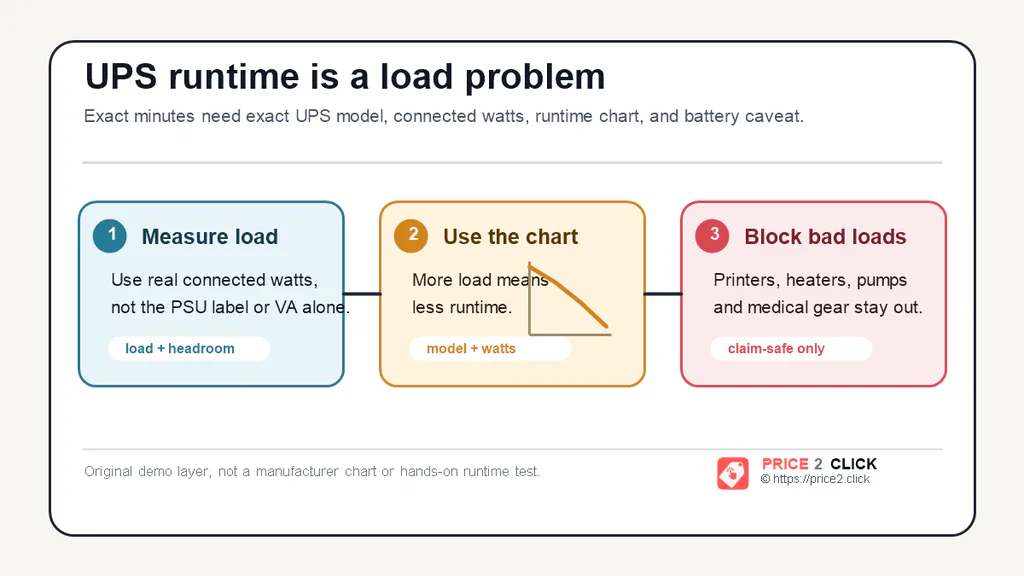
Use this as the runtime filter: measure the load, check the exact model chart, and keep unsafe loads out of the plan. This is an editorial diagram, not a manufacturer chart or Price2Click runtime test.
3. Headroom
Do not size a UPS to run at the edge. Leave headroom so the unit is not constantly overloaded and so small changes in your setup do not break the plan.
Also check both limits. VA and watts are related, but they are not the same rating, and neither one should be exceeded. Manufacturer guides commonly recommend leaving capacity above the attached load rather than running a desktop UPS at the edge.
A practical rule is:
- List only the devices that really need battery.
- Estimate or measure their watts.
- Add them together.
- Choose a UPS whose watt rating is comfortably above that number.
- Check runtime at that load, not at a marketing-friendly light load.
How To Estimate Your Load
Start with the devices, not the UPS.
Router-only setup
List the modem, router, ONT and any mesh node that must stay powered. Look at their power adapters for output ratings, then treat that as a rough ceiling. If the total is small, a compact standby UPS may be enough.
The important caveat: your own router can stay on while the ISP’s equipment outside your home is down. A UPS helps your side of the connection; it cannot guarantee the neighborhood network is still alive.
If the power comes back but the internet does not, use the support case for internet not returning after a power outage before you reset the router or buy more hardware.
Gaming PC setup
Do not use the PSU sticker as your load. An 850W power supply does not mean the PC always draws 850W from the wall. A gaming PC might draw far less at desktop and much more under a heavy game.
Best route:
- Measure wall draw with a plug-in power meter during a realistic game or render.
- Add the monitor if you need to see the shutdown.
- Add the router only if online continuity matters.
- Add headroom.
- Check runtime at that watt load.
If you cannot measure, use conservative estimates and avoid exact runtime promises. The UPS has to handle the actual load, not the label on the PC power supply.
If the PC is already plugged into a UPS but still dies when power flickers, use the support case for a gaming PC shutting off on UPS battery before blaming the power supply or the UPS.
NAS or small server setup
For a NAS, the goal is usually clean shutdown, not long battery operation. Check whether the NAS supports the UPS by USB or network signaling. In Synology’s case, the shutdown path is about entering a safe mode and unmounting storage before the battery runs too low.
That is the key buying point: a smaller UPS with reliable shutdown signaling can be more useful than a larger unit that the NAS cannot talk to.
Make A Quick UPS Load Worksheet
Before comparing models, make one short line for every device you are tempted to plug in. This keeps the UPS choice tied to your actual setup instead of the biggest number on the box.
Use this format:
- Device: router, modem, ONT, PC tower, one monitor, NAS, external drive.
- Outlet plan: battery backup, surge-only, or keep it off the UPS.
- Estimated watts: adapter label, device spec, or a wall-power meter if you can measure it.
- Reason it stays on: internet continuity, save work, clean NAS shutdown, or alert time.
- Shutdown action: stays on, manual shutdown, automatic shutdown, or unplug from the plan.
For a router-only setup, the worksheet may be just modem, router and ONT on battery. For a PC setup, keep it strict: PC tower, one monitor and maybe the router. For a NAS, write down whether the NAS can see the UPS over USB or network, because clean shutdown is the real win.
When the battery-side watts are listed, add headroom and then check the manufacturer’s runtime chart for a load close to that number. If the chart does not show runtime near your load, do not treat the VA rating as proof. If a device is a printer, heater, shredder, vacuum, refrigerator or anything with a big motor or heating element, leave it off the UPS plan unless the UPS maker explicitly says otherwise.
Which UPS Type Makes Sense
Standby UPS
A standby UPS is the budget lane. It passes wall power during normal use and switches to battery when the power fails.
This is fine for simple loads such as routers, modems, light office gear and some basic electronics when the watt rating and runtime fit.
It is not the first lane for a modern gaming PC if you have a better option, especially if the unit uses simulated sine wave output and the PC has an Active PFC power supply.
Line-interactive UPS
This is the normal serious home PC lane. A line-interactive UPS can correct some low or high voltage events without immediately draining the battery. For modern desktops and workstations, look for pure sine wave output unless the UPS maker and your power-supply documentation clearly say your exact setup is fine with simulated sine wave.
This is the category to start with for:
- gaming PC plus monitor;
- workstation;
- NAS or small server;
- home office gear that should shut down cleanly.
Online or double-conversion UPS
Online UPS units are for more demanding environments. They are usually more expensive, run hotter, can be louder, and make more sense for business-critical, lab, medical-adjacent, server or genuinely sensitive loads.
Most home readers should not start here. If you think you need this class, treat it as a separate project with cleaner load measurements and vendor documentation.
What Kind Of UPS To Compare
Use these lanes to understand what kind of UPS to compare before you get pulled into brand names and sale stickers. The right product class depends on load, runtime, shutdown support and safety limits first.
Router / modem / ONT
Look for a compact unit with enough battery-backed outlets for the modem, router and ONT. A small standby UPS can make sense here if the total load is low.
What matters:
- enough outlets for the network gear;
- runtime at the network load;
- quiet operation;
- easy placement and ventilation;
- no overloaded power strip chain.
Do not plug in the whole office just because there are extra outlets.
Gaming PC / workstation
Start with a line-interactive pure sine wave unit with a watt rating above your measured load. A 1500VA / 1000W class product is a common lane for stronger desktops, but it is not automatically right for every build.
What matters:
- watt rating, not only VA;
- pure sine wave output;
- runtime at your actual load;
- battery-backed outlet count;
- USB/software shutdown support;
- replacement battery availability;
- return window and warranty path.
If your PC pulls near the UPS watt limit under load, size up or reduce what stays on battery. The UPS should not be the weak point of the shutdown plan.
NAS / storage
Prioritize compatibility and safe shutdown. A NAS does not need to keep serving files for hours during a blackout; it needs enough time and signaling to stop cleanly.
What matters:
- USB or network shutdown support;
- NAS compatibility documentation;
- enough runtime to shut down safely;
- battery replacement path;
- alerts you will actually notice.
High-load gear
Laser printers, heaters, vacuums, shredders, copiers, microwaves, refrigerators and similar high-draw devices do not belong on a normal consumer UPS. They can overload the unit, damage it, or void warranty coverage.
If a device heats, spins a large motor, uses a compressor, or has big startup current, assume it needs a different plan unless the UPS manufacturer explicitly says otherwise.
What Not To Plug Into A Normal UPS
Keep this list strict:
- laser printer;
- space heater;
- vacuum;
- shredder;
- copier;
- microwave;
- refrigerator or freezer;
- curling iron or other heating appliance;
- power strip full of unknown loads;
- anything that already trips breakers, smells hot, sparks, or makes outlets warm.
A UPS does not fix bad wiring. If outlets are hot, breakers trip repeatedly, lights dim heavily, or you smell burning, stop treating it as a product-choice problem and involve a qualified electrician or building owner.
Also avoid daisy-chaining a UPS through extension cords, surge strips or another UPS unless the manufacturer documentation for that exact setup allows it. The default safe path is a grounded wall outlet, clear ventilation and only the loads the UPS is rated to support.
Setup: Use The Right Outlets
Many UPS units have two kinds of outlets:
- battery backup plus surge protection;
- surge protection only.
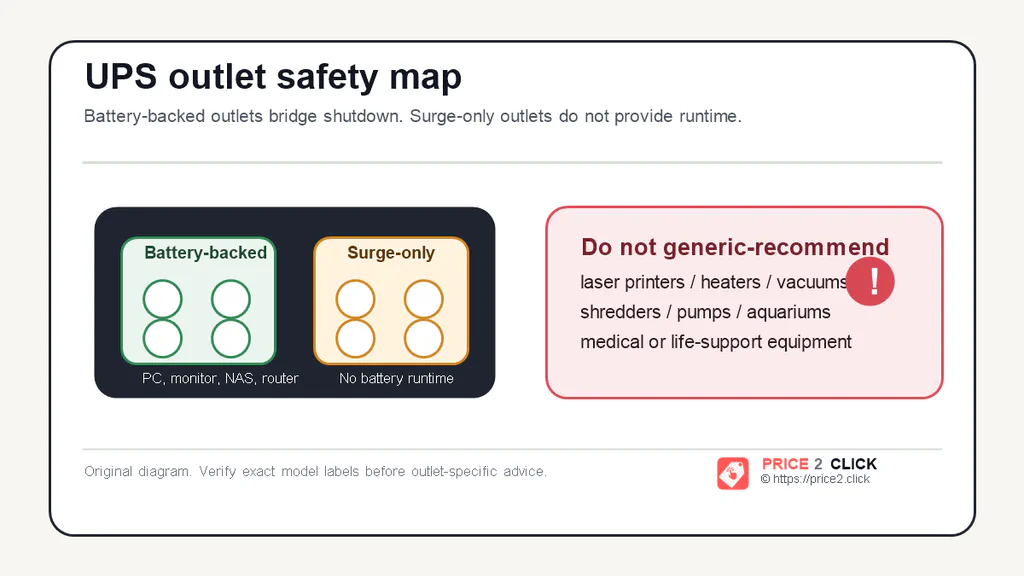
Battery-backed outlets are for the devices that need a shutdown bridge. Surge-only outlets do not provide runtime, and high-drain or safety-critical loads need a different plan.
Put only critical devices on the battery side. For a PC setup, that might be the PC tower, one monitor and the router if you need internet while saving work. Speakers, chargers, desk lamps and extra screens can usually stay off the battery side.
After setup:
- Charge the UPS fully according to the manual.
- Install the shutdown software only if you need automatic shutdown.
- Check that the PC or NAS sees the UPS.
- Run a safe, controlled test without risking active work.
- Listen for overload alarms and check the load percentage if the UPS has a display or app.
Do not yank power during a critical file transfer just to “test it.” The point is to reduce risk, not create a new one.
Battery Life And Replacement
UPS batteries are consumables. Runtime dropping over time is normal. Swollen, leaking, physically damaged or overheated batteries are not normal.
For many consumer and small-office UPS units with sealed lead-acid batteries, a three-to-five-year battery replacement window is a realistic planning range, not a guarantee. Heat, frequent outages, deep discharge, storage and heavy load can shorten it.
Safe rule:
- use supported replacement battery packs;
- follow the exact manual;
- respect UL/listing markings and manufacturer instructions;
- recycle batteries properly;
- do not modify packs or improvise wiring.
If the unit is old, the replacement battery is expensive, or the UPS has been overloaded or physically damaged, replacing the whole UPS may be the safer buy.
Connected-equipment guarantees and battery coverage are not universal promises. They depend on the exact product, region, seller, registration and terms, so do not treat a warranty badge as proof that every damage or runtime problem will be covered.
Buying Checklist
Before paying, check:
- watt rating and VA rating;
- runtime chart or calculator at your load;
- waveform: pure sine wave for modern PCs where possible;
- topology: standby, line-interactive or online;
- battery-backed outlet count and spacing;
- USB/network shutdown support;
- software compatibility with your OS or NAS;
- replacement battery availability and cost;
- fan/noise behavior;
- warranty and return window;
- whether the seller is official or trustworthy.
If a retailer page hides the watt rating, battery details, return window or seller identity, treat that as part of the product. The UPS is supposed to reduce uncertainty, not add more.
Manufacturer Checks Worth Opening
Before buying, open the manufacturer page or manual for the exact model. The useful checks are:
- a sizing tool such as the APC UPS selector or an Eaton-style UPS sizing guide;
- the runtime chart or calculator for your estimated watt load;
- the outlet diagram, so you know which sockets are battery-backed and which are surge-only;
- the safety notes for loads that should stay off battery outlets;
- the battery replacement guidance for that model or product family.
If the manual and the seller page disagree, trust the manufacturer documentation for runtime, outlet layout, safety and replacement-battery compatibility.
Practical Bottom Line
If you only care about internet during flickers, protect the modem/router/ONT first. If you have a gaming PC or workstation, measure real wall draw and start with a line-interactive pure sine wave unit. If you have a NAS, prioritize automatic shutdown support. If the load is high, critical, or tied to unsafe wiring symptoms, stop shopping casually and get the electrical situation understood first.
A good UPS is boring when it works: the power flickers, your router stays online or your PC shuts down cleanly, and nothing dramatic happens. That is the whole point.