
A monitor is the part of the PC you stare at all day. It can make an expensive graphics card feel alive, or make a good PC feel strangely ordinary.
So here is the Price2Click answer before the panel lecture: for most gaming-first desks, start with the 27-inch 1440p OLED lane; for a premium PC-and-console setup, look at 32-inch 4K OLED; for bright rooms or long desktop hours, compare Mini LED and strong IPS first; and for a simple budget upgrade, buy 27-inch 1440p IPS only when the price, stock, and seller are clearly good.
If you came from an OLED-vs-LCD question, use this shortcut: choose OLED for dark-room image quality and motion; choose LCD/IPS/Mini LED for static desktop hours, bright rooms, lower burn-in anxiety, or tighter budgets. The right answer is the panel type that fits your room, games, work habits, and return path, not the one with the loudest spec label.
The details matter, but the order matters more. Pick the monitor lane first, then compare exact models, seller terms, warranty, return window, desk fit, and the ports your GPU actually has.
Editor’s Picks: Monitors To Compare First
These are the models our editors would compare first because they represent the lanes most PC buyers are actually choosing between. Prices and stock move quickly, so treat each button as a current spec or availability check, then make the final call from the exact seller, warranty, and return terms.
Freshness note: Alienware AW2725D still represents the higher-refresh 27-inch QD-OLED lane, but newer lower-cost Alienware 27-inch QD-OLED options now make the value comparison more sensitive. Do not treat one OLED model as the automatic bargain until the current price gap, warranty language, and return path are checked.
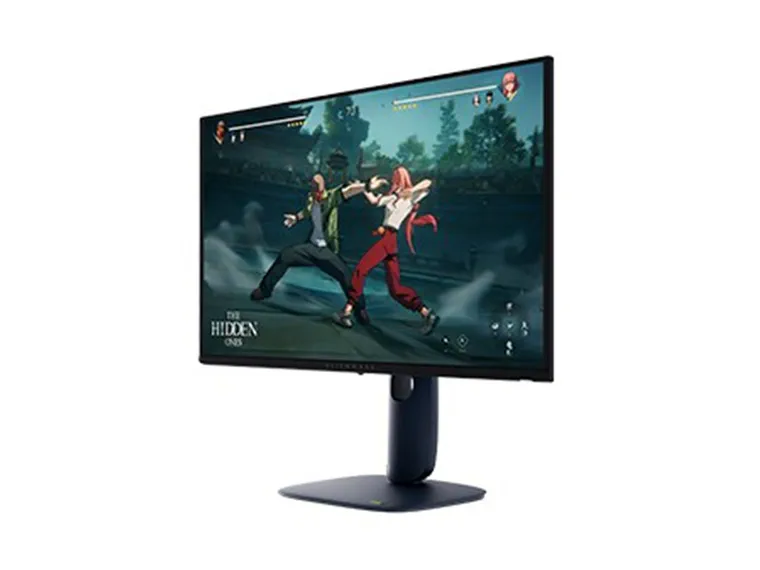
Alienware AW2725D
A 27-inch 1440p QD-OLED is the cleanest premium upgrade for many gaming PCs: sharp enough on a desk, easier to drive than 4K, and visibly better than a basic LCD in dark scenes and motion. Compare the current AW2725D price against newer lower-cost 27-inch QD-OLED lanes before calling it the value pick.
- 27-inch QHD
- QD-OLED
- 280Hz
- Gaming-first
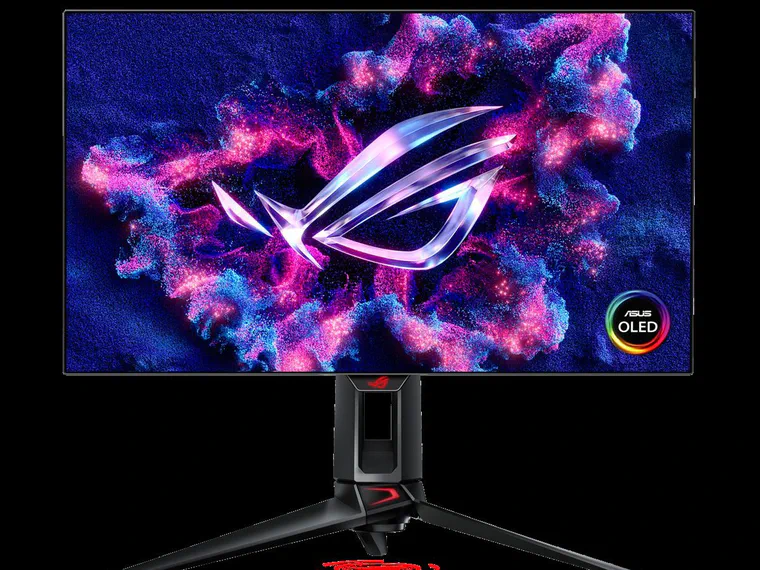
ASUS ROG Swift OLED PG27AQDP
This is the monitor lane for people who can actually feed very high frame rates and care about motion more than value. It is exciting, expensive, and overkill for a normal 144Hz/165Hz player.
- 26.5-inch QHD
- WOLED
- 480Hz
- 0.03ms GtG class
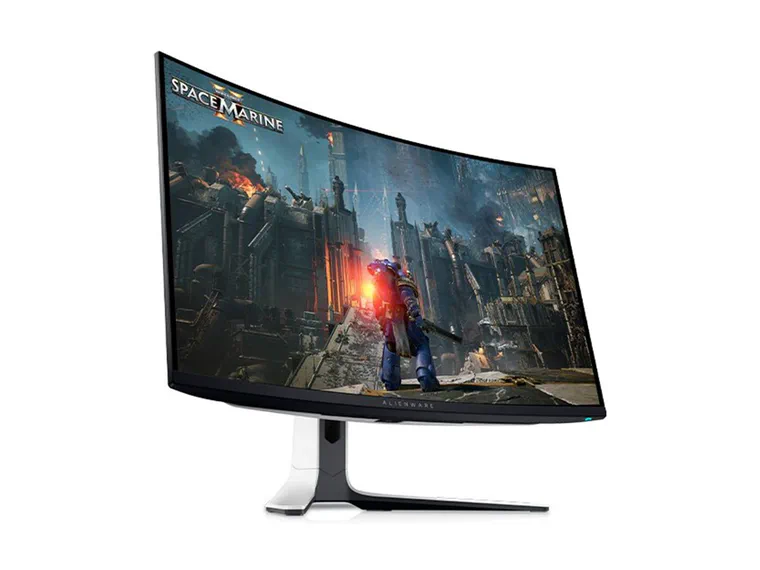
Alienware AW3225QF
If the desk, GPU, and budget can handle it, 32-inch 4K OLED can make the whole PC feel new. The AW3225QF is the curved Alienware route with strong official and review backing.
- 32-inch 4K
- QD-OLED
- 240Hz
- Curved
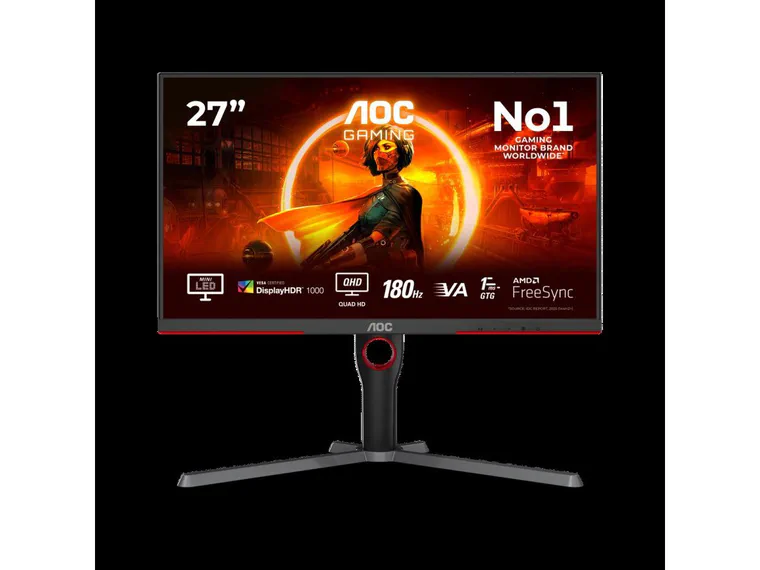
AOC Q27G3XMN
This is the interesting non-OLED path: QHD, high refresh, Mini LED, and real HDR ambition at a price that can make sense when it stays near budget-monitor territory.
- 27-inch QHD
- Mini LED
- 180Hz
- VA panel
The budget IPS lane is worth keeping open, but it should not be tied to a stale out-of-stock model. If a Dell G2724D, MSI MAG 274QRF QD E2, or similar 27-inch 1440p 144-180Hz IPS monitor returns at a sane price from a reputable seller, the logic is simple: it is still the least dramatic and most practical upgrade from old 1080p.
Quick Shopping Map
Use this as the shopping map before you open store tabs.
| Your setup | Start with | Why it works | Watch before buying |
|---|---|---|---|
| Mostly 1440p PC gaming | Alienware AW2725D class, or a good 1440p IPS if OLED feels risky | Sharp enough for a desk, easier to drive than 4K, and excellent for high-refresh gaming. | OLED text/burn-in tradeoffs, or IPS weak blacks if you play in a dark room. |
| High-end GPU, console, movies, single-player games | Alienware AW3225QF / MSI 321URX class | The premium "wow" lane: contrast, motion, HDR games, and console-friendly size. | Desk depth, Windows scaling, GPU load, OLED care, and price. |
| Work all day, game at night, bright room | Mini LED or good 4K IPS | Crisp text, strong brightness, and less anxiety with static desktop hours. | Blooming, local dimming behavior, firmware quirks, and fake HDR marketing. |
| Competitive FPS | 24-27 inch high-refresh IPS or OLED | Motion clarity, low latency, and a consistent refresh path matter more than cinematic HDR. | Do not overpay for 4K if you lower settings for frames anyway. |
| Budget upgrade from old 1080p | 27-inch 1440p 144-180Hz IPS, or AOC Q27G3XMN if HDR is the point | Usually the biggest visible upgrade per dollar for normal PC gaming. | Weak HDR labels, bad stands, and VA dark smearing on cheaper models. |
| Immersion, racing, flight sims, wide productivity | 34-39 inch ultrawide OLED, Mini LED, or IPS | The width can feel more transformative than another refresh-rate jump. | Game support, desk width, GPU load, and text clarity on OLED ultrawides. |
If you are not sure where you land, ask one plain question: what would annoy you more six months from now: washed-out dark scenes, OLED care, blurry text, low frame rate, or a screen that simply feels too small? That answer usually picks the lane.
For GPU matching, use our 1440p graphics card guide before you stretch to a 4K monitor. If you are still planning the whole tower, the custom PC build guide is the better starting point.
OLED Vs LCD, IPS, VA And Mini LED
OLED is the image-quality lane: black levels, motion clarity, and HDR scenes can look dramatically better when the room and use case fit. LCD is the lower-anxiety lane: IPS, VA, and Mini LED avoid OLED care habits, usually handle static desktop hours more calmly, and can be easier to buy on a budget.
IPS is the safest everyday LCD choice for text, broad retail options, and predictable gaming. VA can be the contrast bargain, but cheap VA panels may smear dark motion. Mini LED is still LCD, but with zone dimming for brighter HDR; it can be excellent in bright rooms and mixed work/gaming setups, yet it still needs model-specific reviews because blooming and firmware matter.
OLED: The Best Picture, Not Always The Safest Default
OLED earns the hype when the room is controlled and the content is moving. Black pixels turn off, motion looks clean, and dark games stop looking like grey soup. A good OLED monitor can make an older LCD feel like a window with dust on it.
The catch is not that OLED is “bad.” The catch is that a PC monitor has a rough life. It shows taskbars, browser tabs, health bars, spreadsheets, static UI, and bright white pages for hours. Modern OLED monitors have pixel refresh, screen shift, warranty terms, and better panel generations, but they are still not the same low-anxiety choice as LCD for all-day static work.
Choose OLED when:
- the PC is mostly for games, movies, and console use;
- you care deeply about dark-scene contrast and motion clarity;
- you accept OLED care habits instead of pretending burn-in is impossible;
- the model has a clear burn-in warranty or strong retailer return path;
- you checked text clarity in reviews, not just peak brightness.
Do not buy OLED just because the word sounds premium. If the screen will show code, spreadsheets, browser tabs, and a static dashboard all day, a great IPS or Mini LED monitor may be the calmer long-term buy.
Mini LED: Bright, Practical, And Still Model-Dependent
Mini LED is LCD with many small backlight zones. That means it can get much brighter than normal LCD and can dim darker parts of the picture instead of lighting the whole panel evenly.
That sounds like “OLED without burn-in,” but that is too simple. The backlight is still divided into zones, not controlled pixel by pixel. A bright cursor, subtitle, starfield, or game HUD can bloom into nearby dark areas. Some monitors handle this gracefully. Others look amazing in one demo and strange in desktop use.
Choose Mini LED when:
- you want strong HDR in a bright room;
- you use the monitor for work and games;
- static desktop hours make OLED feel risky;
- you want sharp LCD text;
- you are willing to read real local-dimming reviews before buying.
The number of zones matters, but it is not the whole story. Firmware, dimming algorithms, panel type, coating, black-crush behavior, and user controls can matter just as much. A monitor with fewer zones but better tuning can be nicer to live with than a spec-sheet monster that blooms around everything.
IPS And VA: Boring Can Be Smart
IPS is still the safe default for many people. It usually gives clear text, wide viewing angles, predictable color, and plenty of high-refresh options. Its weakness is black level. In a dark room, black scenes can look grey, and IPS glow can show up around edges.
VA is the contrast bargain. It can look deeper than IPS in dark scenes, but cheaper VA panels can smear dark motion. That is why a VA monitor can be excellent for slower games and movies but annoying in fast shooters if the panel is not tuned well.
Choose IPS when you want:
- a dependable 27-inch 1440p gaming monitor;
- clear text and normal desktop use;
- broad retail choice and sane prices;
- fewer weird OLED/Mini LED tradeoffs.
Choose VA when you want:
- better contrast on a tighter budget;
- movies and slower games more than competitive shooters;
- a specific model with strong motion reviews, not just “VA” on the spec sheet.
The least glamorous answer is often the best value: a good 27-inch 1440p IPS monitor with 144-180Hz refresh. If you are upgrading from an older 1080p 60Hz display, that jump can feel bigger than chasing premium HDR.
For old “2K 144Hz” or “144Hz monitor under budget” searches, translate the request into a current lane: 27-inch 1440p, roughly 144-180Hz, clear seller returns, and no fixed price promise. Under-$250 deals move too fast to hard-code; the safer advice is to check current stock, stand quality, ports, and independent motion notes before treating a discount as a real value.
Match The Monitor To The PC
Resolution is not just a monitor spec. It is a workload for the graphics card.
For 1440p gaming, a strong midrange or upper-midrange GPU can make sense. You get sharp image quality without forcing every new game into 4K compromises. That is why 27-inch 1440p remains the sweet spot for many PC gamers.
For 4K gaming, the GPU burden rises hard. A 32-inch 4K OLED can look spectacular, but it should be paired with a GPU and expectations that make sense. If you play new AAA games with ray tracing, do not assume the monitor alone will make the experience smooth.
For ultrawide, think of it as “more pixels than 1440p, usually less than full 4K” depending on the model. It is fantastic for immersion, but game support and desk fit matter. Competitive shooters may crop, stretch, or simply feel better on a conventional 16:9 screen.
If you do not know what your PC can drive, check the GPU, CPU, RAM, and ports first with our Windows PC specs guide. If the main game is Counter-Strike 2, start with the CS2 FPS guide before buying a monitor that your setup cannot feed.
When 4K 240Hz Makes Sense
A 4K 240Hz monitor is a premium lane, not the default upgrade. It makes sense when you have a high-end GPU, a desk deep enough for a 32-inch-class screen, games or consoles that benefit from 4K, and a budget that still leaves room for a good return path.
Avoid it if you mostly lower settings for competitive FPS, if your GPU already struggles at 1440p, or if the monitor will sit too close for comfortable scaling. A strong 1440p OLED or a good 1440p LCD can be the smarter buy when frame rate, text comfort, or price matters more than maximum resolution.
What To Check Before You Pay
The model name is part of the product. One letter can mean a different panel, stand, region, warranty, or refresh rate.
Before checkout, check:
- Exact model code. Do not trust a store listing that says only “27-inch OLED gaming monitor.”
- Resolution and refresh together. 4K 240Hz and 1440p 360Hz are different lanes, not minor variants.
- Your GPU ports. Match HDMI 2.1, DisplayPort, USB-C, DSC, and adapter needs before the box arrives.
- Stand and desk depth. A 32-inch 4K screen can feel huge if it sits too close.
- Text behavior. OLED subpixel layouts and matte coatings can bother some people more than reviews suggest.
- HDR reality. DisplayHDR labels help, but independent measurements and local-dimming behavior matter more.
- Return window. Monitors are personal. Glow, coating, text, dead pixels, coil whine, and firmware quirks are easier to judge at home.
- Warranty language. Especially for OLED, check whether burn-in is clearly covered and for how long.
- Dead-pixel policy. A bad policy can turn a “deal” into a headache.
- Power and USB-C. If this is also a laptop dock, wattage and hub behavior are not optional details.
If two monitors look close, buy the one with the better return path. A monitor is too subjective to gamble on a painful seller.
First Setup After It Arrives
Do this before you decide whether to keep it.
- Set the correct refresh rate in Windows: Settings > System > Display > Advanced display.
- Check the GPU control panel for color depth, VRR, and resolution.
- Use the cable that came with the monitor first. Cheap adapters create strange problems.
- Test text at your normal scaling, not from across the room.
- Run a dead-pixel and uniformity check on plain black, white, grey, red, green, and blue screens.
- Try the local dimming modes on Mini LED instead of assuming the default is best.
- Use HDR only where it helps. Windows desktop HDR can look worse on some setups.
- For OLED, set the monitor’s care features before the return window ends, not after burn-in anxiety starts.
The goal is not to run a lab. The goal is to answer a practical question: does this monitor make your real PC better every day?
The Short Verdict
If you mostly game at 1440p and want the premium jump, start with Alienware AW2725D-class OLED. If you want competitive motion above everything, ASUS PG27AQDP is the sharper but more expensive lane.
If you want the big premium desk experience, Alienware AW3225QF-class 32-inch 4K OLED is the exciting lane, but only if your GPU, desk, and budget match it.
If you work long hours, keep static windows open, or sit in a bright room, do not feel like OLED is mandatory. AOC Q27G3XMN is the budget-HDR candidate to compare when it is priced like a value monitor, while better 4K Mini LED and IPS monitors remain the calmer all-day displays.
If you are upgrading from old 1080p, do not skip the simple answer: 27-inch 1440p high-refresh LCD is still the value move for a lot of people. Just do not force a specific budget pick when the live product page is out of stock.
Source Notes That Actually Matter
Monitor advice changes quickly because panels, firmware, prices, and warranties move. The links below are here because they change the recommendation, not because the article needs a source dump.
- Official product pages for Alienware AW2725D, ASUS PG27AQDP, Alienware AW3225QF, and AOC Q27G3XMN were used for exact specs and media.
- Dell’s newer Alienware AW2726DM matters as a lower-cost 27-inch QD-OLED comparison point. Use it to check the lane, not as a live-price claim.
- TechSpot / Monitors Unboxed is useful for the current OLED/Mini LED/LCD lane context.
- RTINGS comparison of Alienware AW3225QF and MSI MPG 321URX matters because it separates the curved Alienware 4K OLED route from the flatter productivity/KVM MSI route.