
Reader case
My phone, laptop, watch, or earbuds suddenly lose charge much faster than usual. I want to find the cause before I turn off useful features or pay for a battery I do not need.
Price2Click Support
Start by checking where the power went. A hot phone, an app that is busy in the background, poor signal, a laptop that stays awake in a bag, and a worn battery can all look like “bad battery life” — but they need different fixes.
Stop and get help first if the battery is swollen, the screen or back cover is lifting, there is smoke or an unusual smell, or the device becomes dangerously hot. Do not press a swollen case flat or keep charging it.
The 60-second symptom check
| What you notice | Start here |
|---|---|
| Battery drains mostly with the screen on | Brightness, refresh rate, camera, games, navigation, or hotspot use |
| Battery drains while untouched | Background activity, sync, location, weak signal, or laptop sleep |
| Device is hot while idle | Find active work before blaming capacity |
| It became worse after one update | Give it a few normal charging cycles, then compare with your usual baseline |
| Percentage falls suddenly or it shuts down | Check reported battery health and power behaviour; service may be needed |
| It is bad only in one place | Test the network or environment, not just the battery |
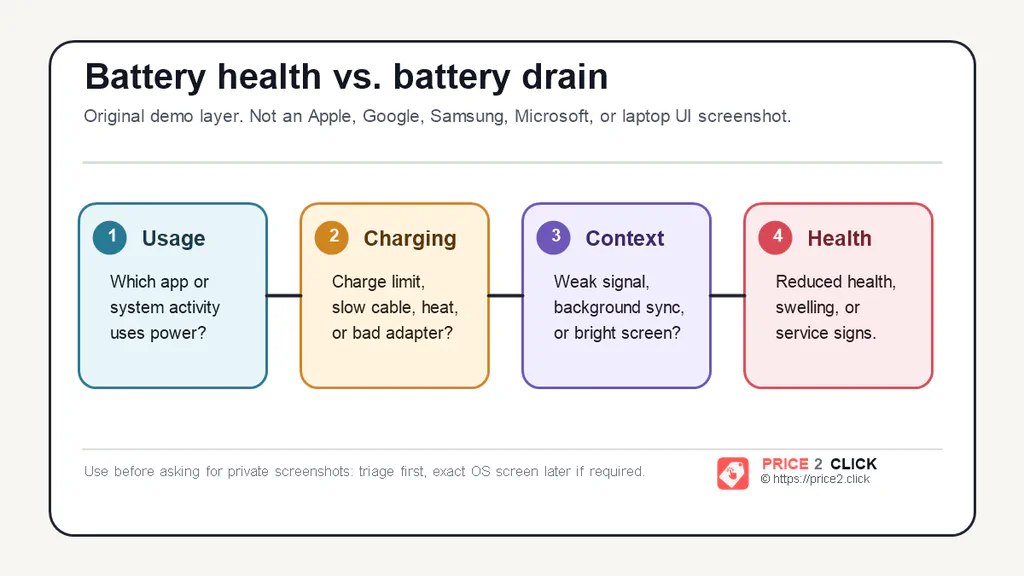
Check usage first, then charging behaviour and context such as heat or signal. Battery health and service signs are a separate check, not something an age estimate can replace.
Measure the drain before judging it
There is no universal “normal overnight drain” percentage for every phone, network, battery age, and connected accessory. What matters first is whether your device has changed from its own normal pattern.
Run this simple two-night test when the phone is not charging:
- Note the start battery percentage, end percentage, test length, screen-on time, Wi-Fi, and whether Airplane Mode was on.
- Calculate: percentage points lost ÷ test hours. For example,
11 ÷ 8 = 1.38 percentage points per hour. - Repeat the same test the next night with Airplane Mode on and Wi-Fi on if you still need it.
- Compare the two results, not a made-up global target.
If drain falls sharply in Airplane Mode, cellular coverage or network activity is a strong clue. If it stays high and the phone is warm or one app dominates Battery usage, inspect that workload. This is evidence to investigate, not a remote diagnosis.
Is it a worn battery or high power consumption?
| Observation | More consistent with battery wear | More consistent with workload, app, or network |
|---|---|---|
| Poor runtime | Possible | Possible |
| Device gets hot while idle | Sometimes | Strong clue |
| One app dominates battery usage | Unlikely | Strong clue |
| Reported capacity is much lower than new | Strong clue | No |
| Sudden shutdown under load | Possible | Sometimes |
| Airplane Mode greatly improves standby | Unlikely | Network clue |
| Swelling or a lifted screen | Stop using it and arrange service | Not a software problem |
Age alone cannot tell you battery health. Apple notes that real capacity depends on how a device has been used and charged; Pixel similarly says temperature, charging, discharging, and use affect capacity. Treat device age as context, then check the health information your device actually reports.
Check battery usage before changing settings
Most devices already tell you where the power went.
iPhone: open Settings > Battery, then examine the app list and activity for the last 24 hours and last 10 days. A top app is only suspicious if you barely used it.
Android, Pixel, or Samsung: open Settings > Battery > Battery usage. Look for an app, mobile network, screen, camera, or hotspot that is clearly out of line with how you used it.
Windows: open Settings > System > Power & battery, then run:
powercfg /batteryreport
Windows saves an HTML report and shows you its location. Compare Full Charge Capacity with Design Capacity:
Estimated retained capacity = Full Charge Capacity ÷ Design Capacity × 100
For example, 42,000 mWh ÷ 50,000 mWh × 100 = 84%. This is a useful estimate from the report, not a laboratory measurement of cell health. A low result explains reduced runtime, but it does not explain a laptop that stays warm and active while closed.
Fix the pattern you actually found
One app, sync, or location service is high
Update the app, restart the device, and check its background activity, location access, and notifications. If it still ranks high when you barely use it, remove it for a day if practical and compare. The goal is not to disable everything; it is to stop a service that keeps waking the device.
The screen is doing the work
Use auto/adaptive brightness, shorten screen timeout, and turn off always-on display if runtime matters more than instant glanceability. Reduce refresh rate only if you need the extra endurance. Dark mode can help on OLED phones, but it is not a cure for a background process or bad signal.
Signal, travel, or hotspot lines up with the drain
Weak or unstable coverage can make a phone work harder to stay connected. Try Wi-Fi Calling where available, let the phone choose 5G automatically instead of forcing it, turn off hotspot when finished, and use Airplane Mode in a dead zone if you do not need calls. If battery life is fine at home and poor in one location, the battery is probably not the first thing to replace.
It began after an OS update
After a major update, indexing, app updates, photo processing, and account sync can temporarily add work. Give the device a few days and 1–3 normal charging cycles, then compare with the earlier baseline. If the drain remains clearly worse, check battery usage as normal instead of assuming that “indexing” explains everything.
Laptop checks: Windows and MacBook
Windows laptop drains while closed
Closed-lid drain is a sleep problem until proved otherwise. First check power settings, disconnect unnecessary USB devices, update firmware and drivers from the laptop maker, and inspect the battery report. On Modern Standby systems, generate a report from an elevated Command Prompt:
powercfg /sleepstudy
Look for long red or yellow sessions and the components named as active. Microsoft marks a sustained drain below 0.33%/hour green, 0.33–1%/hour yellow, and 1%/hour or more red; for Sleep sessions, DRIPS below 80% is also red. Those thresholds are for SleepStudy sessions, not a universal “overnight laptop” rule. If the machine stays warm in a bag, use Hibernate for lid-close while you investigate.
MacBook battery drains fast
Open System Settings > Battery and check Battery Health, Low Power Mode, and any apps or processes using unusually high energy. Separate active-use drain from sleep drain, unplug external devices for one comparison, and compare current runtime with the battery-health status. Service Recommended means Apple has detected reduced charge-holding capacity or abnormal battery behaviour; it is a service signal, not a setting to work around.
Watches and earbuds
For a watch, check always-on display, cellular use, GPS workouts, continuous sensors, third-party faces, and notification volume. For earbuds, confirm that both buds seat correctly, check ANC/transparency mode and firmware, then reset and re-pair if one side keeps draining faster.
Do not give every accessory the same cleaning treatment. Clean charging contacts according to its manufacturer’s instructions. Start with a clean, dry lint-free cloth or dry cotton swab; do not apply liquid to charging contacts unless the maker explicitly permits it.
When service or replacement makes sense
Settings cannot repair a physically worn or unsafe battery. Consider professional service if you see a battery-health/service warning, capacity that is clearly reduced, repeatable unexpected shutdowns, poor runtime after a clean usage check, or a large Full Charge Capacity versus Design Capacity gap.
For iPhone, check Settings > Battery > Battery Health (or Battery Health & Charging on supported older models). Pixel 8a and later can show Battery health; Reduced means estimated capacity is below 80%, and Google recommends considering replacement. Other phones may not expose a comparable number, so do not invent one from their age.
What to do next
- Record the symptom and check Battery usage.
- Run the two-night standby comparison if the drain happens while untouched.
- Fix one likely cause, then compare again under similar conditions.
- Use health/service information and repeatable power behaviour to decide whether service is sensible.
For charging habits that affect long-term battery health, see Phone Charging Myths: What Actually Helps Battery Health.